

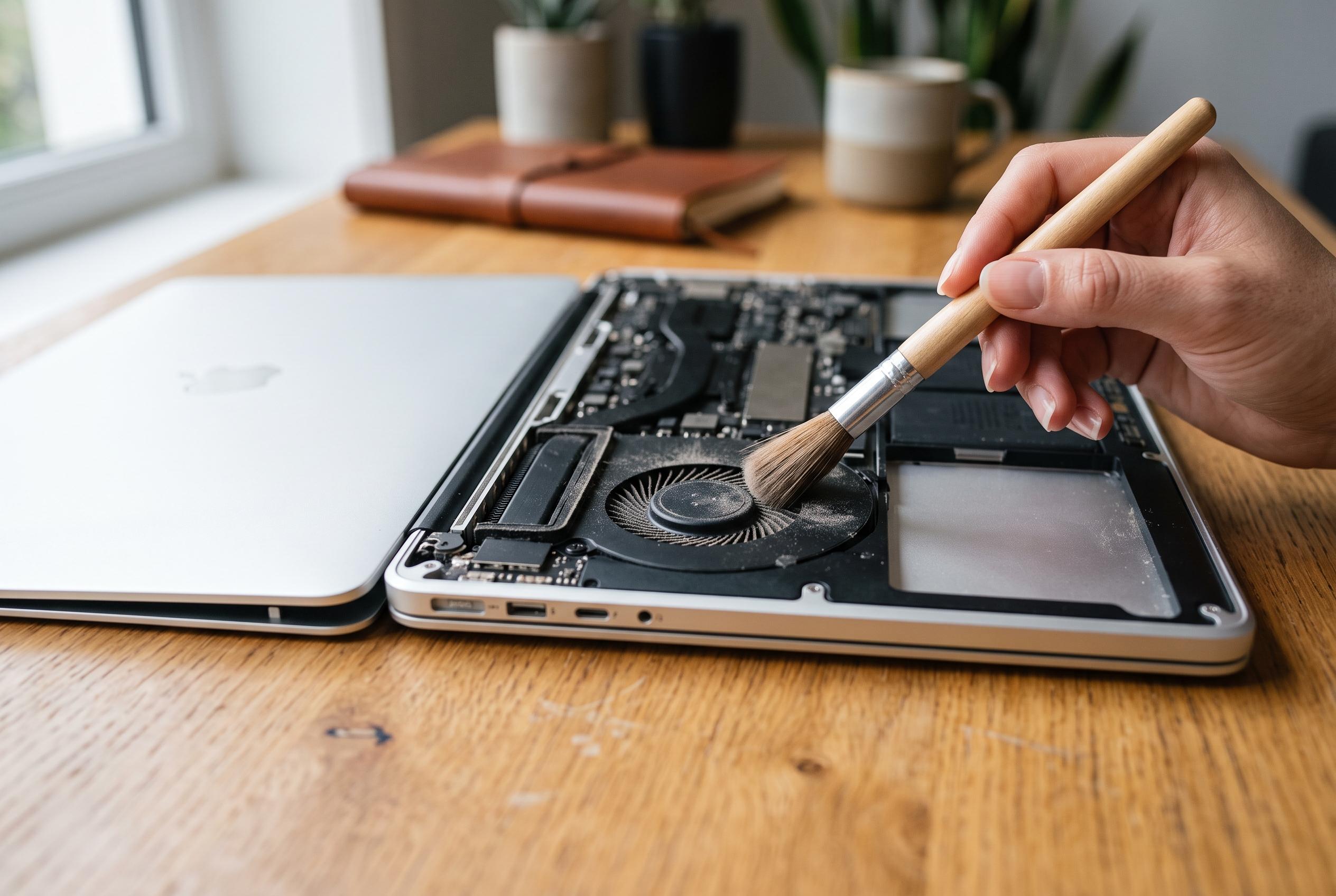

A loud laptop fan often signals dust accumulation rather than imminent failure. Expert advice highlights simple external cleaning methods, proper internal maintenance, and preventive measures to keep your device cool, quiet, and functioning optimally, reserving professional repair for persistent issues.
A noisy laptop fan is usually not a sign of imminent failure. More often, it points to dust build-up inside the cooling path, where blocked airflow forces the system to run hotter and harder than it should. Dell says regular cleaning helps prevent overheating and preserves performance, while ASUS notes that dust can obstruct vents and shorten hardware life. In practical terms, the fix is often simple, but it should be approached carefully.
The safest first step is external cleaning. Dell recommends shutting the machine down completely, disconnecting power and using short bursts of compressed air through the vents rather than trying to force debris out with a vacuum. Tech Advisor gives similar advice and warns that household vacuums can create static electricity, which is a risk around laptop electronics. This method can clear loose dust quickly, although it will not reach compacted debris deep in the cooling assembly.
For a more thorough result, the case has to come off and the fan and heatsink need direct access. Dave’s Computers and Tech Advisor both describe this as the more effective route, but one that requires the right tools, a model-specific guide and anti-static care. The key detail is the heatsink fins: dust tends to mat there into a dense layer that restricts airflow far more than the visible fan blades do. Holding the fan still while cleaning is also important, because allowing it to spin freely can damage the bearing or the circuitry connected to it.
Prevention matters as much as cleaning. ASUS advises regular maintenance to keep cooling vents clear, and Tom’s Guide notes that loud fan noise is often worsened by heat from demanding software as well as dust. Keeping a laptop on a hard surface, using a stand to improve airflow, and avoiding soft furnishings that block intake vents will all reduce the rate at which dust builds up. In some cases, lowering the workload on the processor through power settings can also reduce heat and noise.
There is a point at which a technician is the sensible choice. If the machine is still under warranty, if the design requires significant dismantling, or if the fan continues to grind after cleaning, professional repair is safer than forcing a fix. Persistent overheating can also indicate a separate issue, such as worn thermal paste, which is more involved than a routine dust removal. The general rule is straightforward: start with gentle external cleaning, move to internal cleaning only if you are confident, and treat unusual mechanical noise as a sign that the fan may need replacing rather than merely dusting.
Disclaimer: This content is intended for informational purposes only. Readers are advised to exercise their own judgement, conduct due diligence, or consult a qualified expert before acting on any information provided.



