


Discover the latest strategies for monitoring and reducing mobile data consumption on Android phones, including updates to app restrictions, network settings, and media controls, to make your allowance last longer without sacrificing essential features.
For Android users trying to stretch a limited monthly allowance, the best approach is not to switch off features blindly but to identify what is actually consuming data and then cut back in the places that matter most. Google’s own support guidance for Pixel phones recommends checking app-specific usage, setting warnings and limits and using Data Saver to reduce background traffic, while third-party guides from Guiding Tech and Android Central echo the same basic sequence: measure first, then restrict the biggest offenders.
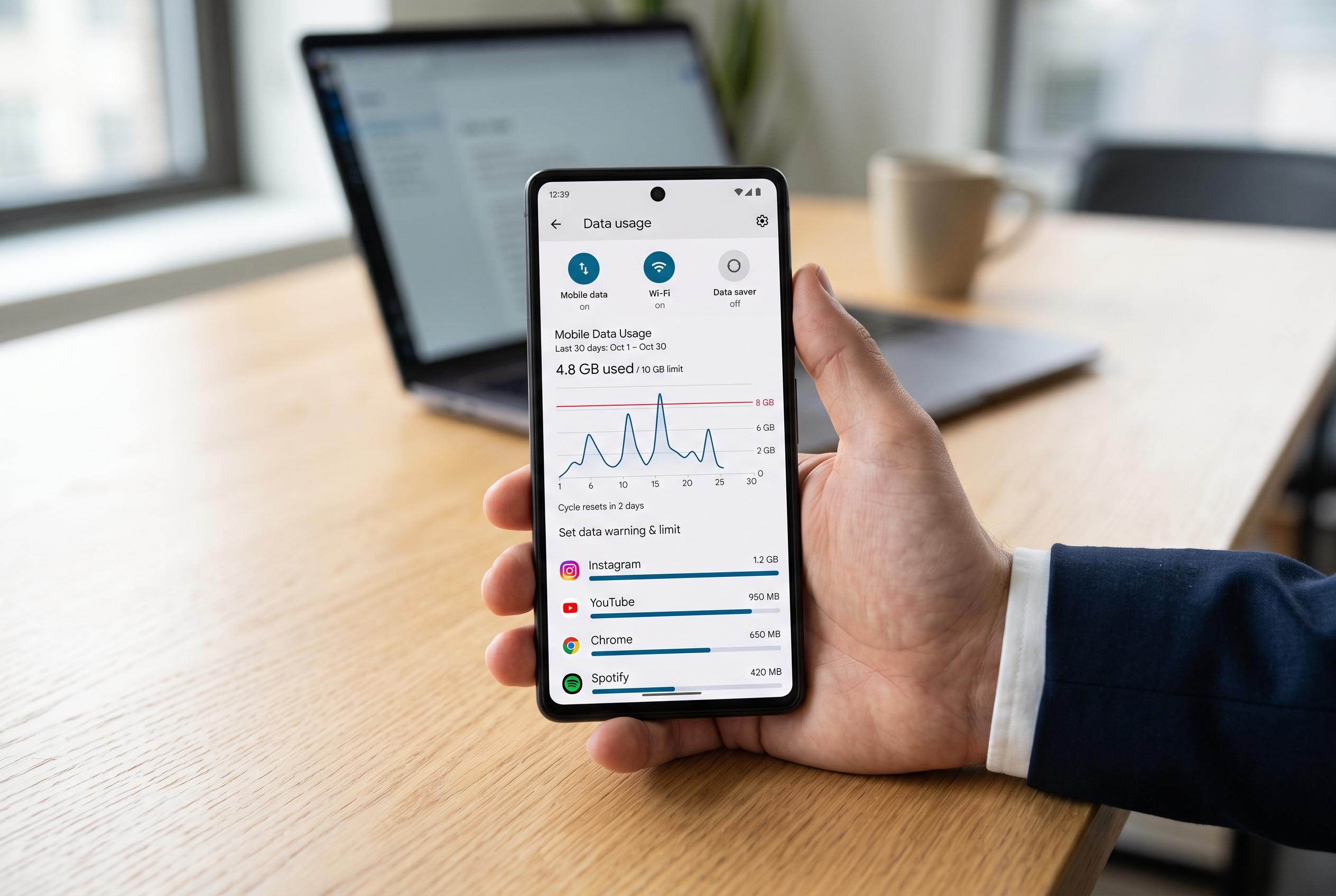
On a Pixel-style Android phone, the data-usage screen shows which apps have used the most mobile data during the selected billing period. That matters because video platforms, cloud backups, map downloads, video calls, large game updates and hotspot use can all behave very differently from one account to the next. Google’s support documentation also notes that the phone’s numbers may not exactly match a carrier’s bill, so the carrier record should be treated as the final authority for allowance and throttling status.
Once the main users are identified, Android’s Data Saver is the most effective broad control. When enabled, it reduces background mobile-data use for most apps while still allowing the app currently on screen to function normally. That makes it useful for cutting routine traffic without breaking the phone outright. Google’s support page and Google Fi’s help material both frame it as a practical first line of defence rather than a complete block on cellular data.
The next step is to limit background access for individual apps that do not need to stay active when closed. Messaging, authentication, navigation and work apps may need background access for alerts or synchronisation, but many social, shopping and media apps do not. Android Central and Guiding Tech both recommend pairing this with data warnings and, if necessary, a hard limit so the phone can alert the user before the allowance is exhausted.
Google Play Store settings can also make a material difference. Setting app updates to Wi-Fi only reduces the risk that large downloads will run in the background over cellular connections, particularly for games and media-heavy apps. Google Photos deserves similar attention, because photo and video backups can use significant mobile data without being obvious to the user. The strongest approach is usually to disable video backup over mobile data, keep any automatic limit low and review which device folders are included in backup.
YouTube adds another layer of control. Downloading videos for offline viewing over Wi-Fi only prevents high-quality media from silently consuming mobile data, and lowering download quality further reduces pressure on the allowance. This does not affect normal viewing, so users who stream on cellular still need to manage playback quality and autoplay inside the app itself. The same logic applies to other media services, which may have their own cellular-download settings outside Android’s system controls.
It is also important to treat some Wi-Fi networks as metered. A hotspot, hotel network or capped home connection may not be truly unlimited, even though the phone sees it as Wi-Fi. Marking such networks as metered tells Android and participating apps to behave more cautiously. Before travelling, users should also check roaming rules separately, because domestic data settings do not protect against international roaming charges.
The practical result is a short checklist: find the heaviest users, enable Data Saver, restrict background data for non-essential apps, set warnings below the plan limit, switch Google Play updates to Wi-Fi only, tighten Google Photos and YouTube settings and mark capped networks as metered. If the totals still look wrong, compare the same billing period on the phone and the carrier account, then check for tethering, roaming, multiple SIMs or system traffic from Google Play services before assuming the device is at fault.
Disclaimer: This content is intended for informational purposes only. Readers are advised to exercise their own judgement, conduct due diligence, or consult a qualified expert before acting on any information provided.



