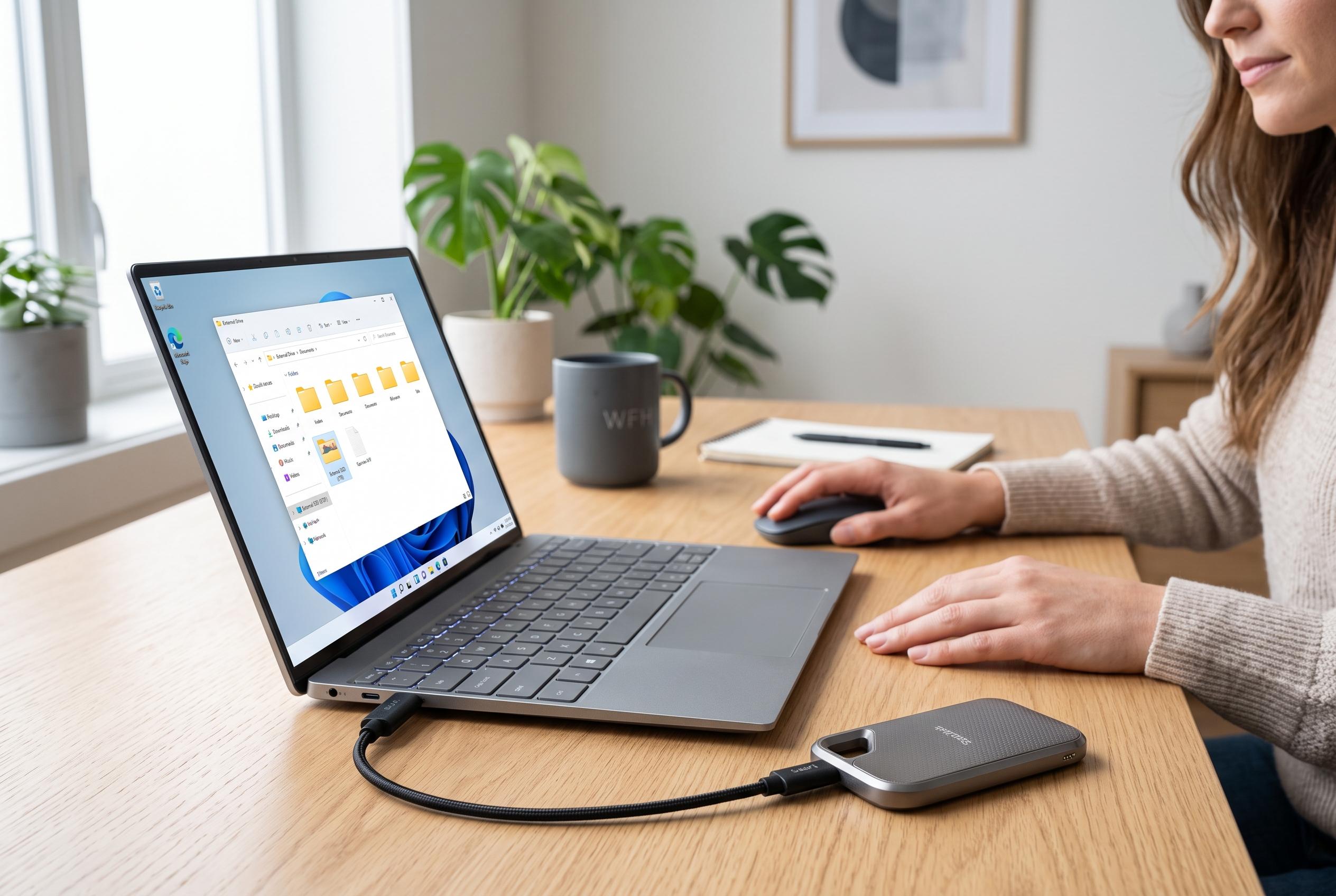

Replacing an internal SSD isn’t always feasible for thin-and-light laptops, but there are practical and cost-effective ways to expand storage through external solutions, cloud services, and efficient space management without opening the chassis.
When a laptop starts warning that storage is almost full, replacing the internal SSD is not always the best answer. In many thin-and-light machines, the drive is soldered to the motherboard or difficult to reach without affecting warranty terms. As PCWorld notes, that is why external and cloud-based options remain useful for users who need more space without opening the chassis, especially in systems with limited upgrade paths.
The first step is to recover space already on the device. Windows and macOS both include built-in storage tools that can remove temporary files, old update data and unused downloads, and Techloy and EaseUS both recommend clearing obvious clutter before buying anything new. In practice, this is often the cheapest and fastest fix, and it can postpone a hardware purchase by months if the laptop is only lightly overfilled.
Cloud storage is the next low-friction option. It works well for documents, photos and shared project files because data moves off the local drive while remaining accessible from the browser or sync client. PCWorld and EaseUS both point to this as a practical way to expand usable space, though it depends on the internet and usually becomes genuinely useful only once a paid plan is added.
If the laptop has an SD or microSD slot, that can be a neat way to add permanent-looking storage without a dangling accessory. Techloy highlights this approach for users who want a simple, low-cost expansion path. It is best suited to media libraries and archives rather than software installs, because removable cards are slower and less durable than solid-state storage.
A low-profile USB flash drive offers a similar compromise with better speed. PCWorld’s storage guides note that compact drives can stay plugged in for long periods, which makes them useful for working files and portable libraries. They are not a replacement for an internal SSD, but they can provide a useful middle ground for people who need extra space without carrying a separate external drive.
For users who care about performance, an external SSD is the strongest option. Tom’s Guide highlights current models such as high-speed USB4 drives for creators and gamers who need fast transfers and responsive access. Unlike a flash drive or memory card, an external SSD can get much closer to internal-drive speeds, provided the laptop supports a fast enough USB-C, USB4 or Thunderbolt connection.
Traditional portable hard drives still matter when capacity is the priority. PCWorld and Tom’s Guide both note that mechanical drives remain the cheapest route per gigabyte, which makes them suitable for backups, finished projects, video archives and media collections. They are slower and less shock-resistant than SSDs, so they are better for storage than active work.
For homes or small offices with multiple devices, a NAS can act as a shared storage hub. PCWorld describes it as a networked box that stores files centrally and can be reached by laptops, phones and televisions on the same network. It costs more up front than a simple external drive, but it scales much further and avoids a monthly cloud subscription.
In practice, the best choice depends on the job. For office users, cleaning the disk and using cloud sync may be enough. For photographers, editors and gamers, a fast external SSD is usually the most sensible upgrade. For large archives, a hard drive or NAS is more efficient. The main point is simple: a full laptop does not always need a bigger internal SSD, only a better storage strategy. According to the guides from PCWorld, Tom’s Hardware, Tom’s Guide, Techloy and EaseUS, that strategy can be built without ever removing the bottom cover.
Disclaimer: This content is intended for informational purposes only. Readers are advised to exercise their own judgement, conduct due diligence, or consult a qualified expert before acting on any information provided.