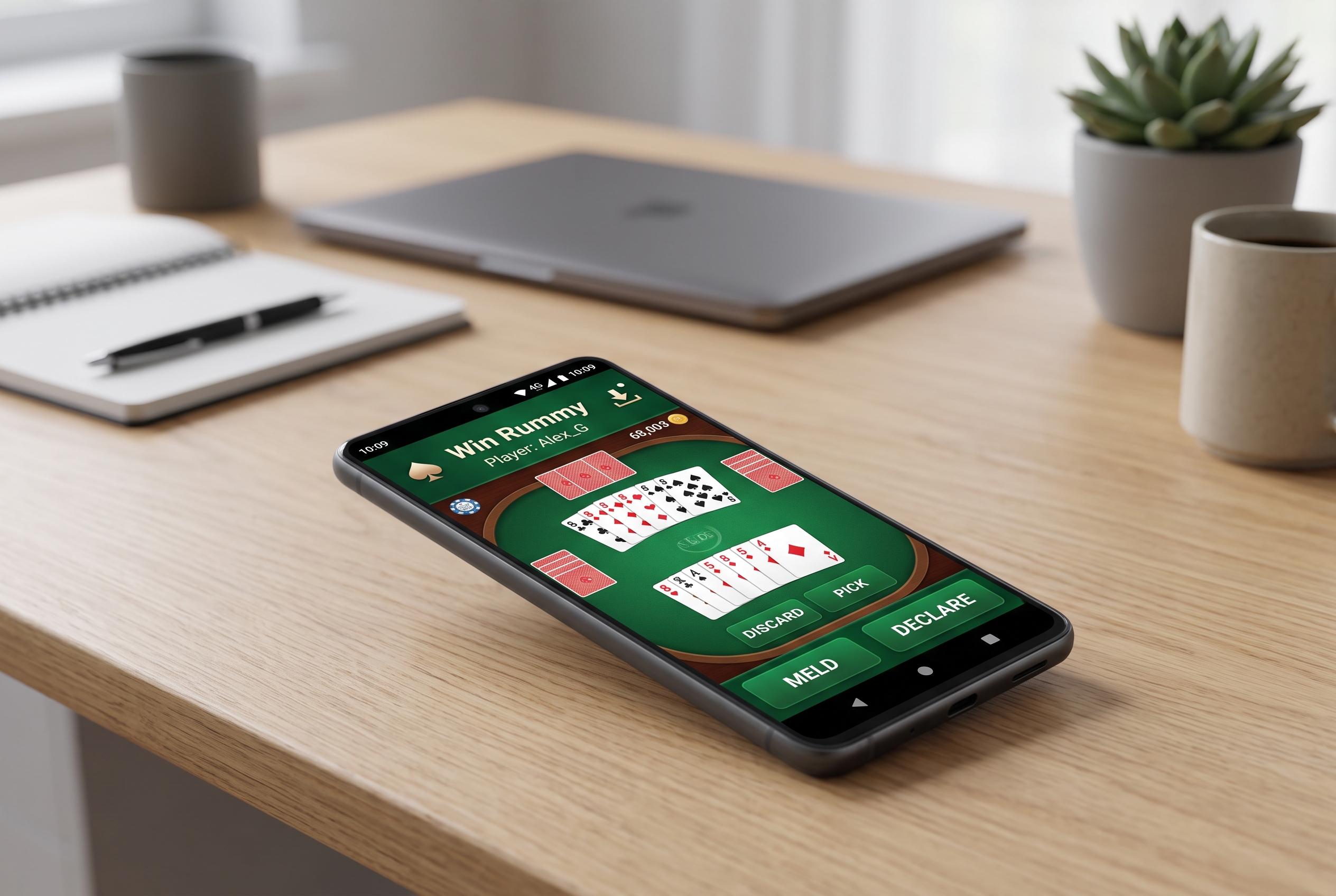

A step-by-step guide for Android users to resolve Win Rummy app launch failures, highlighting the importance of updates, connectivity, and maintenance for smooth performance.
When an Android app refuses to open, the problem is often less dramatic than it appears. A stalled splash screen, an immediate crash or a frozen loading page can usually be traced to temporary software faults, poor connectivity, low storage or a compatibility problem rather than a permanent fault with the phone or the app itself. For Win Rummy users, the most practical response is to work through the likely causes in a methodical order rather than assume the installation is broken.
Google’s Android support guidance says the first step should be a full device restart, which can clear unresponsive background processes and refresh system memory. The company also recommends checking for app updates and Android system updates, because both can resolve known bugs. If the app still fails to launch, clearing the cache can remove damaged temporary files without usually affecting saved user data. In more stubborn cases, Google advises clearing data or reinstalling the app altogether.
Connectivity is another common factor. Some Android apps need to contact servers at launch to verify accounts, fetch configuration files or complete sign-in checks. Android Authority notes that unstable Wi-Fi, weak mobile data or even overheating hardware can trigger app failures, while storage shortages can stop apps from starting properly. Freeing space, switching networks and waiting for a device to cool can therefore be as important as restarting the app itself.
Other fixes are worth trying if the problem continues. Force stopping Win Rummy can shut down a process that has become stuck in the background, allowing Android to relaunch it cleanly. Guiding Tech also points to Android System WebView, a core component that many apps use to render web-based content inside the app; if that component is outdated or damaged, opening problems can follow. Tom’s Guide has reported similar launch failures on Google Pixel devices, where app crashes were linked in some cases to Google Play services and were ultimately resolved through a server-side update, a reminder that not every fault sits on the user’s device.
For regular Android users, the broader lesson is simple: keep the operating system and apps updated, maintain enough free storage, use a stable internet connection and clear cache when performance starts to degrade. Those habits will not prevent every launch failure, but they reduce the odds of recurring problems. If Win Rummy still will not open after the basic checks, the issue may lie with the app’s own servers or a deeper compatibility fault that only a newer update can fix.
Disclaimer: This content is intended for informational purposes only. Readers are advised to exercise their own judgement, conduct due diligence, or consult a qualified expert before acting on any information provided.