

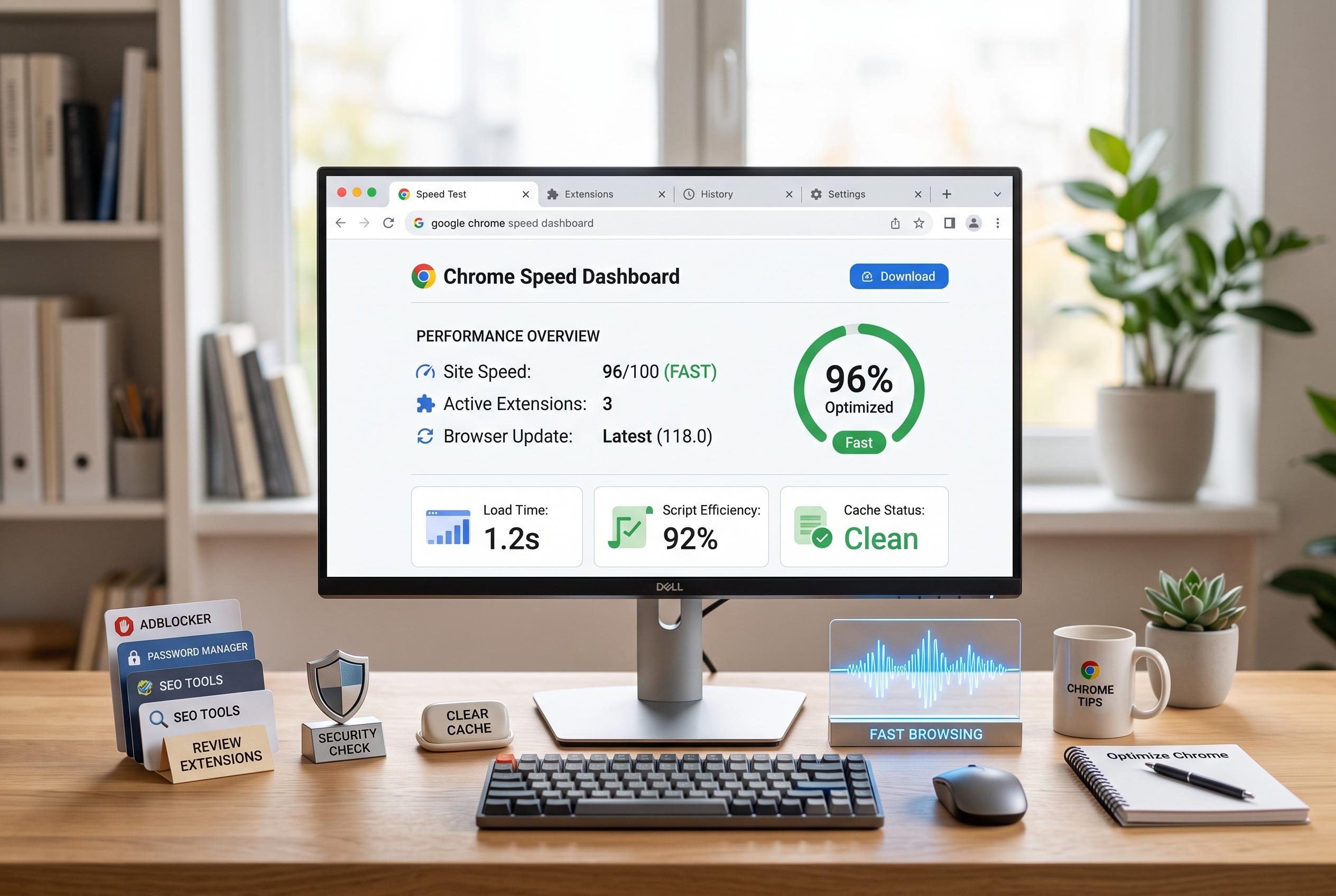

Maintaining Chrome’s responsiveness requires regular management of extensions, background processes, and security checks. Learn practical tips to optimise your browsing speed and keep it running smoothly.
Chrome remains the default browser for many users because it sits neatly across Google services, handles large numbers of extensions and, on capable hardware, can stay responsive even with heavy tab use. But as both Google and independent guides note, that responsiveness depends on regular maintenance. In practice, Chrome performs best when users keep a close eye on memory use, trim unnecessary add-ons and watch for background processes that are quietly consuming resources.
One of the most useful built-in tools is Chrome’s Task Manager. Accessible from the browser menu under More tools, it shows the memory, CPU and GPU demand of open tabs, extensions and background activity. Google’s support guidance recommends using it to identify and close processes that are slowing the browser, while also helping users spot anything suspicious that may be running without permission.
Extensions are another common source of drag. Over time, browsers often collect add-ons that are rarely used but still load in the background, send notifications and add to startup overhead. PCWorld and Google both advise removing or disabling anything that is not essential. If an extension may still be useful later, disabling it is usually enough; if not, uninstalling it is the cleaner option.
Security checks can also affect speed. Malware, including cryptojacking scripts that mine cryptocurrency in the background, can make Chrome feel sluggish, trigger redirects and fill pages with unwanted ads or pop-ups. A reputable, up-to-date antivirus scan can catch infections both in the browser and elsewhere on the system. That is especially important if performance has changed suddenly, rather than gradually over time.
Tab management is equally important for anyone who works across multiple projects. Chrome can become strained when dozens of tabs remain open, even on machines with generous memory. Tools such as OneTab can help by collapsing sessions into a saved list that can be restored later, reducing the load on the browser without losing links. For some users, hardware acceleration can provide another boost by shifting graphics-heavy work from the CPU to the GPU, though Google and other guides note that it may not suit every device or driver combination. The broader point is simple: Chrome is fast, but it stays fast only when users actively control what it is asked to do.
Disclaimer: This content is intended for informational purposes only. Readers are advised to exercise their own judgement, conduct due diligence, or consult a qualified expert before acting on any information provided.



