

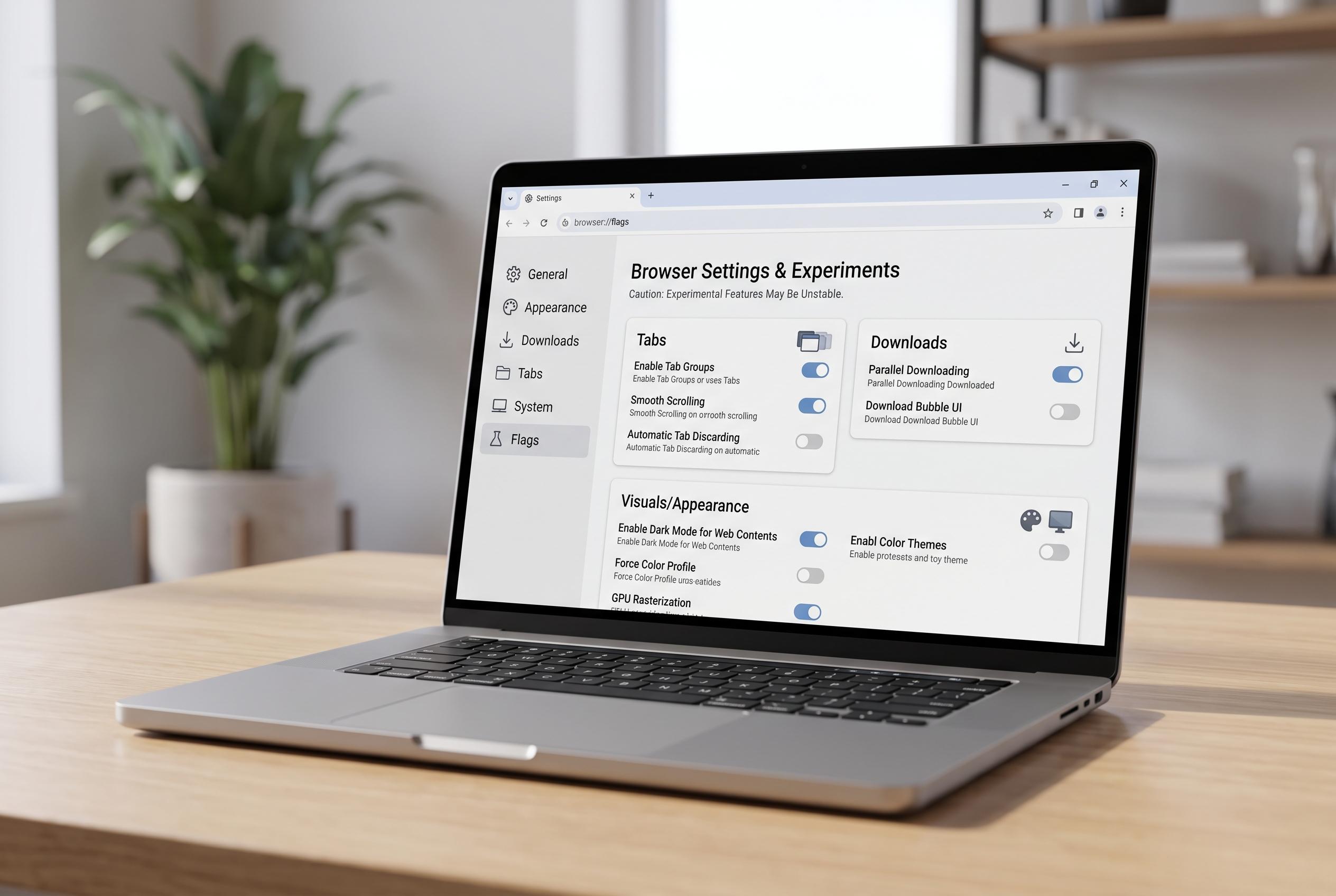

Google Chrome’s experimental flags offer customisation options for users seeking better control over tabs, downloads, and visual features, but should be used with caution to avoid instability.
Google Chrome is designed for speed and reach, but its default settings do not suit every user. For people who keep many tabs open, work on older hardware, or want finer control over rendering and downloads, Chrome’s experimental flags can be useful. Google describes these options as test features that are not part of the standard browser experience, and warns that changing them can cause instability or data loss. The safest approach is to alter one setting at a time and keep a record of what was changed.
The flags panel is reached through chrome://flags, where users can search for a feature, switch it on, and restart the browser. Google says the same page also allows all experiments to be reset to their defaults, which matters because flags can disappear, change name, or become permanent features in later releases. Practical guides from Tom’s Guide and Android-focused explainers give the same advice: use the menu carefully and avoid treating experiments as permanent fixes.
Several flags are aimed at day-to-day annoyance rather than raw speed. One example is tab audio muting, which turns the sound indicator into a quick mute control for noisy sites. Another is parallel downloading, which splits a file transfer into several streams and can improve large downloads when the server and connection support it. Chrome also includes experimental options for smoother scrolling and for automatically applying dark treatment to web content, although results vary by site and device.
Performance and graphics tweaks are more variable. Google and Chrome developer documentation note that some flags shift work to the GPU, including GPU rasterisation, which may ease CPU load on capable systems but can expose driver problems on older or less stable hardware. Other experiments, such as partial swap controls, are better understood as diagnostic tools for rendering faults than as general speed boosts. That makes them more relevant to users trying to fix visual glitches than to anyone simply chasing benchmark gains.
Network and platform-specific experiments can be useful, but only in the right context. QUIC-related settings may help where sites and networks support the protocol, yet they will not improve every connection. On Android, flags related to screenshots in Incognito mode show how quickly Chrome’s experiments can change: availability depends on the browser build and operating system version, and newer implementations can replace older ones without warning.
The underlying lesson is simple. Chrome flags are best used to solve a specific problem, not to blanket-tune the browser. Google’s own guidance is to understand each experiment before enabling it, and to revert settings if behaviour worsens. For most users, the most valuable flags are the ones that address a clear nuisance, such as loud tabs, slow downloads or awkward page rendering, rather than settings that promise broad but uncertain performance gains.
Disclaimer: This content is intended for informational purposes only. Readers are advised to exercise their own judgement, conduct due diligence, or consult a qualified expert before acting on any information provided.



