

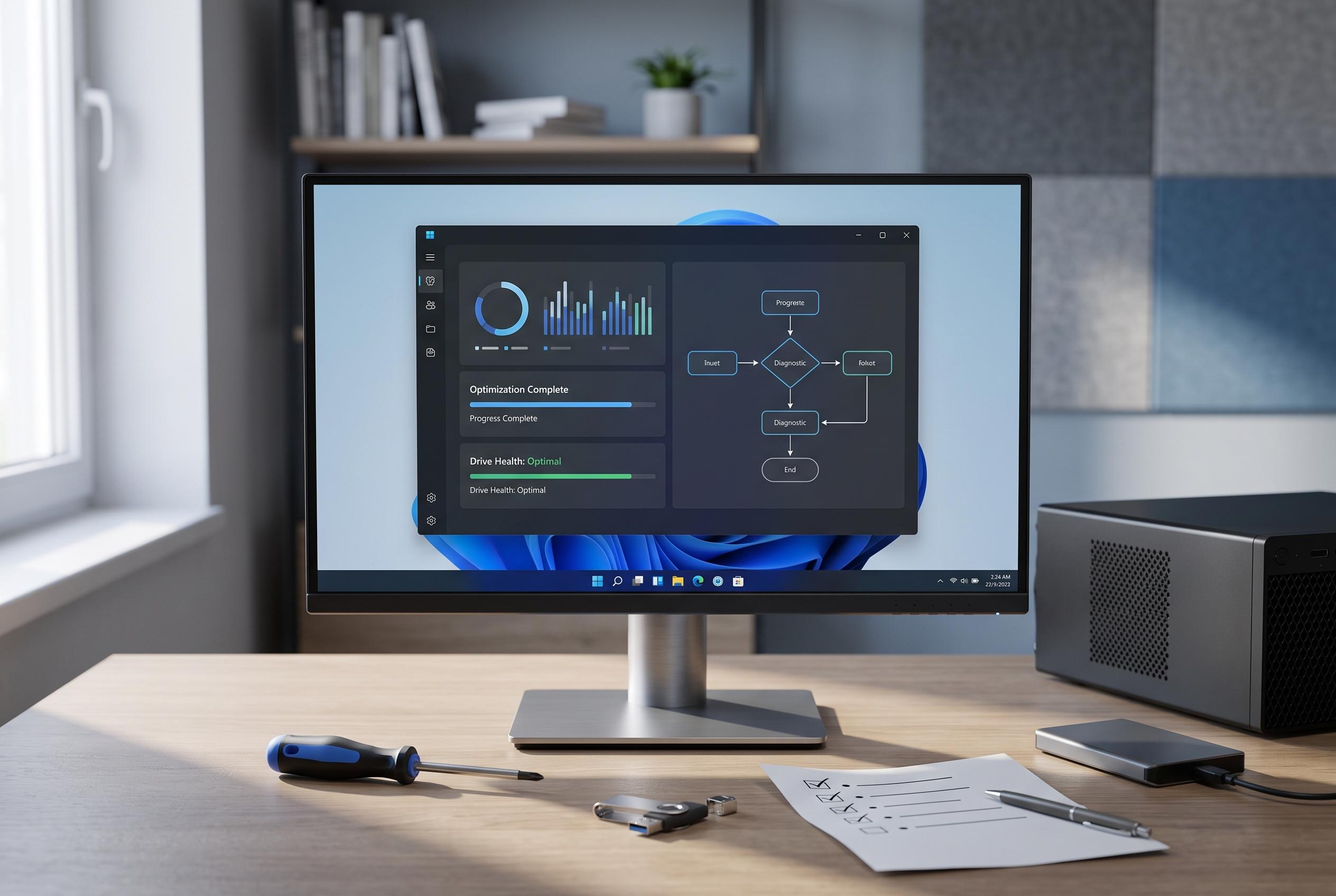

A slow Windows 11 PC often indicates a maintenance issue rather than hardware failure. Microsoft and experts recommend a structured approach to identify bottlenecks, from managing startup items and background activity to updating drivers and upgrading hardware where necessary.
A slow Windows 11 PC is often a maintenance problem rather than a hardware failure. Microsoft says performance usually suffers when startup items, background activity, storage pressure, or outdated drivers begin to compete for resources. The practical answer is to identify the bottleneck first, then make changes in a controlled order rather than applying random tweaks. According to Microsoft’s support guidance, built-in tools can reveal what is consuming CPU, memory, disk, and network capacity, which is usually the best starting point. Microsoft also recommends regular clean-up and maintenance rather than relying on third-party “booster” software.
One of the simplest fixes is to restart the machine. That clears temporary processes and can remove short-lived memory pressure that builds up during long sessions. If the slowdown persists, Task Manager can show whether a single app is overusing resources or whether the system simply does not have enough RAM for the workload. Computerworld notes that disabling unnecessary startup applications and closing heavy background processes often produces an immediate improvement, particularly on older machines.
Storage also matters. Windows needs free space for updates, temporary files, and normal system operations, and a nearly full drive can make the entire PC feel sluggish. Microsoft’s guidance and maintenance advice from Windows Central both point to removing temporary files, old downloads, unused applications, and other clutter as a basic performance measure. If the computer still uses a mechanical hard drive, that may be the real constraint; moving to an SSD is often the most noticeable upgrade for boot times and general responsiveness.
Updates should not be overlooked. Microsoft recommends keeping Windows current and making sure key drivers, especially graphics, chipset, storage, and network drivers, are up to date. ITPro notes that outdated or faulty drivers can cause both instability and slowdown, particularly when hardware and software are no longer well matched. Windows Central likewise stresses that keeping the system patched is part of long-term maintenance, not just security hygiene.
Malware checks are also worth running. Unexpected resource usage, browser changes, pop-ups, or unexplained network activity can all point to unwanted software. Microsoft Defender is built into Windows 11 and is usually enough for a first scan. If the machine has been slow since installing software from an untrusted source, that installation deserves suspicion. Reducing background activity from cloud tools, launchers, sync utilities, and messaging apps can also help, especially on laptops with modest hardware.
Browser overhead is another common cause of perceived system slowdown. Multiple tabs and extensions can consume large amounts of memory, and that load affects the whole PC, not just the browser window. Windows Central suggests decluttering the system where possible, and Microsoft’s own advice points to managing startup and background apps carefully. Fast Startup can also influence boot behaviour: Windows Central explains that it shortens shutdown and startup by saving kernel data to disk, although it can be worth disabling in dual-boot setups or when driver issues are suspected.
If software changes do not make enough difference, the hardware may simply be dated. Windows Central and ITPro both note that a machine with limited RAM, an ageing processor, and a slow drive can only be improved so much through settings alone. In those cases, an SSD or additional memory can extend the useful life of the computer, provided the device supports those upgrades. The most sensible approach is methodical: trim startup load, free storage, update the system, scan for malware, and only then decide whether a repair, an upgrade, or a replacement is the better option.
Disclaimer: This content is intended for informational purposes only. Readers are advised to exercise their own judgement, conduct due diligence, or consult a qualified expert before acting on any information provided.



