

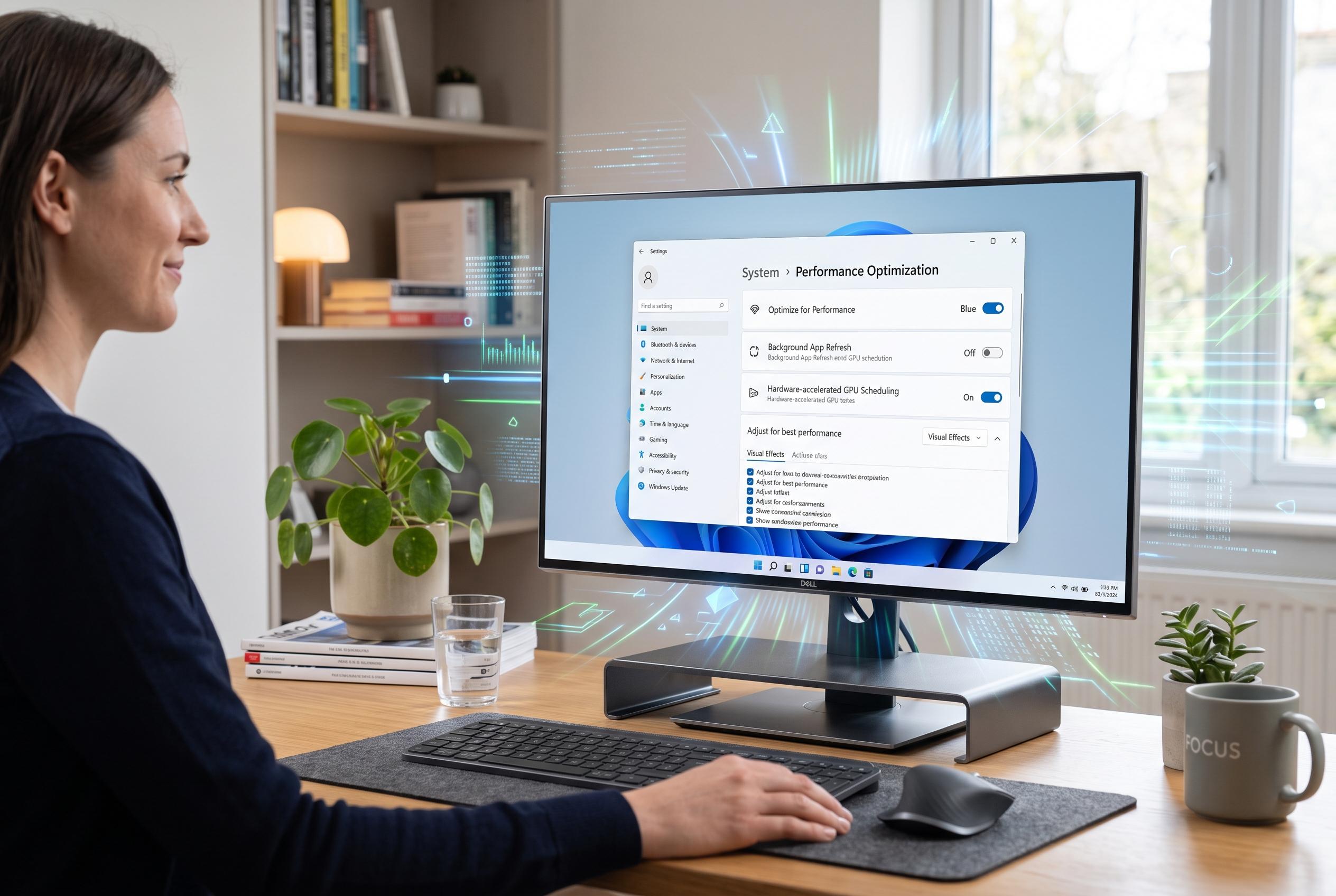

Many common Windows configuration choices, such as display refresh rates, power plans, and background services, can significantly impact a PC’s speed. Experts reveal simple adjustments to restore responsiveness without hardware upgrades.
Several Windows settings can make a capable PC feel far slower than it should, according to XDA and Microsoft’s own performance guidance. The most common problems are not faults in the hardware but configuration choices: an unexpectedly low display refresh rate, a conservative power plan and background services that keep consuming resources.
One setting worth checking first is the monitor refresh rate. Many modern screens support 120Hz, 144Hz or higher, yet Windows can still be left running at 60Hz if the display configuration has been set that way. That does not usually damage the machine, but it can make movement on-screen look less fluid and give the impression that the system is lagging. Microsoft recommends reviewing display and visual settings when performance feels poor.
Power management is another frequent cause of unnecessary throttling. Microsoft advises using a performance-focused power mode when speed matters, and PCWorld notes that Windows’ power slider and high-performance options can improve responsiveness, especially on laptops and gaming systems. The trade-off is that the device may draw more energy, run warmer and produce more fan noise, but that is often a reasonable exchange for better day-to-day performance.
XDA also points to Copilot as a feature that can continue to run in the background and use system resources. That is part of a wider pattern Windows users should watch for: services, startup applications and visual effects can all add small delays that accumulate into a slower experience. Windows Central and Tom’s Guide both recommend trimming startup load, closing unnecessary apps and reducing visual effects where speed matters most.
Taken together, the advice is straightforward: check the display refresh rate, switch to a performance-oriented power profile and remove background features you do not need. Microsoft’s support pages also suggest keeping Windows updated, scanning for malware and freeing disk space, which can address other common causes of sluggish behaviour. For users blaming ageing hardware, the cause may simply be a handful of overlooked settings.
Disclaimer: This content is intended for informational purposes only. Readers are advised to exercise their own judgement, conduct due diligence, or consult a qualified expert before acting on any information provided.



