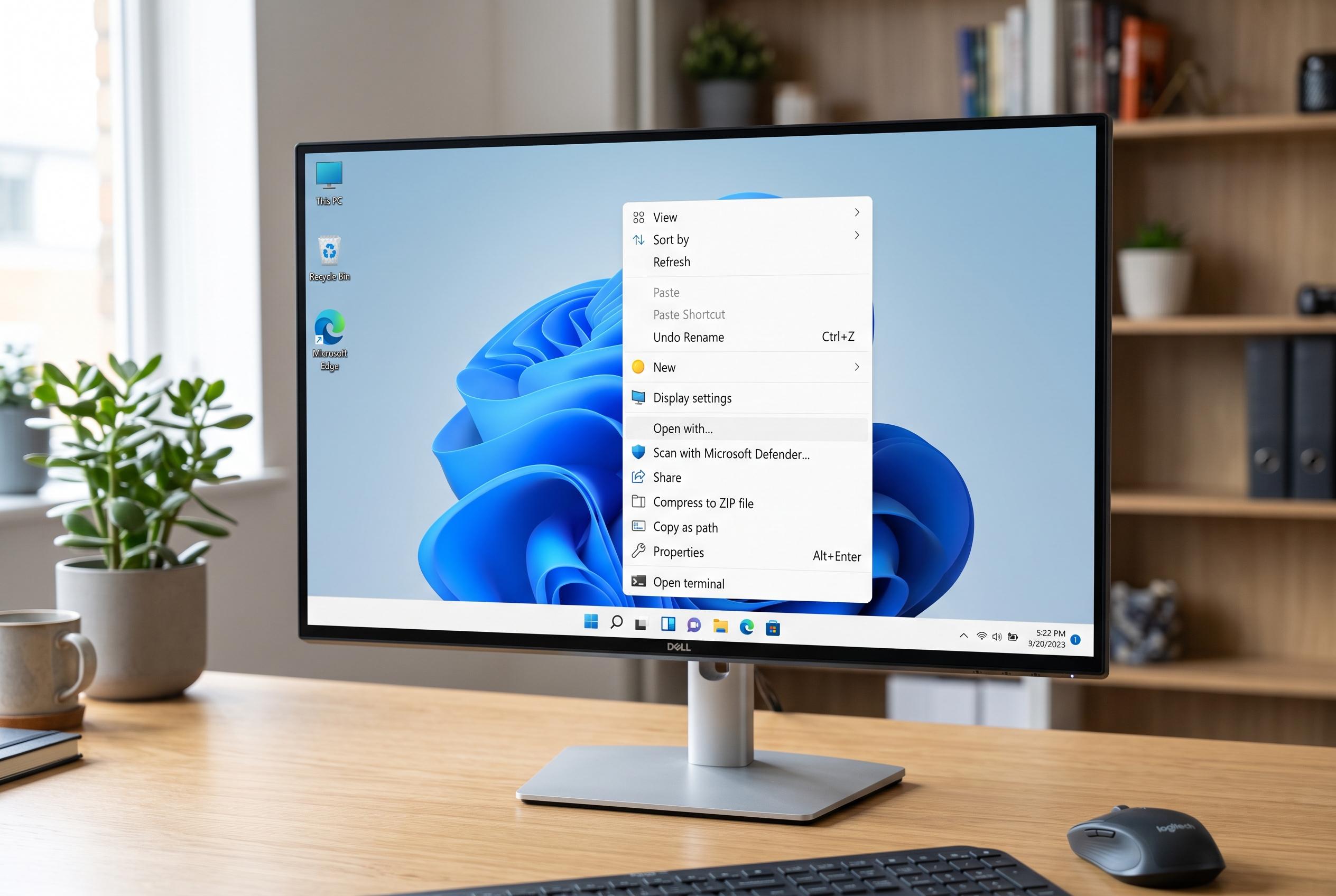

Users seeking quick access to legacy commands on Windows 11 can effortlessly reveal the traditional right-click menu, bypassing the default compact design and system tweaks for a safer, user-friendly experience.
Windows 11’s compact right-click menu is designed to surface common actions quickly, but it also hides many older shell commands and some third-party entries behind “Show more options”. For users who only need the legacy menu occasionally, the simplest fix is to right-click and reveal the full menu on demand. Keyboard users can achieve the same result with Shift+F10 or the Menu key, where available.
That approach avoids any system changes and is the safest way to access older commands. It is also the best option when a specific app command, archive tool or source-control action seems to have disappeared, because the item is often still present in the older Windows 10-style menu. Microsoft’s design guidance treats the compact menu as the default and the legacy menu as its fallback.
For those who want the classic menu to appear every time, the usual workaround is a per-user registry edit. The widely used method creates a CLSID key under the current user hive with an empty default value, prompting File Explorer to load the legacy menu by default. Microsoft has described this as a workaround rather than a normal Windows setting, which means behaviour can vary across builds and future updates.
That is why a backup matters before making the change. The safer practice is to export the relevant registry branch first or create a restore point, then apply the command from an elevated or standard Command Prompt under the current account. After that, File Explorer usually needs to be restarted, or the user must sign out and back in, before the new behaviour appears.
Windows 11’s context menu is not one single menu for every object. The commands shown depend on what is being clicked: a file, folder, drive, blank folder background or desktop background may each expose different shell verbs. File associations also behave differently from context-menu commands. Choosing Open with or changing Default apps affects which programme opens a file type, but it does not redesign the right-click menu itself.
Users who only need a shortcut can usually avoid deeper changes altogether. The Send to > Desktop (create shortcut) option is a practical way to place a link on the desktop without modifying Explorer behaviour. If a third-party command is missing, the most reliable first step is to open the legacy menu, where older shell extensions often still live.
For developers and administrators, Microsoft’s preferred path is not a registry tweak but a supported extension model. Modern packaged apps can use IExplorerCommand and related packaging support to integrate with the Windows 11 menu, while older IContextMenu-based extensions are more likely to remain in the legacy view. That distinction helps explain why some tools seem to vanish after the redesign when they have only been moved, not removed.
Disclaimer: This content is intended for informational purposes only. Readers are advised to exercise their own judgement, conduct due diligence, or consult a qualified expert before acting on any information provided.