
Factory resetting an Android device can resolve software issues and prepare it for sale, but it requires careful data backups and understanding of recovery options to avoid losing important information.
Factory resetting an Android phone can clear out software faults, remove accumulated clutter and prepare a handset for sale or trade-in. Google’s support guidance says it is also important to back up data first, because the process erases personal files, accounts and local settings.
There are two common routes. The simplest is through the Settings menu, which is the method Google and Android’s own help pages recommend for most users. After unlocking the phone, open Settings, go to System, then Reset options, and choose the option to erase all data. On many devices, the handset will ask for a PIN, password or other confirmation before the reset begins.
If the phone will not start normally, recovery mode provides an alternative. Android Central and Android Authority both note that this route is useful when a device is frozen, unstable or otherwise inaccessible from the usual interface. The exact button combination varies by model, but it generally involves switching the phone off, entering recovery or fastboot mode with a power-and-volume key sequence, and then selecting a factory reset or wipe data option with the volume and power buttons.
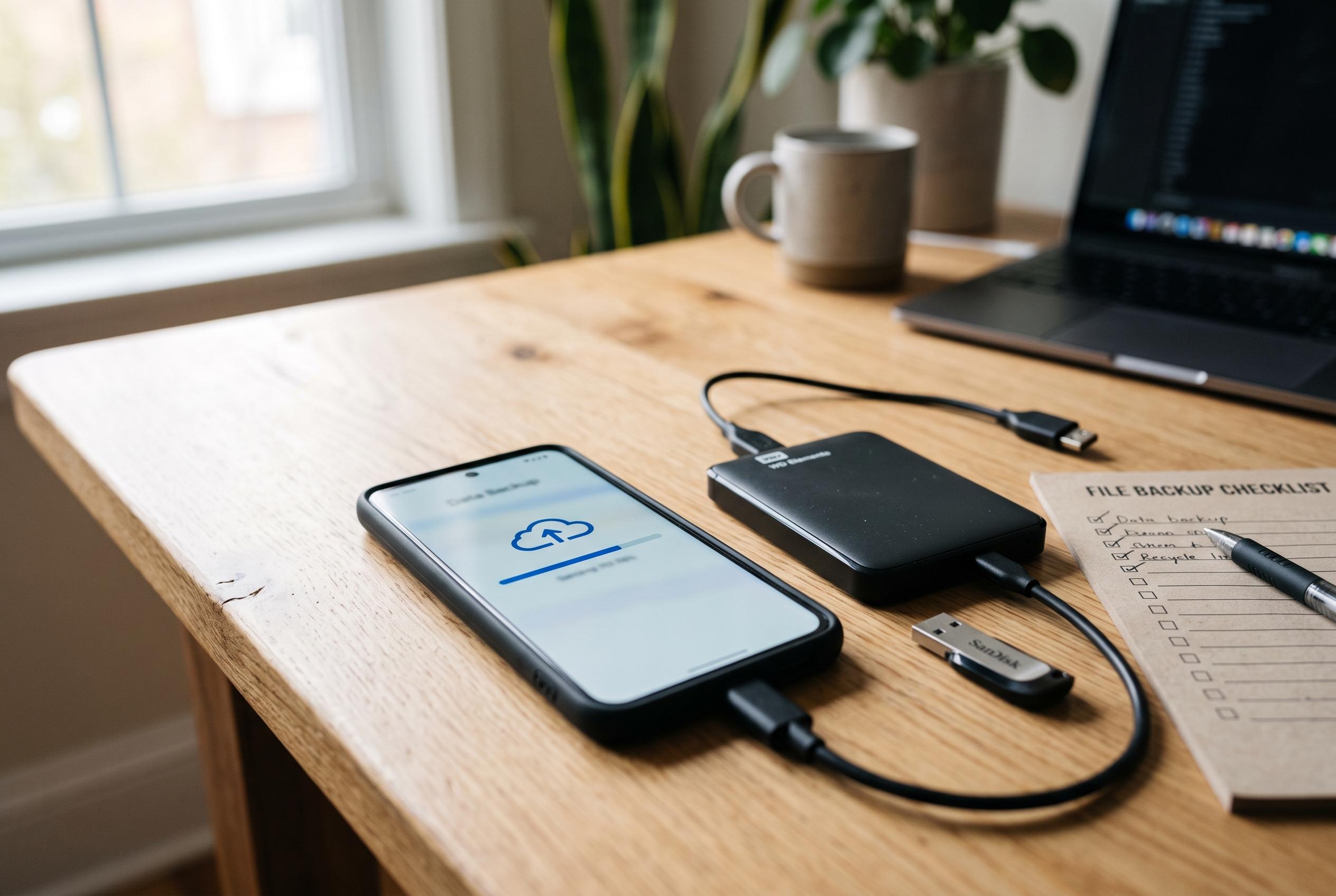
Before resetting, users should save contacts, photos and any other locally stored information to a Google account or external storage. Google also advises ensuring the device is charged, ideally connected to Wi-Fi, and that the owner knows the relevant Google Account details for reactivation afterwards. That matters because Android’s protection features may require the previous account credentials before the phone can be set up again.
Disclaimer: This content is intended for informational purposes only. Readers are advised to exercise their own judgement, conduct due diligence, or consult a qualified expert before acting on any information provided.