

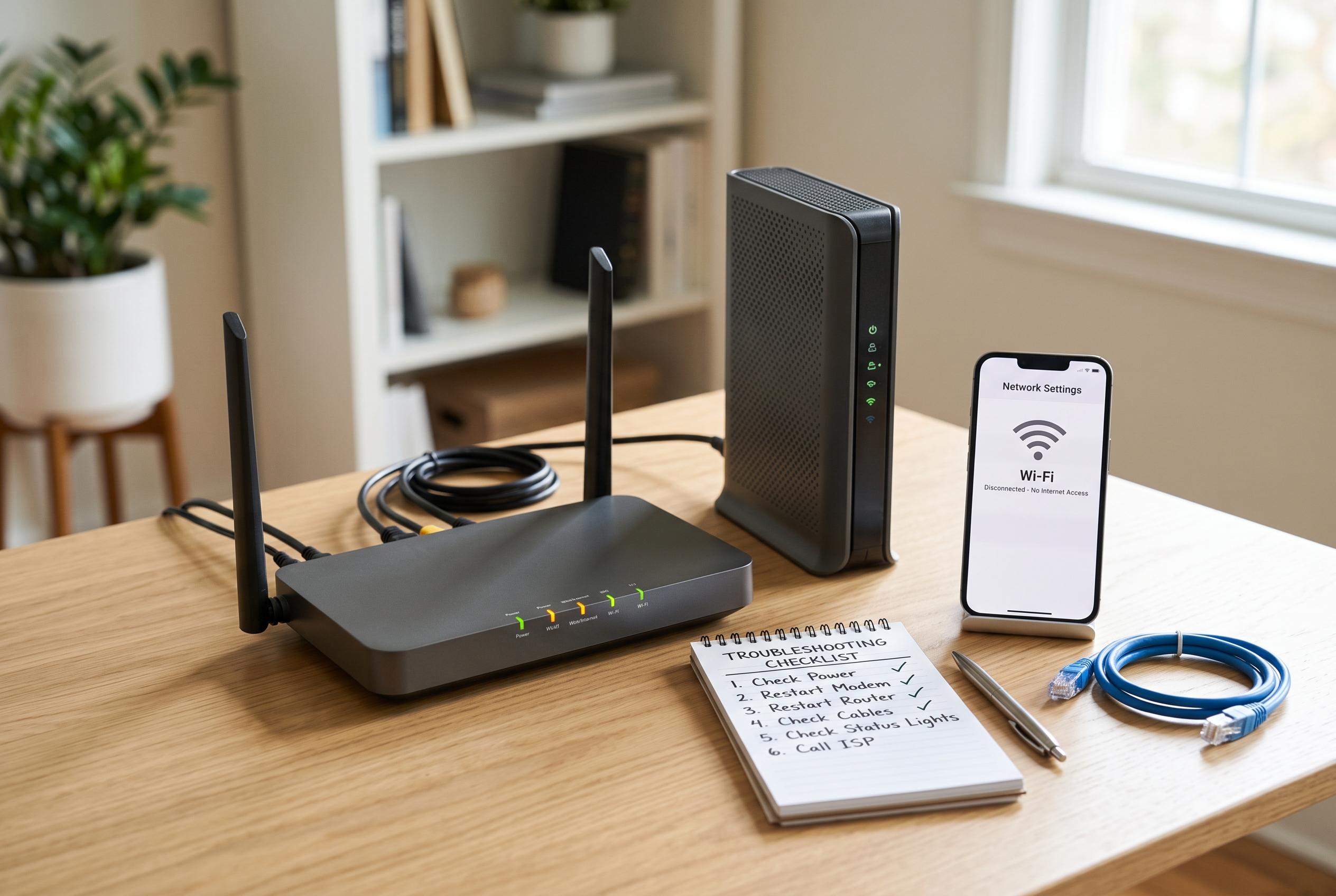

A step-by-step guide to quickly diagnose whether a wifi issue stems from your device, home setup, or the service provider, helping you save time and avoid unnecessary resets or support calls.
The quickest way to diagnose a dead connection is to decide whether the fault sits inside the home or further up the line. The simplest test is to try more than one device, check the modem, fibre gateway or ONT status lights, and look at the provider’s outage page before changing any WiFi settings. That sequence can save time and avoid a factory reset when the wider network is actually down.
Begin with a basic split test. Open the same website on two devices joined to the home network, then switch WiFi off on a phone and try again over mobile data. If every device fails on the home network but mobile data works, the problem is more likely to be the connection or the provider. If only one device struggles, the fault is probably local to that device, not the household line. Device lights are useful, but their labels and colours vary, so the manual is the safest reference.
Provider status pages are the next check. Sparklight, Xfinity, AT&T, Frontier and CenturyLink all direct customers to official outage tools, account sign-ins or app-based alerts before any deeper troubleshooting. Those pages may show a regional incident, planned maintenance or an account-specific issue, and some providers also offer text alerts, incident updates or estimated restoration times. A neighbour can be useful only if they use the same network; a different provider tells you very little.
The physical path into the home also matters. Check that power leads are seated properly and that coaxial, Ethernet or fibre connections are intact without bending fibre cables. If the service uses separate modem and router units, both need to be working. A live WiFi name does not prove the internet feed is healthy, because the router can still broadcast a network even when the outside line has failed.
A restart should come only after the outage check. Power the modem or gateway down, wait for the interval your provider recommends, then reconnect it. Avoid the reset button unless you have saved the configuration details, because a factory reset removes the network name, password and any custom settings. If the online light remains abnormal after a proper restart, or if the provider’s line test fails, that is the point to contact support. When you do, give them the devices affected, the light pattern, whether mobile data worked and when the fault started. That is far more useful than saying only that “the WiFi is down”.
If Ethernet works but WiFi does not, the issue is more likely to be wireless rather than broadband. At that point, router placement, the wireless band and saved device settings become more important. But the order still matters: confirm the outage status first, then make one safe change at a time. That keeps a simple home fault from being confused with a provider outage and reduces the risk of wiping a working setup unnecessarily.
Disclaimer: This content is intended for informational purposes only. Readers are advised to exercise their own judgement, conduct due diligence, or consult a qualified expert before acting on any information provided.



