

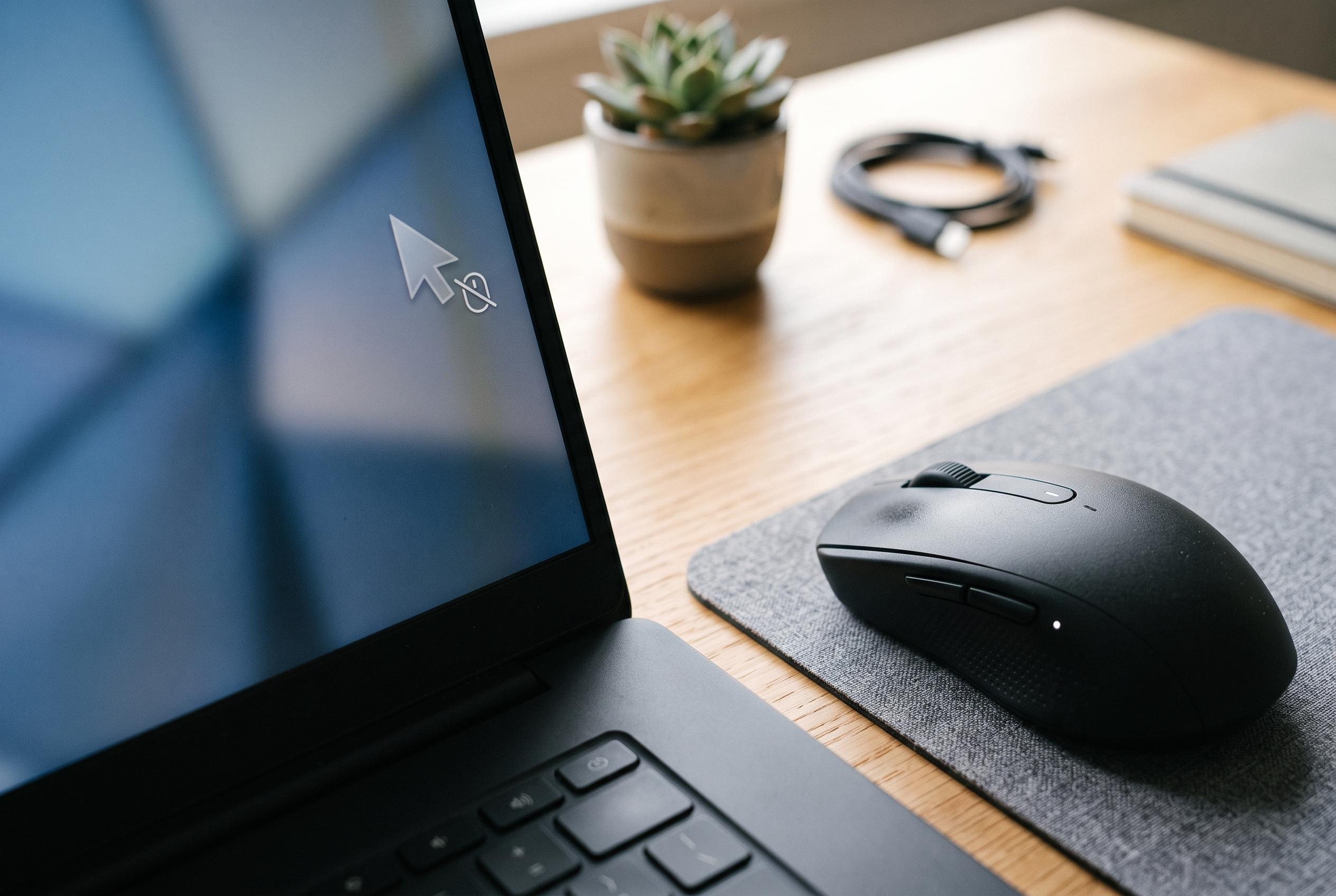

When your mouse pointer moves but clicks don’t respond, a range of hardware and software issues could be to blame. Learn the quickest and most effective steps to identify and resolve the problem, from connectivity checks to driver updates and hardware replacement.
When a pointer still moves but clicks do nothing, the fault is often more than a simple nuisance. The issue can point to worn switch hardware, a bad USB or Bluetooth connection, a low battery in a wireless mouse, a driver problem, or a Windows input state that has become stuck. In practice, the first test is whether the mouse behaves the same way on another computer; if it does, the device itself is the likely culprit, not Windows.
The quickest fixes are the least technical. Reconnect the mouse, try a different USB port, replace or recharge the battery if it is wireless, and test another mouse on the same machine. Dell advises checking for physical obstruction around the buttons and, on wireless models, using the connect button again if the link has dropped. Cleaning debris from the button gap or sensor area can also help where the switch is physically blocked.
If the problem appears to be software-related, reinstalling or updating the mouse driver is usually the best next step. A fresh driver can clear corruption, while an updated one may resolve a compatibility issue introduced by Windows or by a recent device change. If that fails, running DISM and the System File Checker can repair damaged system files that interfere with input handling. Microsoft also notes that Bluetooth instability and outdated wireless drivers can make pointing devices unreliable.
When clicks fail only in certain programmes or after a recent installation, a third-party application may be intercepting input. That is especially common with tools that remap mouse buttons, customise performance, or add gesture controls. Uninstalling the newest app first is a practical way to isolate the conflict. Some users also report that the problem starts after a Windows update; in those cases, removing the update may restore normal behaviour.
If none of these steps works, the evidence increasingly points to hardware wear. Left-button failure is often the first sign, because that switch is used more heavily than the right button. At that stage, replacing the mouse is usually more efficient than repeated troubleshooting. For many users, the most useful approach is to separate device faults from Windows faults early, then move from simple connection checks to driver repair and system recovery only if the mouse still fails.
Disclaimer: This content is intended for informational purposes only. Readers are advised to exercise their own judgement, conduct due diligence, or consult a qualified expert before acting on any information provided.



