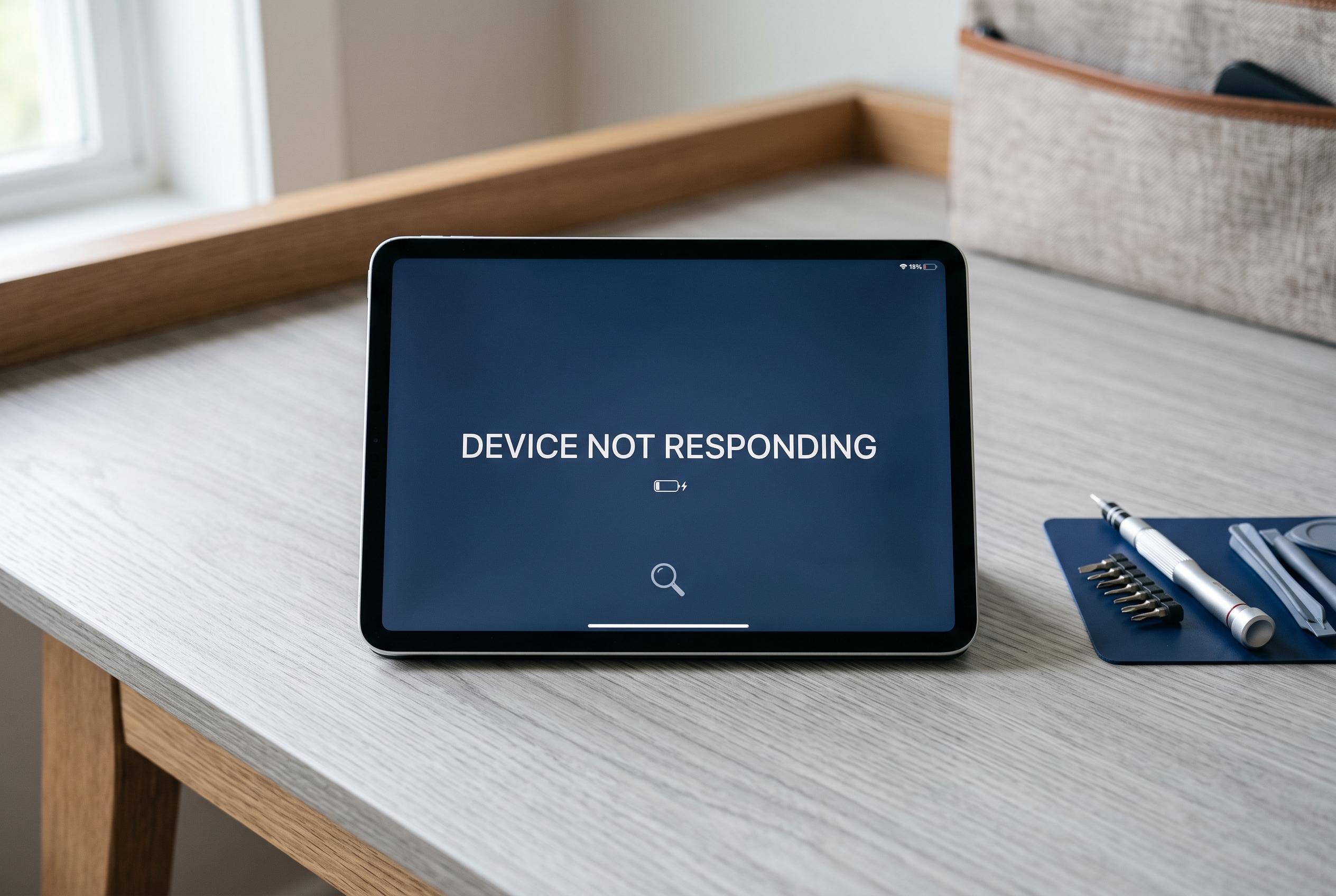

A comprehensive guide to diagnosing whether an unresponsive iPad screen is caused by software issues, physical damage, or hardware failure, helping users make informed decisions about repair or replacement.
An iPad that powers on but ignores taps or swipes is not always facing a failed screen. According to Apple’s support guidance, the first checks should be simple: clean the glass, dry your hands, remove cases or screen protectors, and disconnect accessories that may interfere with capacitive touch. The company also advises a force restart when the device is frozen, which does not erase data.
The key is to identify the pattern. If touch fails across the whole display, a restart is a sensible first move. If the problem is confined to one corner or strip, the fault is more likely to be physical. Ghost touch, where the iPad seems to tap or type on its own, can be caused by moisture, a poorly fitted protector or charging accessories. Apple says that if cleaning, removing accessories and restarting do not help, the device may need service.
Software can also be part of the problem. A single app may freeze while the rest of the iPad works normally, in which case closing and reopening the app, then updating it and iPadOS, is the practical next step. Low storage can slow the device and make touch feel laggy, but it is not a good explanation for a fixed dead zone on the screen. That distinction matters because it helps separate temporary performance issues from likely hardware failure.
If the iPad still responds poorly after the basic checks, the safer path is to back up the device before attempting more advanced resets. Apple distinguishes between a settings reset, a recovery-mode update and a full restore. The update option is generally preferable first because it attempts to reinstall the software without deleting data, while a restore erases the device and should be reserved for cases where software fault remains the strongest explanation.
Physical damage changes the picture. Cracked glass, a lifted screen, liquid exposure, lines, flicker or black spots usually point beyond software. In those cases, repeated resets rarely help and can waste time. A technician can test whether the issue is in the digitiser, display assembly, connectors, frame or logic board, and that diagnostic is often more useful than guessing at the cause from symptoms alone.
For users deciding between repair and replacement, the value of the iPad, its age and the cost of the fix all matter. A device with one repairable fault and otherwise solid performance is often worth keeping. But if the iPad is old, has multiple hardware problems or no longer suits your storage and software needs, replacement may make more financial sense. The main point is to identify whether the fault is cosmetic, software-related or truly structural before spending money.
Disclaimer: This content is intended for informational purposes only. Readers are advised to exercise their own judgement, conduct due diligence, or consult a qualified expert before acting on any information provided.