


A flickering screen often signals underlying hardware or software issues. This guide explores practical steps to diagnose and resolve flickering screens on Windows devices and external monitors, from simple cable checks to driver updates and hardware repairs.
A flickering screen is usually a symptom of a fault elsewhere in the display chain, rather than a defect in the panel alone. The most common causes are an incompatible application, a graphics driver problem, an unsupported resolution or refresh rate, a bad cable or port, or failing display hardware. Microsoft’s support guidance and other troubleshooting manuals all point to the same first step: isolate where the flicker begins before changing parts or resetting the device.
On Windows, the most useful early test is Task Manager. If the flicker appears there as well, the issue is more likely to lie with the display driver or graphics path. If Task Manager remains stable while the rest of the desktop flickers, an application is the likelier cause. Microsoft says this distinction is one of the clearest ways to separate software conflict from a deeper graphics problem.
Before moving to drivers or repairs, it is worth stripping the setup back to basics. Restart the device, disconnect docks, hubs, adapters and other peripherals, and test with only the affected screen attached. Re-seat the power and video cables, try a known-good lead, and switch to another compatible port if one is available. External monitors should also be checked with their on-screen menus open and no video signal connected; if the menu flickers too, the fault is more likely in the monitor itself.
Display settings can be just as important as hardware. An unstable refresh rate or unsupported resolution can cause flashing, blackouts or brief signal loss. The safest approach is to return the screen to its native or manufacturer-recommended settings before testing more advanced options such as variable refresh rate, G-Sync, FreeSync or Adaptive Sync. Apple notes that refresh rates set too low may cause flicker, while rates set too high can produce a black screen if the display cannot support them.
If the problem appears only in one application, the answer is usually to update, reinstall or temporarily remove that programme. If the flicker started after a recent app install or update, that software is a strong suspect. Microsoft and other technical guides advise against using generic “optimisation” tools or registry cleaners as a catch-all fix, because they rarely address the real source of the fault.
Driver resets and updates are the next step when the graphics path looks implicated. On Windows, the graphics driver can be reset with the keyboard shortcut used by Microsoft’s own troubleshooting guide, and if that does not help, the driver can be updated, rolled back or reinstalled through Windows Update or the hardware maker’s support package. Third-party updater tools may offer scanning and backup functions, but they are not required and are not a substitute for manufacturer drivers.
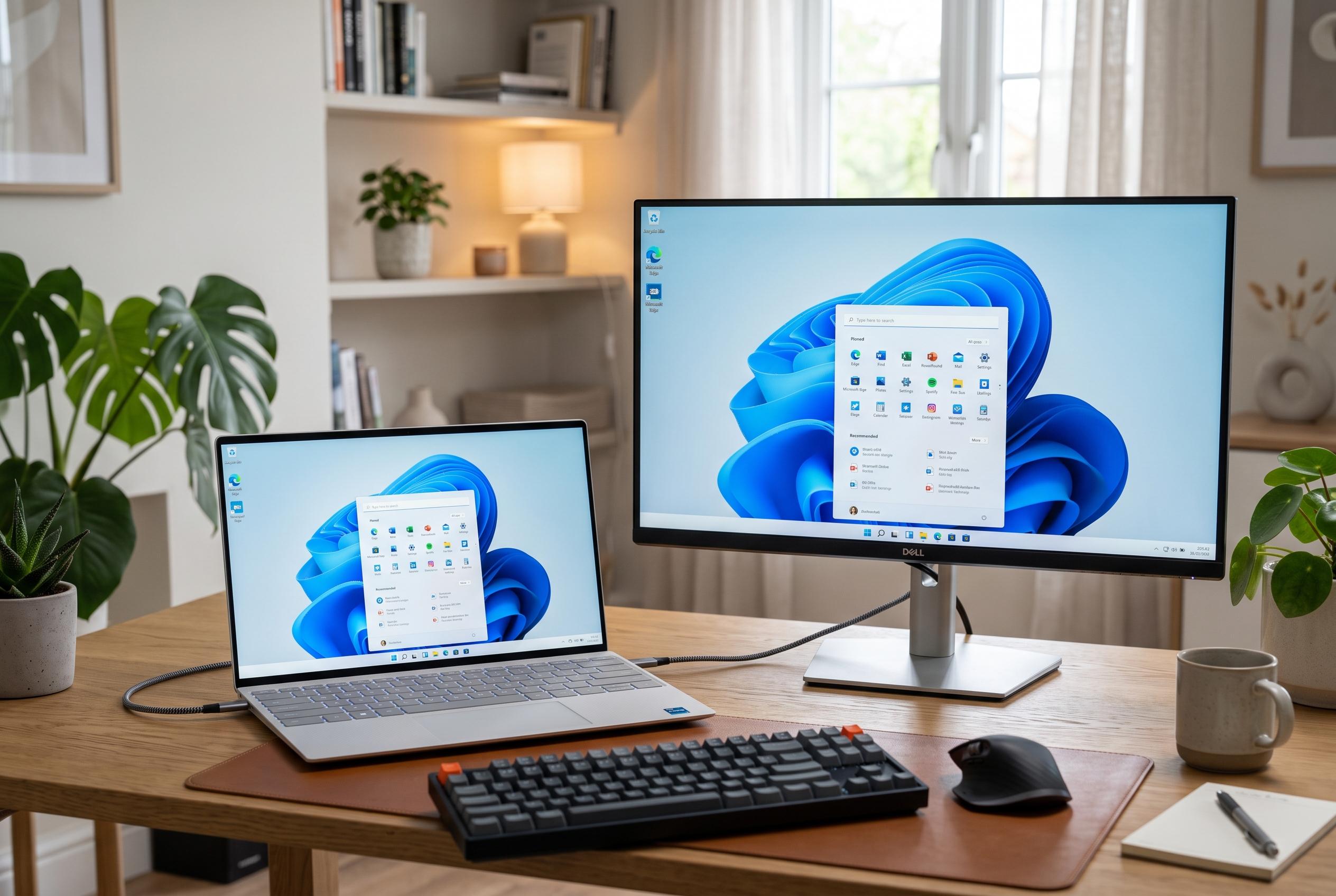
Laptop owners should compare the built-in panel with an external monitor. If the external display is stable but the laptop screen flickers, the fault is more likely to be in the internal panel, cable or hinge area. If both displays flicker, the problem is more likely to be in the graphics system, driver, settings or dock. Some manufacturers also provide built-in screen tests; if defects appear during those tests, the issue is probably hardware-related.
Repair becomes the right answer when the problem is visible before the operating system loads, appears in the BIOS or manufacturer logo, or shows up in a monitor self-test. Physical damage, persistent lines, abnormal colours, lid-dependent flicker, overheating, unusual smells or battery swelling also point away from software troubleshooting and towards qualified service. The clearest rule is simple: change one part of the signal path at a time, and treat the symptom as a clue, not a diagnosis.
Disclaimer: This content is intended for informational purposes only. Readers are advised to exercise their own judgement, conduct due diligence, or consult a qualified expert before acting on any information provided.



