

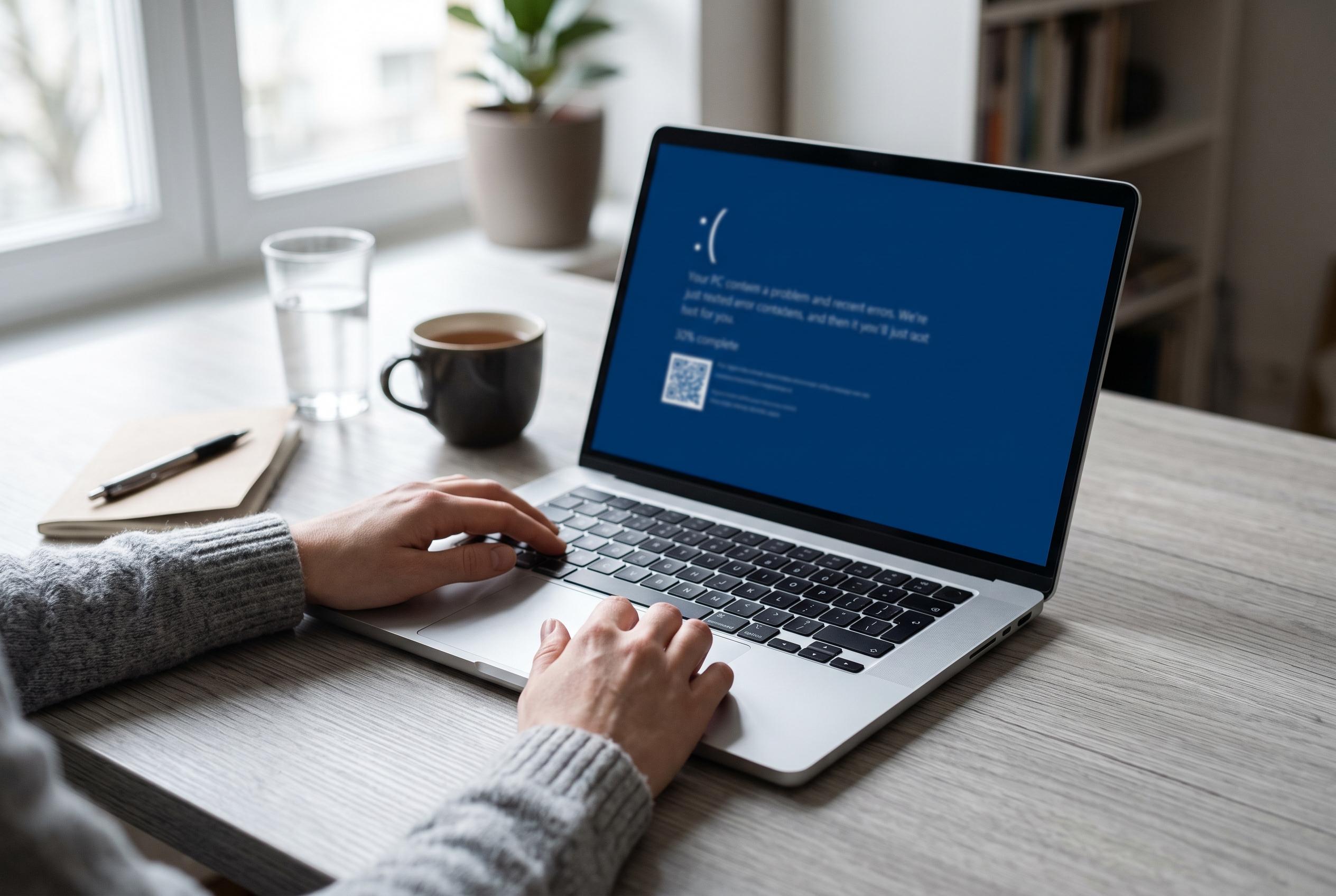

Understanding the steps to diagnose, protect data, and repair Windows blue screen errors to minimise downtime and prevent hardware or software issues from escalating.
A blue screen is Windows’ warning that something has gone wrong at a low level, usually before the operating system can continue safely. According to Microsoft’s support guidance, the most useful first step is not trial and error but collecting clues: note the stop code, record what you were doing, and identify whether the crash followed a recent hardware change, driver update or software install. In practice, that information often narrows the fault to a driver, memory problem, storage issue or Windows corruption before any repair begins.
The priority should be data protection. If the machine still boots between crashes, copy important files to an external drive or a trusted cloud backup before making major changes. Microsoft advises removing new hardware and checking that there is enough free disk space, while PCWorld notes that a failing system should not be pushed through repeated restarts if a drive problem is suspected. If the computer shows signs of storage trouble, such as repeated file errors or very slow starts, the safest approach is to preserve the data first and diagnose later.
Once the files are safe, remove anything non-essential from the system and test again. Microsoft, Windows Central and ITPro all recommend disconnecting recently added peripherals, checking for incompatible devices and rolling back recent changes where possible. That includes printers, docks, webcams, USB drives and other accessories that may have introduced a bad driver or a power issue. If the problem started after a specific update, driver or application, undoing that single change is usually more informative than replacing several components at once.
If Windows will not stay open long enough for normal troubleshooting, Safe Mode is the next step. Microsoft and ITPro both point to the recovery environment as the route in when the desktop cannot be reached, because Safe Mode loads only essential drivers and services. If the computer is stable there but not in normal mode, the fault is often a startup programme, third-party security tool or device driver rather than core Windows itself. From that environment, a full malware scan is also sensible if the crashes coincide with browser changes, pop-ups or other signs of compromise.
Built-in repair tools can then check for deeper system damage. Microsoft recommends running Windows Memory Diagnostic for suspected RAM faults and using Event Viewer and memory dump analysis when the cause is not obvious. The company also advises checking Device Manager for hardware warnings and using System Restore or Windows recovery options where appropriate. A command-line system file check, such as sfc /scannow, can repair damaged Windows files, although persistent errors after that point usually mean a technician needs to use more advanced repair methods.
Hardware faults become more likely when crashes recur under load or appear after the computer warms up. Overheating, weak power delivery, an ageing battery or a failing power supply can all trigger sudden shutdowns or blue screens. PCWorld and Windows Central both emphasise that graphics drivers and hardware compatibility are common pressure points, especially after upgrades. In desktop systems, reseating memory or a graphics card may help, but only if the user is comfortable opening the case and the machine is safely powered down and unplugged.
When the blue screens keep returning after updates, Safe Mode checks and file repairs, the problem is probably below the software layer. At that stage, Microsoft’s guidance and specialist repair advice from outlets such as Windows Central and ITPro both suggest looking at memory, storage, motherboard and power components. For businesses, the cost of delay can be higher than the repair itself if accounting systems, shared files or point-of-sale software are affected. The practical rule is simple: record the stop code, protect the files, remove recent changes and escalate quickly if the fault repeats.
Disclaimer: This content is intended for informational purposes only. Readers are advised to exercise their own judgement, conduct due diligence, or consult a qualified expert before acting on any information provided.



