

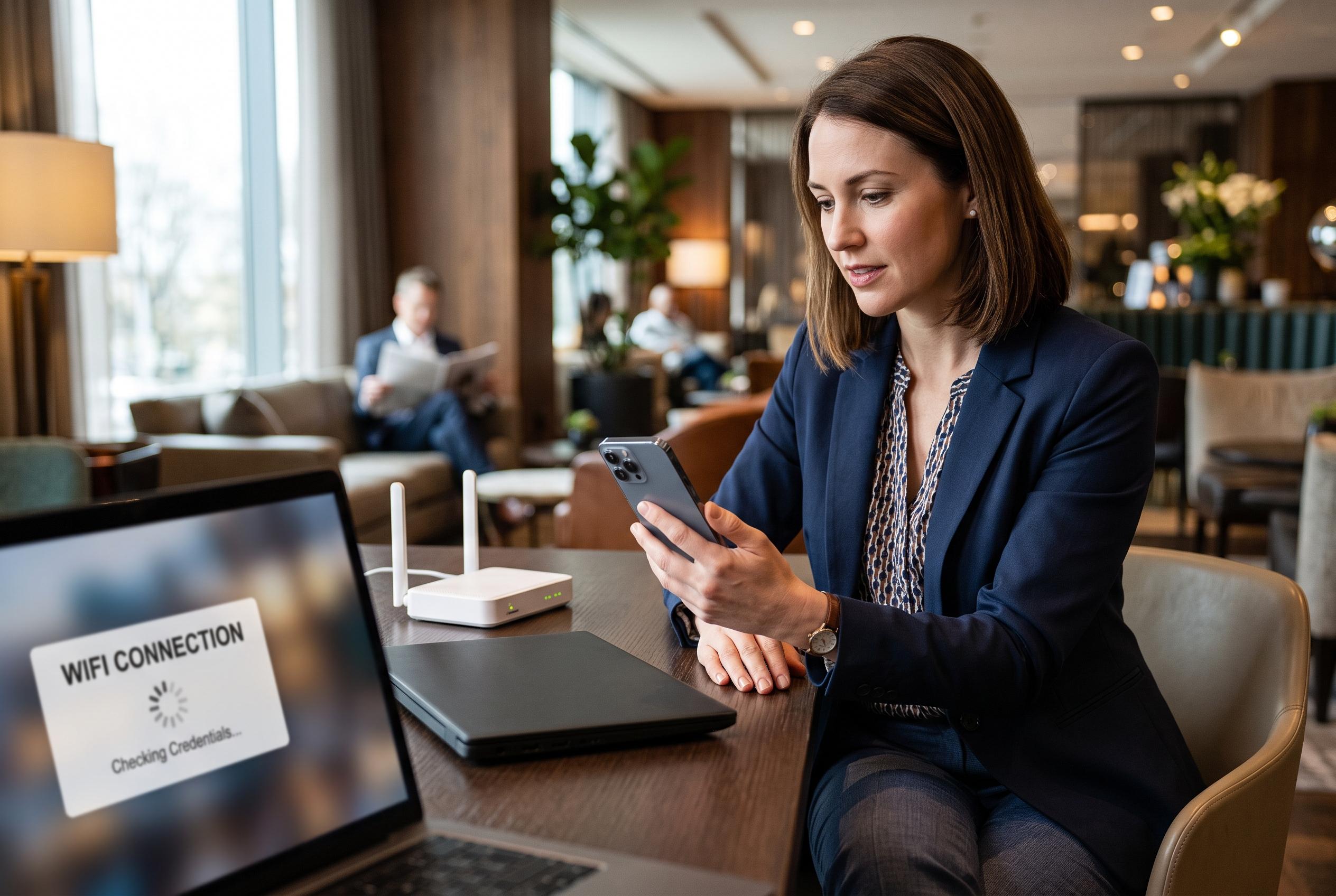

Travellers often face confusing hotel WiFi login screens. Experts recommend simple steps like reconnecting to the correct network, requesting plain HTTP pages, and pausing VPNs to resolve issues and gain reliable internet access.
Hotel WiFi often appears connected long before the login portal is actually complete, which can leave travellers with a signal but no usable internet. The first step is usually the simplest: reconnect to the exact guest network, open a new browser tab, and request a plain web page so the captive portal has something it can redirect. Guides from Speedefy, SpeedtestHQ and TheTest all point to the same basic diagnosis: the problem is often not the WiFi link itself, but the hotel’s sign-in layer.
That distinction matters because several different faults can produce the same symptom. If only one device is affected, the issue is more likely to be a local setting such as VPN, private DNS, content filtering or a saved network profile. If several guests are blocked, the hotel gateway or account system may be at fault. If the connection works in the lobby but not in the room, the local access point or signal path is the likelier cause.
The most reliable first fix is to forget the network and join it again using the exact guest SSID shown on the hotel card, room notice or front-desk instructions. Some properties run separate networks for guests, staff and meeting rooms, and a device may connect to the strongest signal rather than the correct service. Speedefy advises staying close to the room access point for the first login, especially if the portal is tied to the room session.
Once connected, open Safari, Chrome or Edge and type in a fresh address manually rather than opening a bookmark. Captive portals usually need an ordinary unencrypted request before they will display the sign-in page. Apple describes these as captive WiFi networks on iPhone and iPad, where the device may show a sign-in prompt or report that the network is not yet connected to the internet until authentication is complete. If a secure site stalls, trying a plain HTTP page can still help force the redirect.
If the page still does not appear, pause VPNs, browser filters and any custom DNS settings for one test. Several troubleshooting guides, including those from Impressivemagazine and SpeedtestHQ, note that these tools can intercept the first request and stop the redirect from reaching the hotel portal. On Android and iPhone, automatic secure browsing can create the same problem if the device tries to load HTTPS before the portal is given a chance to open.
It is also worth checking the device’s network details. A missing router value or an address starting with 169.254 usually means the device did not receive a normal local address from the network. If one browser fails while another works, the issue may be a stale browser session rather than the hotel system. Speedefy and other guides also recommend comparing a second device and, if necessary, asking the front desk to confirm the correct portal address before entering any payment or personal details.
Hotel staff should be contacted if the network name is missing, the portal throws an error, the room code is rejected or multiple devices fail in the same way. Give them the network name, the room area, the device type and the last screen you saw. Once access is restored, it is sensible to forget the guest network before leaving, keep the device updated and use a VPN again after the portal work is complete.
Disclaimer: This content is intended for informational purposes only. Readers are advised to exercise their own judgement, conduct due diligence, or consult a qualified expert before acting on any information provided.



