

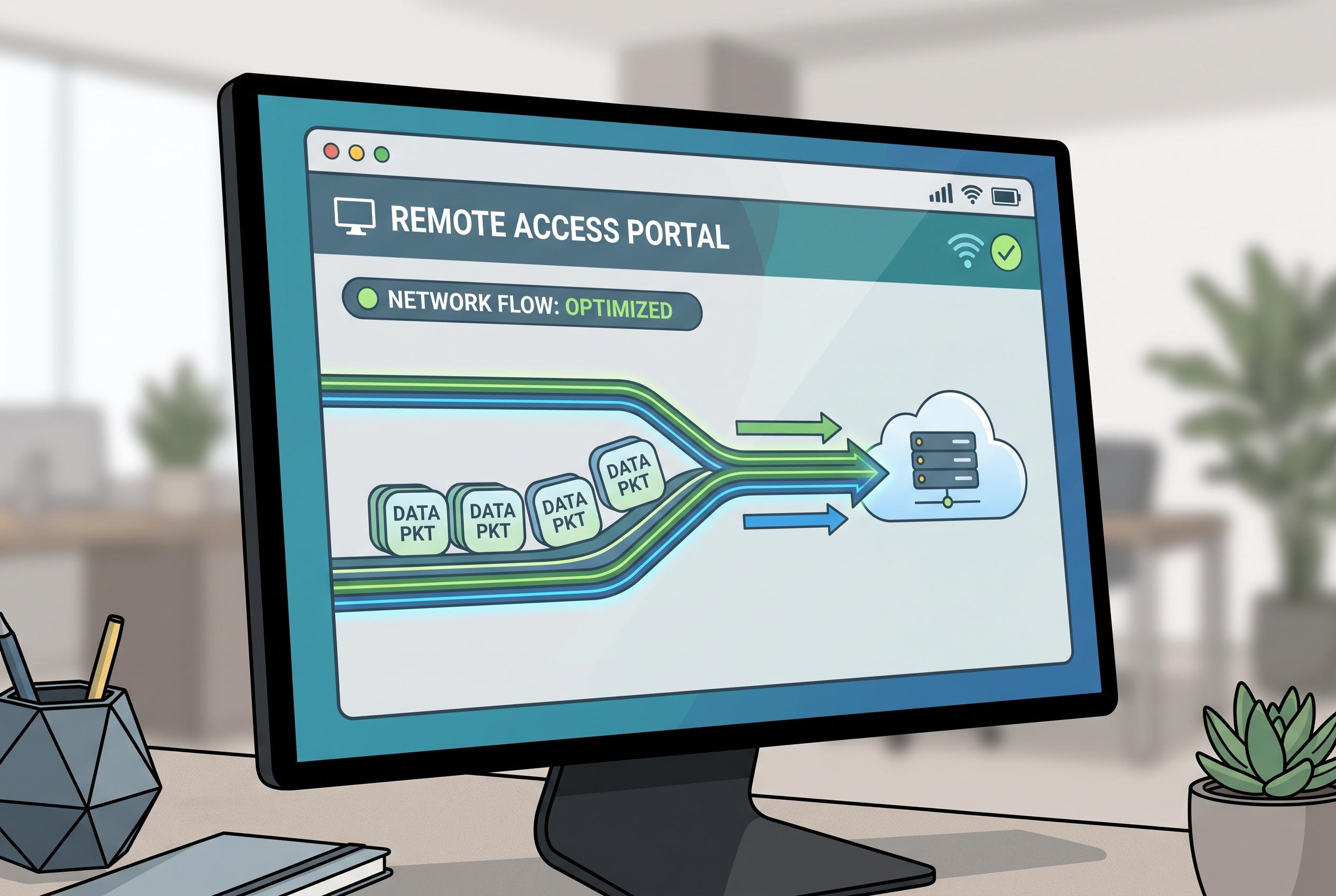

Optimising visual settings, hardware resources, and network configurations can significantly enhance TeamViewer’s remote session responsiveness, with recent tips emphasising the importance of prioritising traffic and reducing data overhead.
Slow TeamViewer sessions are usually the result of several small bottlenecks rather than one fault. The most common pressure points are visual settings, network stability, processor load and the route traffic takes between devices. TeamViewer’s own guidance on improving upload speed also stresses the importance of a strong upstream connection, wired networking and up-to-date drivers, all of which matter because remote-control software must continuously send screen data from the host machine.
The quickest gains usually come from reducing the amount of image data TeamViewer has to move. Lowering resolution, cutting back on image quality and disabling heavy visual effects can make a remote session feel far more responsive. TeamViewer Community users discussing slow file transfers have also highlighted the value of avoiding unnecessary overhead, while third-party troubleshooting guides say that simplifying the display stream often produces immediate improvements.
Local hardware load matters as well. If either computer is already under strain from browser tabs, background tasks or large file operations, TeamViewer has less headroom to work with. TeamViewer Community advice for file-transfer performance specifically points to CPU load on both ends as a practical cause of sluggishness, and TeamViewer’s own support material shows that the application tracks data flow in real time through its Connection Information window. That makes it possible to distinguish between a bandwidth problem and a machine-resource problem.
Network quality remains the underlying constraint. TeamViewer recommends measuring upload speed, using wired links where possible and checking for malware or system issues that might interfere with traffic. Community users have also reported better results after opening required ports, allowing TeamViewer traffic through firewalls and proxies, and pausing other downloads that compete for bandwidth. In practice, a stable Ethernet connection is usually more reliable than Wi-Fi for remote support work.
For more advanced setups, prioritising traffic can help. TeamViewer’s own upload-speed guide recommends Quality of Service configuration in enterprise environments, and community advice similarly suggests giving remote-access traffic a clearer path through routers and security appliances. This is particularly useful when several devices share the same connection and one session needs priority over streaming, gaming or cloud backups.
There are also gains to be made by changing the task itself. File transfer often works best in TeamViewer’s dedicated transfer mode rather than through the live desktop view, and compressed folders can reduce overhead during large moves. TeamViewer’s support documentation on data flow indicates that the software actively adjusts transmission to maintain performance, while material on hardware acceleration shows that offloading image scaling to the GPU can reduce strain on the CPU and improve responsiveness.
Disclaimer: This content is intended for informational purposes only. Readers are advised to exercise their own judgement, conduct due diligence, or consult a qualified expert before acting on any information provided.



