
Bluetooth connections, blocked ports, moisture and software glitches can all leave an iPhone routing sound away from its speakers. Here is how to fix the problem safely before seeking repair.
When an iPhone appears to be locked in headphone mode, the usual result is simple but disruptive: audio refuses to play through the built-in speakers even after the headset has been removed. Several repair guides from FoneGeek, Fone.tips, PhoneGuiding, Mente Curiosa and Wondershare Dr.Fone agree that the fault is usually caused by one of three things: a confused Bluetooth connection, debris or moisture in the port, or a temporary software glitch. The good news is that most cases can be resolved without specialist repair.
The first place to look is Bluetooth. If the phone is still connected to wireless headphones or earbuds, the audio route may remain pointed at the accessory rather than the handset itself. The practical fix is to open Settings, go to Bluetooth, and disconnect or forget the device. If that does not clear the issue, cycling the connection by plugging in and removing wired headphones can force iOS to re-check the audio state and may restore normal speaker output.
It is also worth checking the selected playback destination in Control Centre. On Apple devices, audio can be routed manually to another output, so the system may be behaving exactly as instructed rather than malfunctioning. Several guides recommend opening the music card, tapping the AirPlay control and confirming that the iPhone itself is selected. If the wrong output remains active, speakers can stay silent even though the headphone icon appears to have disappeared.
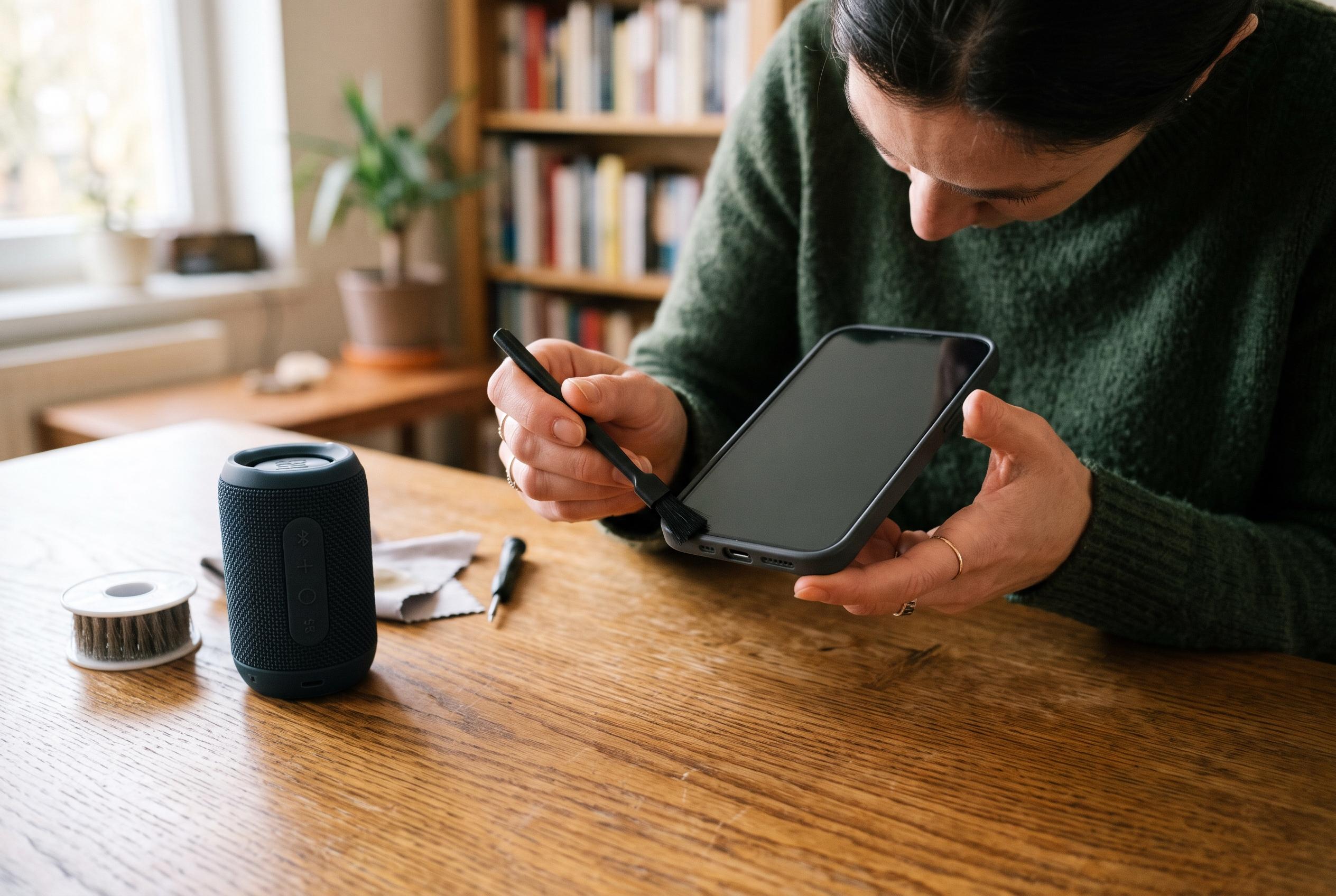
If software controls do not solve it, the physical port becomes the next suspect. Dust, lint and other small particles can interfere with headphone detection and make the device behave as though something is still connected. Cleaning should be careful and minimal: a soft, lint-free cloth is the safest approach, and Apple’s own advice is to avoid compressed air and aerosol sprays. A damaged or blocked USB-C connector can produce the same symptoms, so a close inspection matters.
Moisture is another common cause. Repair guides note that water exposure, including sweat or an accidental spill, can confuse the port or damage internal audio detection. The usual warning sign is the liquid contact indicator, which changes colour when it has been triggered. On eSIM-only iPhones sold in the United States, Apple Support says those indicators are internal rather than visible from the outside, which makes casual checking more difficult and means users should avoid dismantling the phone themselves.
If the hardware seems clean and dry, the next step is to treat the problem as software-related. Restarting the phone is a standard but effective test because it clears temporary faults. If that fails, installing the latest iOS update is the next sensible move, since Apple may already have issued a fix. The broader troubleshooting guides also suggest a full reset if nothing else works, although that should be considered only after a backup, because it erases all data and returns settings to factory defaults.
If the problem still persists after these steps, the odds increase that the phone has a hardware fault rather than a software one. In that case, the most sensible route is an Apple Store appointment or authorised service visit, especially if the device is still under warranty. Several of the guides warn that accidental physical damage is typically not covered unless the user has AppleCare+, and they also caution against unauthorised third-party repairs if warranty protection matters.
Disclaimer: This content is intended for informational purposes only. Readers are advised to exercise their own judgement, conduct due diligence, or consult a qualified expert before acting on any information provided.