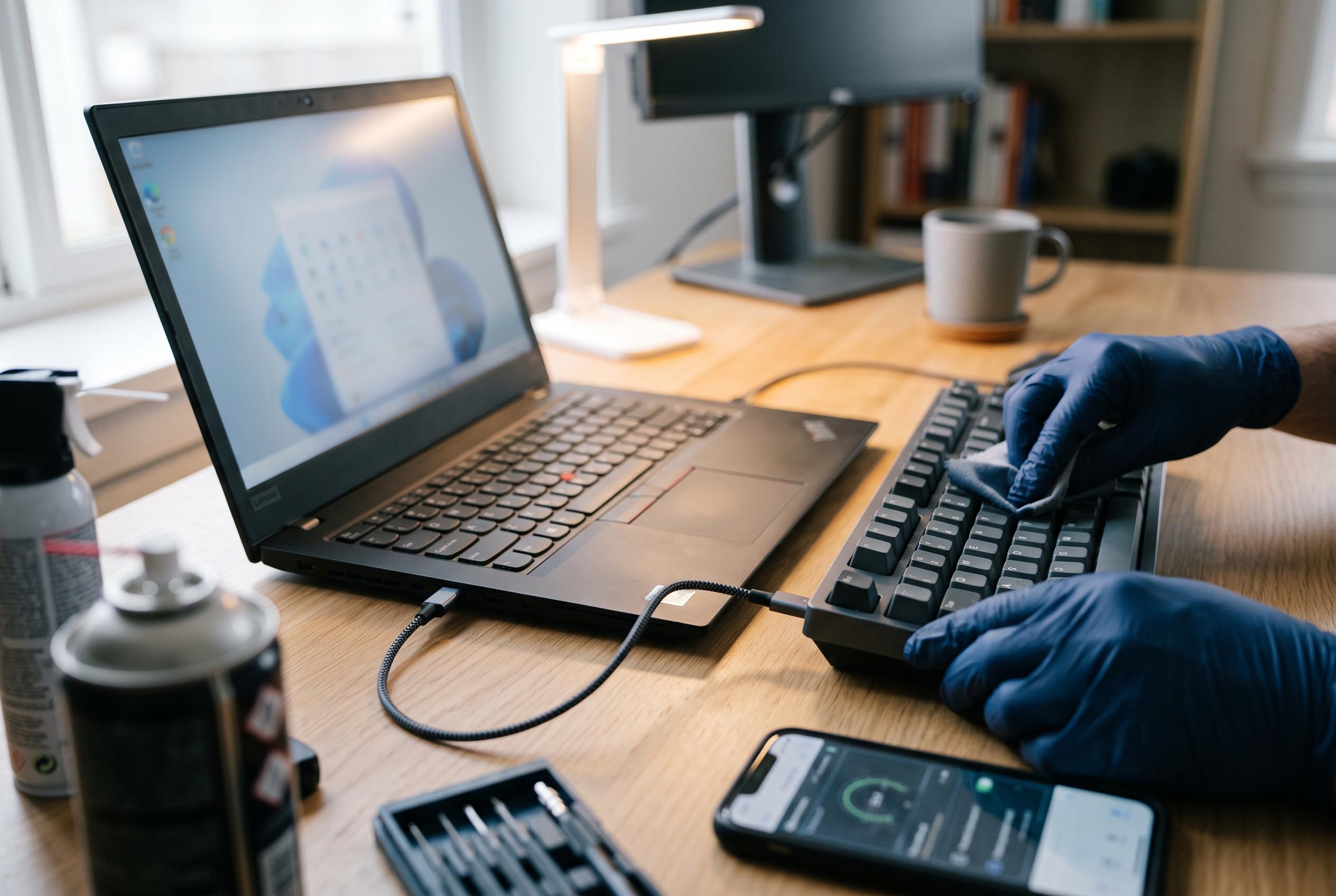

A comprehensive guide to diagnosing and resolving Lenovo keyboard problems shows that most faults are software or connection related, challenging assumptions of hardware failure.
When a Lenovo keyboard stops responding, the problem is often less serious than it first appears. Lenovo’s support material points to a familiar set of causes: a frozen Windows session, a driver fault, a keyboard setting that has been changed, or, in some cases, dirt, liquid damage or a loose internal connection. The first step is therefore to rule out a temporary software fault before assuming the hardware has failed.
A full restart is the quickest test. Lenovo recommends powering the machine down and back up, then checking whether the keys work in a simple app such as Notepad. If the keyboard still does not respond, the next diagnostic step is to see whether it functions before Windows loads. Lenovo’s own troubleshooting guidance says that testing in BIOS is a useful way to separate a Windows problem from a hardware fault. If the keyboard works in BIOS, the issue is likely tied to Windows, a driver or a configuration setting. If it fails there as well, the fault is more likely physical.
For users who are temporarily locked out, the on-screen keyboard can provide a practical workaround while repairs are being attempted. Lenovo also advises checking for input settings that can affect behaviour, including accessibility options and keyboard shortcuts. On ThinkPad systems, hotkey settings and Fn-lock behaviour can make the top row appear broken when the machine is actually using a different function mode. Toggling Fn + Esc and checking Lenovo Vantage or BIOS settings can restore the expected behaviour of the function keys.
If the keyboard still does not work properly, driver and firmware maintenance become more important. Lenovo support recommends using Device Manager to update the keyboard driver, or uninstalling and reinstalling it so Windows can load a fresh copy at the next restart. The company also points users to BIOS and Embedded Controller updates, which can resolve controller-level issues that affect input devices. In more stubborn cases, a Windows keyboard troubleshooter or system restore may help if the failure began after a recent software change.
External keyboards require a slightly different approach. Lenovo advises checking the USB connection first, then trying a different port, replacing batteries on wireless models and reconnecting the receiver. Cleaning is also worth doing, especially if keys are sticky or only some of them have failed. For laptops, physical inspection matters more: debris under the keys, spill damage or a loose ribbon cable can interrupt the keyboard even when Windows appears normal. Repair specialists also note that an Embedded Controller reset, carried out by removing power and holding the power button for around 30 seconds, can sometimes revive an unresponsive built-in keyboard.
If the keyboard fails both inside and outside Windows, and another keyboard works normally on the same device, hardware damage becomes the most likely explanation. At that point, Lenovo Support or a qualified repair service can help determine whether the issue is limited to the keyboard assembly, the controller or another internal component. In practice, most Lenovo keyboard faults can be narrowed down with a few disciplined checks: restart, test in BIOS, confirm settings, refresh the driver and inspect the hardware before deciding on replacement.
Disclaimer: This content is intended for informational purposes only. Readers are advised to exercise their own judgement, conduct due diligence, or consult a qualified expert before acting on any information provided.