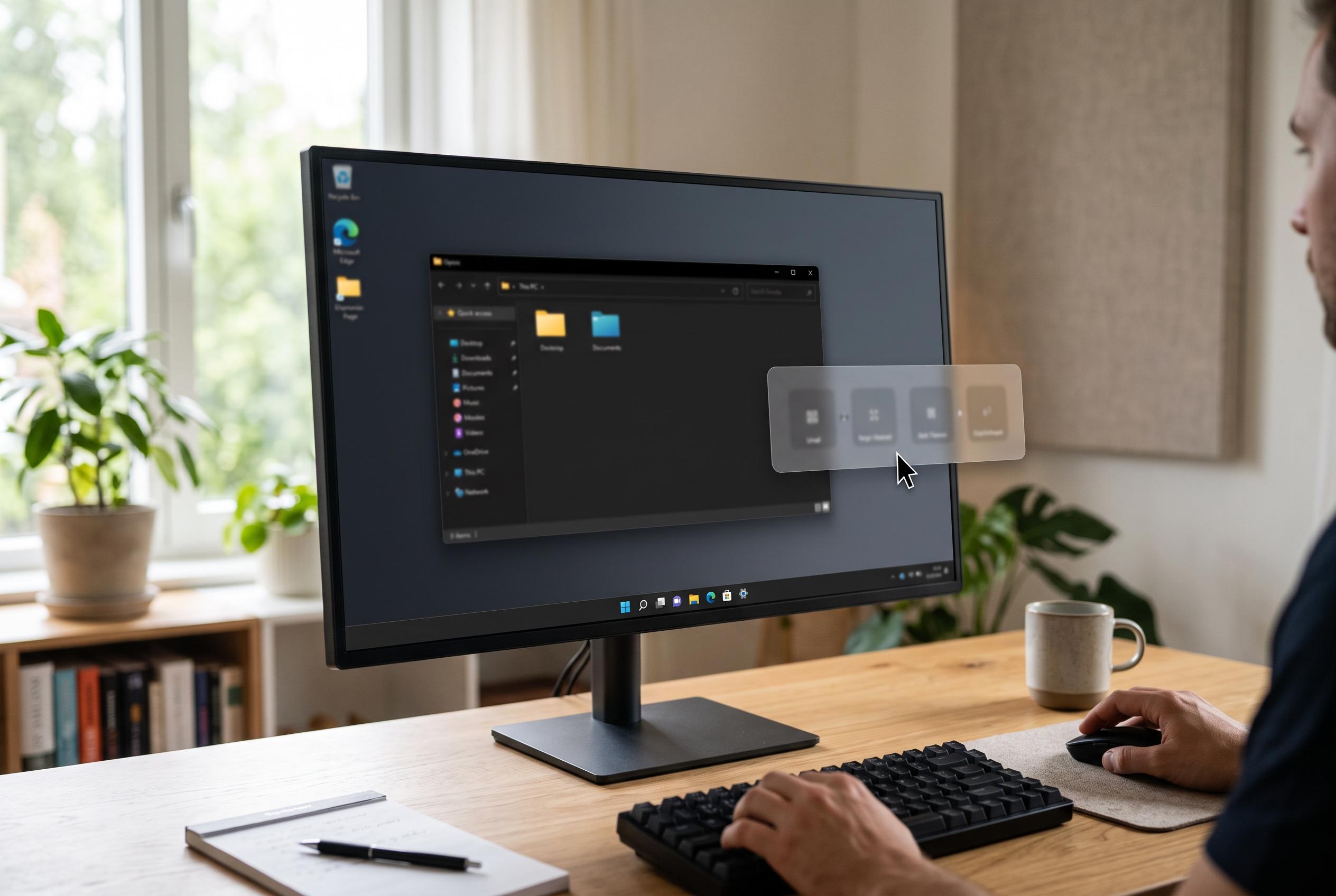

Microsoft’s PowerToys Shortcut Guide introduces a contextual overlay that dynamically displays relevant keyboard shortcuts, helping Windows users remember key commands more easily and customise their shortcut experience.
Microsoft’s PowerToys Shortcut Guide is designed for a problem many Windows users know well: forgetting key combinations that are useful precisely because they save time. The feature works as a contextual overlay, surfacing shortcuts for the active app as well as Windows, PowerToys and other supported programmes with matching manifests. In practice, that turns it into a live cheat sheet rather than a static list, which is what makes it more useful than trying to memorise every command in advance.
One of its main strengths is relevance. According to Microsoft’s documentation, the guide can show shortcuts tied to the foreground application, so the content changes with the task at hand. That makes it easier to find the right command without opening a browser or digging through a general reference page. The guide also supports pinned shortcuts, which helps keep frequently used commands visible. For users who regularly forget a handful of actions, that can be enough to remove the friction of repeated searching.
Customisation is another advantage. The guide can be opened with a configurable hotkey, and Microsoft says users can adjust how long the key combination must be held, where the window appears and which shortcuts are highlighted. The article’s author found that setting a one-handed activation shortcut made the tool easier to reach without breaking concentration, and preferred placing the overlay on the right-hand side of the screen. Microsoft has also added a page-local search box in newer preview builds, which should make the guide faster to use when the shortcut you want is not immediately visible.
The main criticism is visual, not functional. The shortcuts are grouped into sections, but those sections can still blend together when someone is in a hurry. That makes the guide less scannable than it could be, particularly if the user is trying to move quickly and does not want to slow down to browse through categories. Even so, the practical value remains clear: a slightly awkward layout is still better than leaving the user to hunt for a shortcut elsewhere.
That broader usefulness is why the Shortcut Guide has drawn positive attention in other Windows coverage. Tom’s Guide describes it as a contextual overlay tailored to the active application, while Windows Central has highlighted it as a straightforward way to learn and remember Windows 11 shortcuts. The common thread is simplicity: the feature does not try to replace keyboard muscle memory, but to support it when memory fails. For many users, that is enough to make it worth keeping close at hand.
Disclaimer: This content is intended for informational purposes only. Readers are advised to exercise their own judgement, conduct due diligence, or consult a qualified expert before acting on any information provided.