

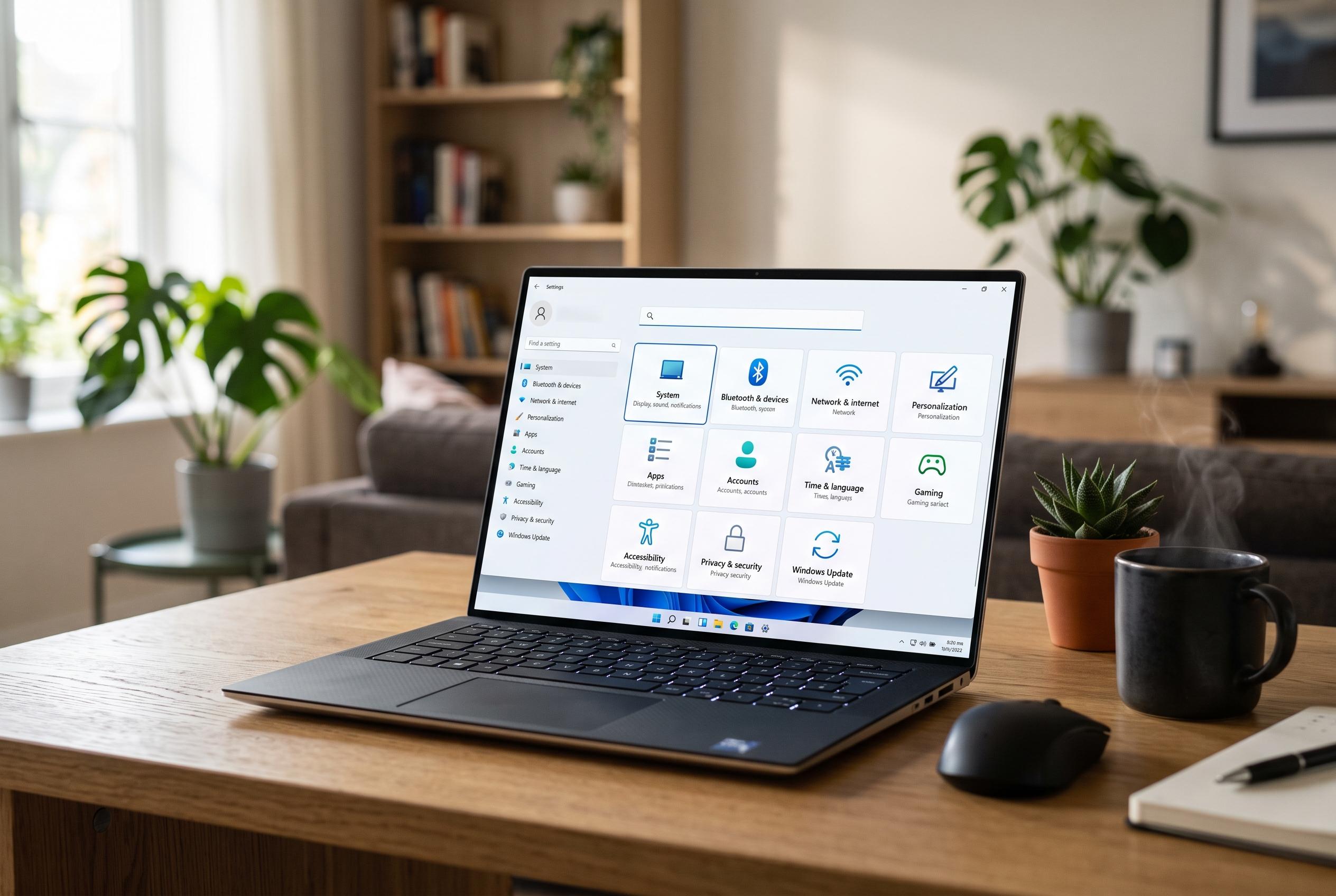

Microsoft has overhauled the Windows 11 Settings app, transforming it into a central control hub with AI-assisted search and customisable shortcut options, while also offering robust troubleshooting steps for faults.
Windows 11’s Settings app is no longer just a list of switches buried behind the Start menu. Microsoft now presents it as the operating system’s main control hub, and on most systems it opens to a Home page that surfaces commonly used tasks through cards for Recommended settings, Personalisation, Bluetooth and Storage. Microsoft’s current support guidance also makes clear that search inside Settings has become more important: users can browse by category in the left-hand navigation panel, but they can also type plain-language requests to find the right control more quickly, with extra AI-assisted search features on some Copilot+ PCs.
For most people, the quickest way in remains the keyboard shortcut Win+I. Microsoft also still points users to the basic right-click method on the Start button. Consumer guides add the routes that matter in everyday use: open Start and search for Settings, press Win+X to use the Power User menu, or press Win+A to open Quick Settings and click the Settings button from there. That last path is worth noting because many older guides still call the flyout Action Centre, even though Windows 11’s interface now separates quick controls from the older Windows 10 design.
Where the more technical documentation becomes useful is in Microsoft’s ms-settings: URI scheme. According to Microsoft Learn, that scheme does much more than launch the main Settings window. It can send users straight to individual pages, including ms-settings:display, ms-settings:about, ms-settings:dateandtime, ms-settings:regionformatting, ms-settings:keyboard and ms-settings:windowsupdate-restartoptions. That is why so many alternative launch methods work. The Run box, Command Prompt, PowerShell, Task Manager and even a browser address bar can all hand Windows the same URI and open the destination directly.
That page-specific behaviour also explains why some guides prefer ms-settings:system rather than the shorter ms-settings: form in examples. Windows Central notes that leaving out the page name may not take users where they expect, while Microsoft’s own reference warns that availability varies by Windows version and SKU. Some destinations are also no longer where long-time Windows users may remember them. Microsoft Learn says the old Background Apps page is deprecated in Windows 11, with background permissions now handled per app under Apps > Installed apps > Advanced options. The same reference notes that ms-settings:backup no longer opens a standalone Backup page in Windows 11, because that page has been removed and the URI now redirects to Sync.
A few opening methods are less obvious but still practical. Windows Central says File Explorer can launch Settings through the Properties command when the user is looking at This PC rather than Quick access, and it also recommends creating a desktop shortcut that points to ms-settings:system. Guiding Tech adds a simpler long-term convenience: once Settings is open, pin it to the taskbar. For users who regularly change display options, printers, networking or privacy controls, that is often more useful than memorising half a dozen different launch paths.
The harder part begins when Settings will not open at all, or opens as a blank window. Guiding Tech’s repair guides treat those as related but slightly different faults. In its coverage, a missing or empty Settings app can indicate file corruption, Windows Explorer problems, account-profile damage or interference from third-party software. Its broader troubleshooting guide also ties some failures to Windows Update, noting that updates can cause breakage but that Microsoft may also correct the same issue in a later patch. That is a useful distinction, because it means a broken Settings app is not always an isolated app problem.
The initial repair steps are relatively conservative. If parts of the Windows shell are freezing, restart Windows Explorer from Task Manager before attempting heavier fixes. If that fails, reboot the PC fully and, if necessary, test in Safe Mode to see whether the app works without third-party processes in the way. After that, the more direct repairs involve resetting or re-registering the immersive control panel package in an elevated terminal, running sfc /scannow, and then using DISM if system corruption is suspected. Guiding Tech also recommends checking whether Group Policy has been used to block access to Control Panel and PC settings, and, in more stubborn cases, creating a fresh user account to determine whether the failure is tied to the existing profile.
Taken together, the current guidance is simpler than many long lists suggest. If all you need is a reliable way to open Settings, Win+I, Start search and the Start button menu are enough. If you need speed or precision, the ms-settings: scheme is the better tool because it can jump directly to Bluetooth, display, language or Windows Update pages. And if the app itself is broken, the most credible repair path is to treat it as a Windows component issue rather than a mere shortcut problem, starting with Explorer, system-file checks and package re-registration before moving on to Safe Mode, policy checks or account repair.
Disclaimer: This content is intended for informational purposes only. Readers are advised to exercise their own judgement, conduct due diligence, or consult a qualified expert before acting on any information provided.



