

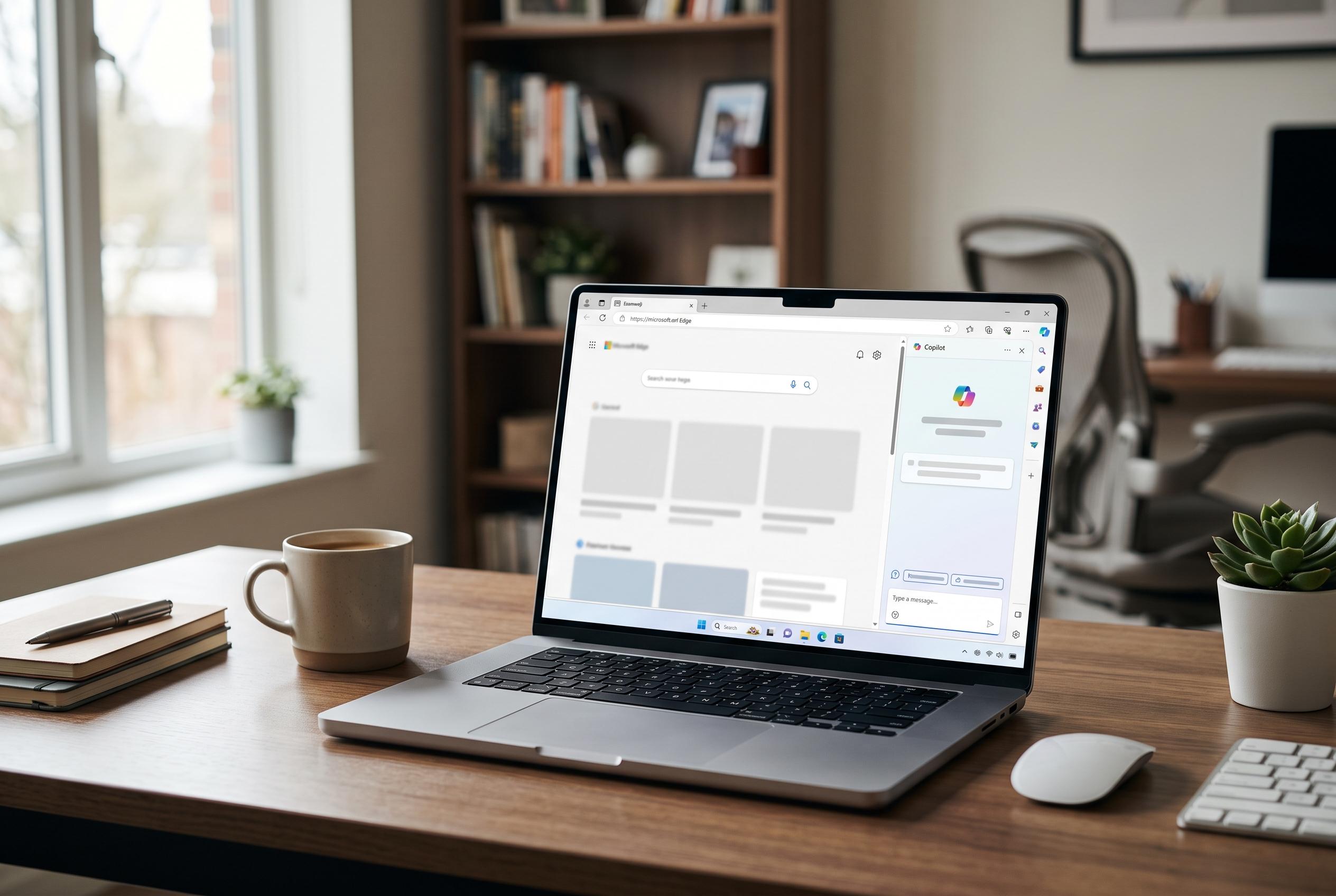

Microsoft’s latest troubleshooting framework reveals specific service, profile, and enterprise configurations behind blank Copilot windows in Edge, emphasising tailored diagnostic steps over generic fixes amid evolving browser and enterprise policies.
A blank Copilot window is often a sign of a specific failure, not a vague browser malfunction. In a Microsoft Learn troubleshooting note updated on 6 April 2026 (learn.microsoft.com), the company says a blank pane or a “Refresh” prompt in the Edge sidebar usually means the Copilot Chat service cannot be reached, while a “Sign in” or “Try again” button points to an authentication problem with the signed-in profile. The same note adds a newer enterprise wrinkle: from Edge 146 onwards, managed environments may need to allow extra internal URLs, including edge://commercial-copilot-chat and chrome-untrusted://commercial-copilot-chat, or Copilot Chat may fail to load altogether. (learn.microsoft.com)
That makes the first check less about clearing data and more about confirming whether Copilot is even eligible to run in the way the user expects. Microsoft says the Edge sidebar version requires a desktop edition of Windows, is not supported in PWA or Web App windows, and cannot be used by accounts classified as child accounts. (learn.microsoft.com) If the Copilot icon is missing rather than blank, Microsoft now points users to the Get Help app, which offers a “Copilot License Troubleshooter” for entitlement problems and a “Copilot connectivity troubleshooter” for blocked connections, including firewall rules. (support.microsoft.com)
For users who do see the Copilot icon but get only a white or empty panel, Microsoft’s diagnosis is unusually technical. Consumer accounts are told to test whether the Copilot service endpoint https://edgeservices.bing.com/edgesvc/shell is reachable, while enterprise or commercial profiles may depend on a configurable MetaOS App Service endpoint. (learn.microsoft.com) Microsoft adds that the sidebar sends heartbeat signals about every 15 seconds after loading; if those stop, Edge will try to refresh the pane automatically. If the endpoint loads but Copilot still fails after repeated retries, the company advises checking Microsoft 365 service health rather than continuing to change local settings. (learn.microsoft.com)
Only after those service and account checks does the problem start to look like ordinary browser triage. Microsoft Support’s broader Edge repair guide (support.microsoft.com) recommends closing every tab except the failing one, shutting other apps to free memory, pausing downloads and removing unnecessary extensions before reloading the page. The same page tells users to update Edge via About Microsoft Edge, restart the computer, verify third-party security software is current, and, if necessary, repair the browser from Windows settings. It also suggests opening the same page in another browser to judge whether the fault lies with Edge, the network or the website itself. (support.microsoft.com)
Microsoft’s newer documentation on Browse with Copilot helps explain why cookie, profile and permission resets can make a difference. The support page says Copilot in Edge uses cookies, limited profile information and the tabs open in the current browser window, and that starting with a brand-new browser profile or deleting cookies can change how it behaves. (support.microsoft.com) The same documentation notes that Edge blocklists, enhanced security settings and policy restrictions can prevent Copilot from accessing some sites by design. In other words, a partial or blank experience is not always a crash; sometimes it is the result of the browsing context Edge is allowing Copilot to use. (support.microsoft.com)
User reports on Microsoft’s own Q&A forum broadly support the sign-in and profile theory. In a thread posted on 11 April 2024 (learn.microsoft.com), one user said copilot.microsoft.com became a blank white page only when signed in, while it worked normally when unsigned, and that the problem appeared in both Edge and Chrome on Windows 10 Pro x64 build 19045.4170. A Microsoft community support specialist replied that it “could be an account issue” and suggested trying another account, creating a new profile or using a different browser. On 4 July 2024, another user in the same thread wrote: “Instead of signing in from another account, I logged off with my account and then logged back in. That worked for CoPilot.” A later post from 6 November 2024 added that clearing cookies restored access only until the next sign-in. (learn.microsoft.com)
A separate March 2026 guide from Guiding Tech lines up with much of that official advice, but adds more exact UI steps for Edge users. The publication, updated on 24 March 2026 (guidingtech.com), recommends clearing Copilot-specific cookies through Edge Developer Tools, using Ctrl + Shift + Del to wipe cached browsing data, signing out and back into the profile, creating a second profile through Settings > Profiles > Add profile, and repairing Edge through Settings > Apps > Installed Apps > Microsoft Edge > Modify > Repair. Those are not Microsoft-authored instructions, but they closely match Microsoft Support’s own view that corrupted cache, unstable profile state and a damaged browser installation can all stop pages from loading properly. (guidingtech.com)
The most efficient recovery order is therefore narrower than a generic “try everything” checklist. Start by confirming the platform and account are supported, and if the machine is managed, ask whether Edge sidebar policy is blocking the internal Copilot URLs now required in newer versions of the browser. (learn.microsoft.com) Then test reachability and service health, sign out and back into the profile, try a fresh or private browsing context, clear cookies and cache, and repair Edge only if browser-level symptoms persist. If the icon itself is missing, or if corporate controls may be involved, Microsoft’s Get Help troubleshooters and an administrator review of allow lists are likely to be more useful than repeated page refreshes. (support.microsoft.com)
Disclaimer: This content is intended for informational purposes only. Readers are advised to exercise their own judgement, conduct due diligence, or consult a qualified expert before acting on any information provided.



