

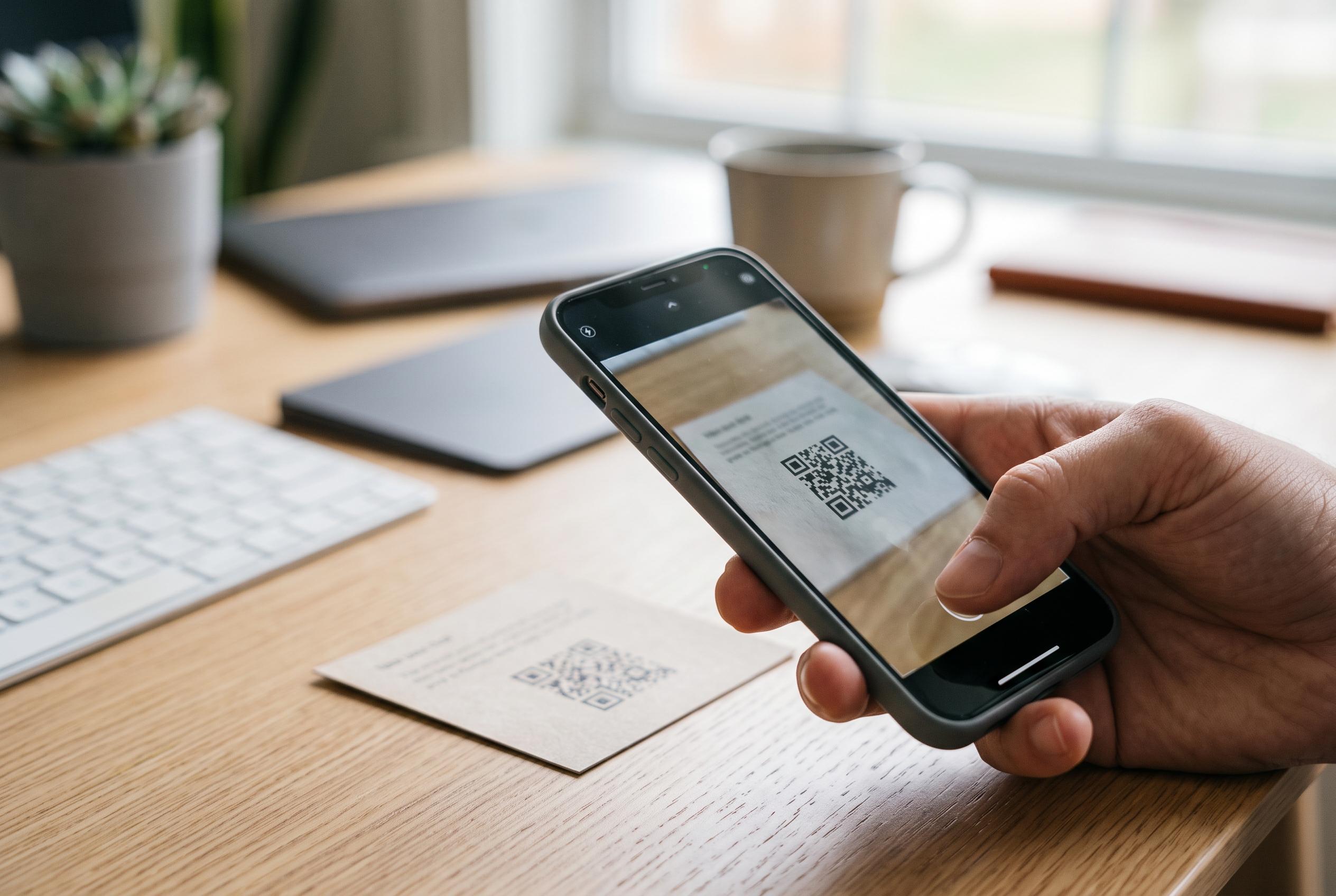

Modern smartphones and browsers facilitate QR code scanning from static images using built-in tools, reducing reliance on third-party apps and streamlining access to embedded information.
Scanning a QR code from a picture is a different task from reading one in the real world. A phone camera is built for live scanning, but static images in screenshots, gallery photos or chat attachments usually need a separate tool. Guides from QRDock and iDownloadBlog note that this is the point where built-in camera scanning often stops working, even though the code itself is still perfectly readable.
On Android, Google Lens remains one of the most practical options. QR-Verse and QRDock both describe the same basic workflow: open Google Lens through the Google app, choose the saved image, and let the software identify the code inside it. On iPhone, iDownloadBlog explains that Live Text in the Photos app can do the same job by opening a saved picture and selecting the QR element directly. In both cases, the device turns a static image into a clickable result without requiring a separate utility.
For people working on a computer, web-based readers are a simple alternative. ScanQR says its service accepts uploaded images in common formats such as PNG, JPG, WEBP, GIF and BMP, and is designed for codes embedded in screenshots or photos. That makes browser tools useful when the image is sitting in an email, document or desktop folder rather than on a phone. ScanKeeper makes a similar point about saved images, while stressing that some scanners can work without an account or active internet connection.
Several apps can also read a QR code from an existing picture in the gallery. ScanKeeper says its own app is intended for that use case, while QRDock and QR-Verse point to native phone features and Google Lens as the first places to look before installing anything else. The common advantage is convenience: if the code arrives in a message, the user can open the image and decode it immediately instead of opening the camera and trying to line up a screen.
When a scan fails, image quality is usually the cause. The code may be blurred, cropped, too small or low in contrast. The guides consistently advise using the clearest version available, enlarging the code area and checking that the full square is visible. QR-Verse also notes that scanning features may need to be enabled in device settings on some phones, which can explain why a built-in tool appears not to respond.
The wider lesson is straightforward. Most modern phones already include the tools needed to read a QR code from an image, and in many cases no extra download is necessary. A camera app handles live scanning, Google Lens and Live Text handle saved images, and web tools or dedicated apps fill the gaps when the picture is awkward, damaged or stored on a computer. For everyday use, that is usually enough to turn a screenshot into the information hidden inside it.
Disclaimer: This content is intended for informational purposes only. Readers are advised to exercise their own judgement, conduct due diligence, or consult a qualified expert before acting on any information provided.



