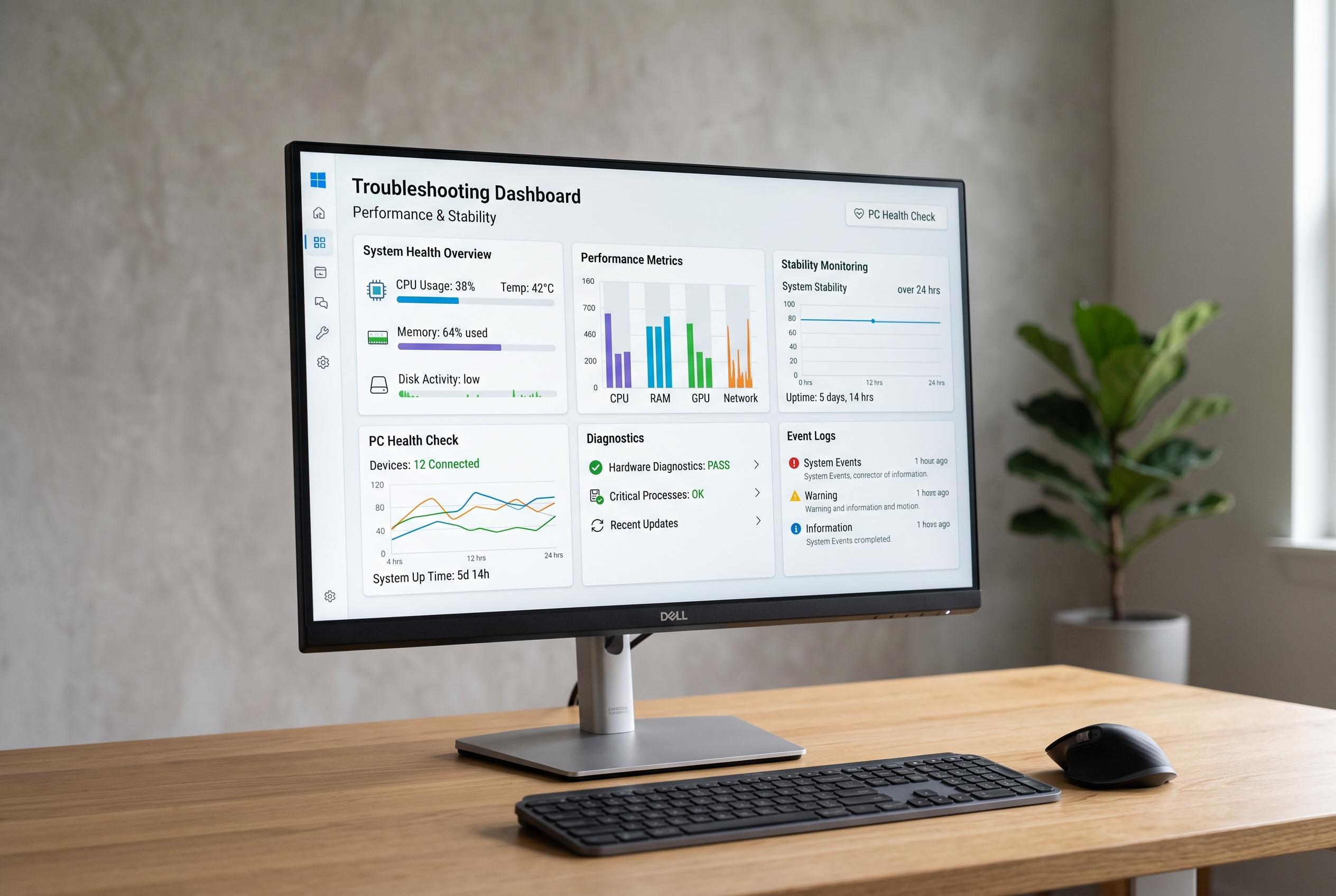

Microsoft’s latest suite of free tools and features in Windows 10 and 11 offers a more structured approach to diagnosing performance, stability, and hardware problems, minimising reliance on third-party software for initial checks.
There is no single free tool that can diagnose every Windows problem. The most effective approach is to begin with built-in checks, then move to specialist software only when the symptom demands more detail. Microsoft says the Device performance & health page in Windows Security gives a broad overview of storage, battery life, apps, software and Windows Time service issues on Windows 10 and Windows 11, making it a sensible first stop for a quick health check.
For a machine that has begun crashing, freezing or failing after an update, Reliability Monitor is often more useful than guesswork. Microsoft documents the tool under the perfmon command, where perfmon /rel opens a timeline of application failures, Windows failures, warnings and successful installations. Computerworld has described it as a practical way to identify when instability began, although it still points to symptoms rather than proving a root cause.
When the PC is slow right now, Resource Monitor is the better built-in option because it shows live CPU, memory, disk and network activity. Microsoft notes that the broader perfmon command family can launch Resource Monitor and related tools, which makes it useful for separating a temporary spike from a continuing problem. Performance Monitor is the more advanced choice for intermittent faults, since it can collect counters over time and produce diagnostic reports, but Microsoft warns that the data must be interpreted in context.
Memory faults need separate treatment. Windows Memory Diagnostic is the convenient first test because it runs after a restart, before Windows loads, and can be launched with mdsched. If the problem persists, a standalone test such as MemTest86 Free is the deeper option because it boots from USB and tests memory outside the installed operating system. Its current 11.7 release requires UEFI, so older BIOS-only systems need an older compatible build.
For heat, throttling and hardware identification, HWiNFO remains the strongest free utility in this group. It provides detailed component data, live sensor readings and logging, which is useful when a fault appears only under load, such as during gaming, rendering or charging. The publisher says the freeware licence applies to personal, non-commercial use, so businesses should check the current terms before relying on it in professional work.
Storage checks are best handled by CrystalDiskInfo, which reads supported S.M.A.R.T. data and displays drive temperature and health information. That can help when Windows reports storage errors, files become corrupted or a disk feels slower than usual. But a good S.M.A.R.T. result is not a guarantee of future reliability, and support can be limited through USB enclosures, Intel RAID or some NVMe setups. Back up important data before treating any suspect drive as trustworthy.
For startup delays and stubborn processes, Sysinternals tools remain the most useful deeper layer. Autoruns shows a much wider set of automatic-start locations than the standard Windows interface, while Process Explorer can identify which process has a file open, which handles it is using and which DLLs it has loaded. Those tools are powerful, but they are also easy to misuse: a disabled startup entry or a force-closed process may change symptoms without explaining the underlying fault.
Disclaimer: This content is intended for informational purposes only. Readers are advised to exercise their own judgement, conduct due diligence, or consult a qualified expert before acting on any information provided.