

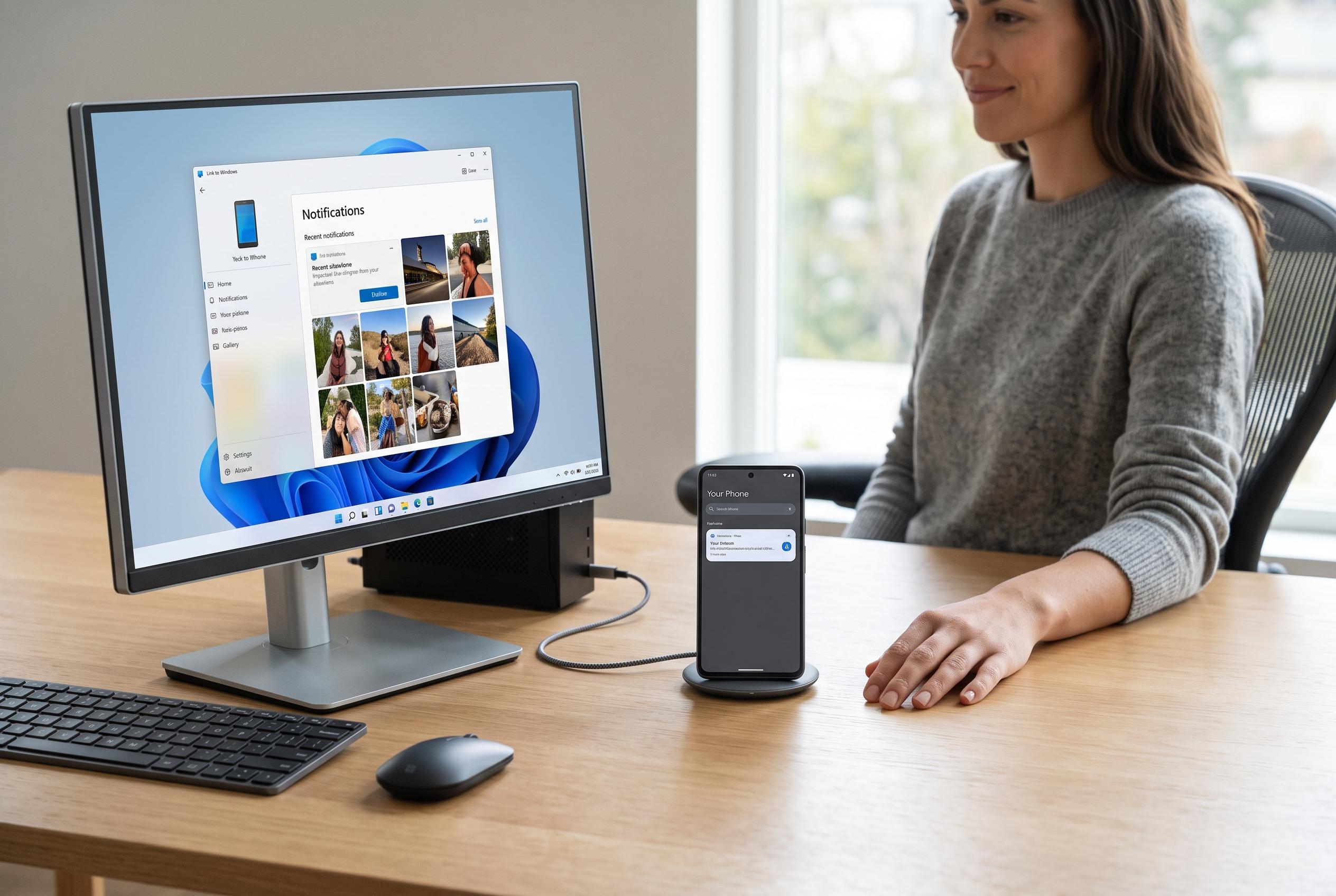

Microsoft and Google update users on varied methods to link Android devices with Windows computers, highlighting customisable options for file transfer, notifications, and wireless sharing depending on user priorities.
Connecting an Android phone to a Windows PC is no longer a single task with one answer. According to Microsoft and Google, the best method depends on what you want to do: Phone Link is designed for ongoing access to messages, notifications, recent photos and supported calling features, USB is the most dependable option for copying files, and Quick Share is the wireless choice for nearby devices.
For Phone Link, Microsoft says the usual requirements are a compatible Windows PC, an Android phone, a Microsoft account and, in many cases, the same Wi-Fi network on both devices. Microsoft’s own support material also notes that the feature set varies by phone model, Android version and manufacturer support, so not every handset will offer the same experience.
Setup is straightforward. Open Phone Link on the PC, install or open Link to Windows on the phone, sign in with the same Microsoft account and pair the devices with a QR code or manual code if needed. Microsoft advises granting the permissions requested during setup and checking Android notification settings if alerts do not appear on the PC.
Bluetooth is often misunderstood in this context. Microsoft says it is specifically needed for the calls feature in Phone Link, but not for every function. Messages, photos and notifications do not all depend on Bluetooth, although the connection must still be configured correctly and permissions must be approved on the phone.
If the aim is simply to move files, Google’s USB guidance points to a different approach. Connect the phone with a data-capable cable, unlock it, choose File transfer when prompted and open the device in File Explorer. If Windows only shows charging, Google recommends trying another cable or USB port, because many cables carry power only.
For wireless transfers, Google says Quick Share works between Android phones and Windows PCs when the devices meet its compatibility requirements, are close together and have Wi-Fi and Bluetooth enabled. The Windows app should be open during transfer, and Google advises against running it as an administrator because that can interfere with discovery.
Taken together, the three methods serve different purposes rather than competing with one another. Phone Link is best for a more integrated desktop experience, USB remains the safest option for large or reliable file transfers and Quick Share is useful when convenience matters more than a cable. For most users, the practical setup is to keep Phone Link ready, a data cable nearby and Quick Share available for ad hoc wireless transfers.
Disclaimer: This content is intended for informational purposes only. Readers are advised to exercise their own judgement, conduct due diligence, or consult a qualified expert before acting on any information provided.



