

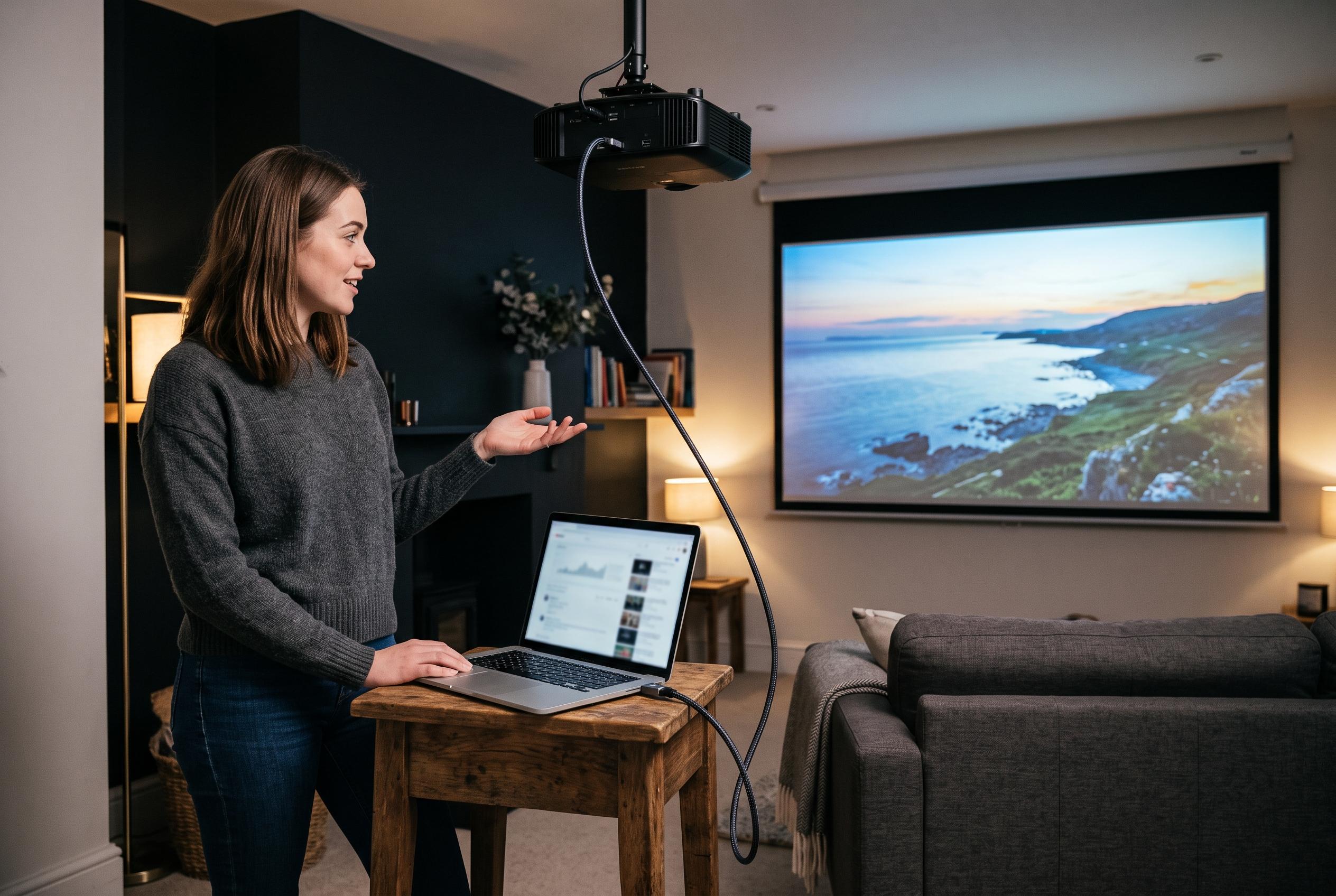

Connecting a laptop to a projector can be seamless with the right method; recent guides highlight key factors from port compatibility to wireless options, helping users avoid common pitfalls and ensure a smooth setup.
Connecting a laptop to a projector is usually straightforward, but the right method depends on the ports on both devices and the display mode you need. Most modern setups rely on HDMI, while newer laptops may use USB-C with video output support, and older projectors still often depend on VGA. According to TAG Mobile’s guide, the first step is to confirm the available ports, power on both devices and select the projector’s correct input before changing any laptop settings.
For a wired connection, HDMI remains the simplest option because it can carry video and audio in a single cable. If the laptop has only USB-C or Mini DisplayPort, an adapter may be required, and compatibility matters: the port must support video output, not just charging or data transfer. Guidance from DevX and Archute also stresses the same practical point, namely that the cable must match the laptop’s output and the projector’s input, otherwise the display will not appear.
Wireless projection is useful when you want to avoid cables, but it depends on the devices and network standard in use. CompareProjector and Projector Verdict note that Windows systems may use Miracast or the Win+K display panel, while Macs commonly rely on AirPlay or Screen Mirroring from Control Centre. In most cases, both devices need to be on the same network, and the projector must have wireless display support enabled before it can be detected.
Older projectors introduce a different set of constraints. TAG Mobile explains that VGA is still common on legacy equipment, but it carries video only, so sound may need a separate 3.5mm connection. If a modern laptop must connect to a VGA-only projector, an active converter may be needed because HDMI and VGA use different signal types. The key is to check the projector’s supported resolution and the laptop’s video-output capability before buying an adapter.
When a laptop connects but no image appears, the cause is often a simple settings error rather than a hardware fault. Common fixes include selecting the right input on the projector, restarting both devices, checking whether the laptop is set to duplicate, extend or use a second screen only, and trying another cable or adapter. The sources also point to driver or operating-system updates as a useful step when external displays are not detected properly.
For classrooms, meetings and home use, the most reliable approach is to match the connection method to the equipment you already have, then confirm display mode and audio before starting. That means checking ports first, using the correct adapter where needed, and treating wireless projection as a convenience rather than a guarantee. Done properly, the setup is quick; done poorly, it usually fails for one of a small number of avoidable reasons.
Disclaimer: This content is intended for informational purposes only. Readers are advised to exercise their own judgement, conduct due diligence, or consult a qualified expert before acting on any information provided.



