

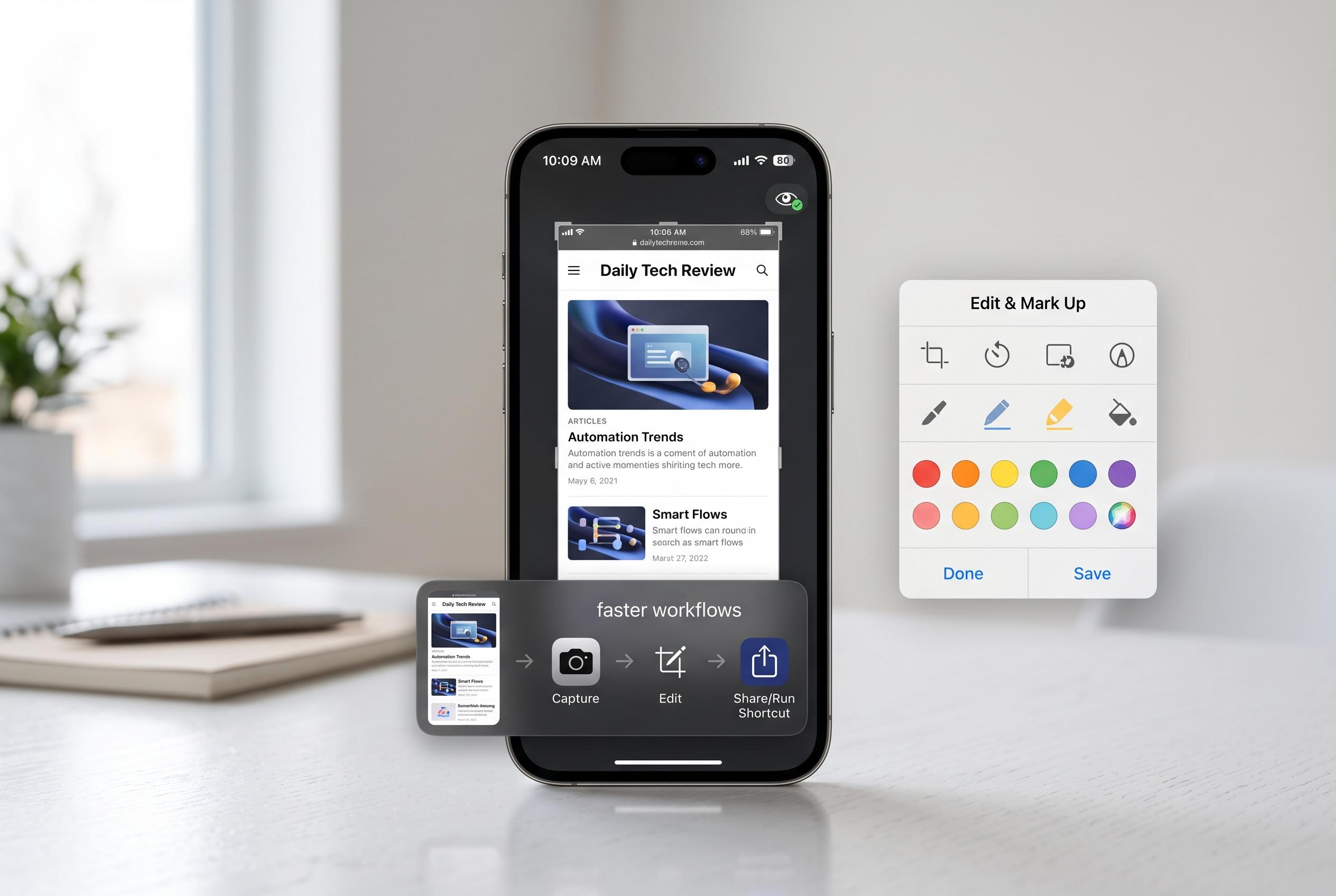

Apple’s latest iOS features enhance screenshot capabilities, offering users more control, speed, and security through innovative editing, automation, and accessibility options.
iPhone screenshots are more capable than many users realise, even if iOS remains more limited than macOS. Apple’s support material confirms that screenshots can be taken, edited, shared and saved in several ways, while newer settings also let users change how captures are previewed and handled. For anyone who takes frequent screen grabs, a few small adjustments can make the process faster, tidier and more secure.
If pressing two hardware buttons feels awkward, Apple offers two built-in alternatives. AssistiveTouch can place a virtual on-screen control that can be assigned to take a screenshot, while Back Tap lets users trigger the same action by double- or triple-tapping the back of the handset in Accessibility settings. These options are especially useful for one-handed use or for people who prefer to avoid repeated button presses.
Once a screenshot has been taken, iOS can do more than simply store it in Photos. The image editor includes Live Text, which can detect written content inside the capture and turn dates, times and other recognised details into actionable items. In practice, that means a screenshot of a ticket, invitation or itinerary can be used to create a calendar event without retyping the information.
The same Live Text system is also useful for copying text out of images. After opening the screenshot preview, users can select text directly from the image and paste it elsewhere. For people who routinely save receipts, confirmation pages or technical instructions, this is often quicker than taking notes by hand.
The markup tools are more flexible than many people expect. iOS can turn rough hand-drawn circles, squares and other shapes into neater forms if the user pauses briefly after drawing. That helps when annotating a screenshot for work or support purposes, making call-outs clearer and easier to read.
It is also worth using the annotation tools carefully when hiding personal details. Scribbling over an email address or phone number is not always enough to protect sensitive information, because weak redaction can sometimes be reversed or read around. A more reliable approach is to add an opaque shape over the text before saving the image.
For people who create lots of temporary screenshots, clutter can build up quickly. One useful shortcut is to copy a capture to the clipboard and delete it immediately, so it can be pasted into Messages, Mail or another app without staying in the photo library. That is a simple way to avoid filling Photos with images that serve a single purpose.
Apple’s screen-capture settings also give users more control over previews. On some iPhones, screenshots still appear as small thumbnails, but Apple now supports full-screen previews in the Screen Capture settings on devices where that option is available. That can make it easier to decide immediately whether a capture is worth keeping.
Screen recording follows the same principle of convenience. Users can add the screen recording control to Control Centre, then hold it to turn the microphone on when they want narration included. That turns an ordinary recording into a basic screencast, which is often enough for explaining app steps, troubleshooting or demonstrating a setting to someone else.
For heavier users, automation can remove some of the manual work altogether. Apple’s Shortcuts app can be used to find screenshots from a chosen time period and delete them in one batch, subject to confirmation. A separate shortcut can also be added to Control Centre to create a more direct capture workflow, reducing preview screens and, in some setups, capture sounds as well.
Disclaimer: This content is intended for informational purposes only. Readers are advised to exercise their own judgement, conduct due diligence, or consult a qualified expert before acting on any information provided.



