

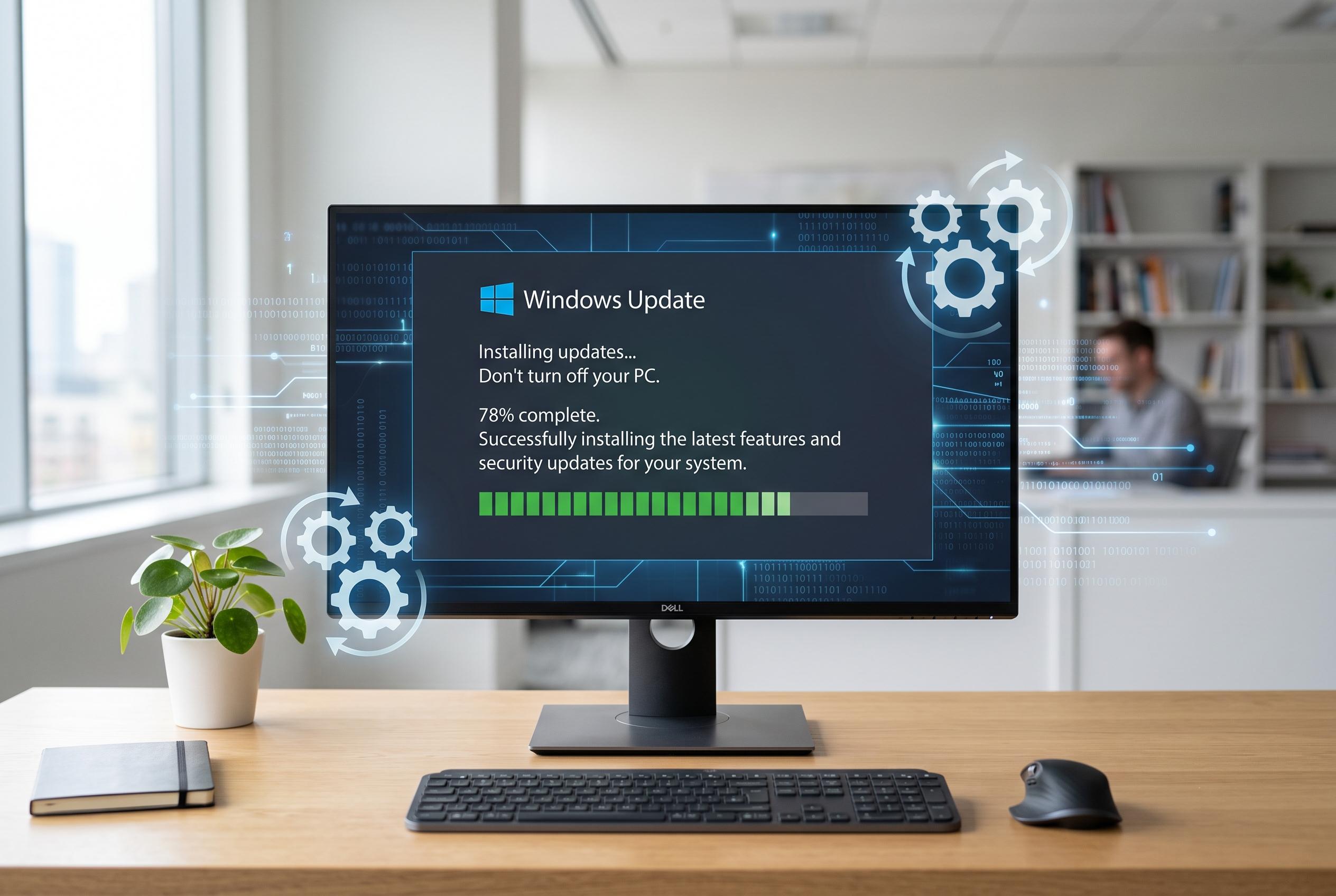

Innovative solutions and refreshed guidance from Microsoft help users resolve Windows update stalls, from simple restarts to advanced component repairs, ensuring smoother system updates amid persistent issues.
When Windows Update appears frozen, the simplest fix is often the right one: restart the PC, then check for updates again. Microsoft Support says a large update can sit at one percentage while Windows is still working in the background, so it is worth waiting if Task Manager still shows disk or network activity. If the machine has been idle for well over an hour with no signs of progress, the update is more likely to be genuinely stalled. Microsoft also advises keeping the device on power and connected to the internet while an update is active.
If the restart does not help, the built-in Windows Update troubleshooter is the next sensible step. Microsoft’s support guidance recommends it for repeated download or installation failures, along with checks for administrator access, external hardware conflicts, a stable internet connection, and correct date and time settings. The same documentation also points to clearing the Windows Update cache and checking for sufficient free disk space, both of which are common causes of failed installs.
Low storage remains one of the most common reasons an update fails late in the process. Microsoft Support notes that some updates need extra room for temporary files and rollback data, not just the download itself. If the system drive is tight on space, removing temporary files, emptying the Recycle Bin, and clearing unused apps or large files can make the difference between a successful install and a rollback. The same official guidance also recommends disconnecting unneeded external devices and updating third-party drivers when Windows Update keeps failing.
If the same package keeps returning, clearing the SoftwareDistribution cache is a more direct repair. That folder stores pending update data, and Microsoft’s troubleshooting material supports resetting update components when downloads or installs loop repeatedly. The process is to stop the Windows Update-related services, remove the cache contents, and then start the services again before checking for updates. This does not remove installed updates; it forces Windows to build fresh download data.
For deeper faults, Microsoft’s guidance moves towards component repair and update history review. The company recommends using system repair tools, checking the failed update in Update history, and, if necessary, installing the correct standalone package from the Microsoft Update Catalog. Microsoft Learn also says that if ordinary repairs fail, administrators should use its more detailed Windows Update troubleshooting paths to identify whether the issue is tied to a specific update, a servicing stack problem, or a wider component-store fault.
Disclaimer: This content is intended for informational purposes only. Readers are advised to exercise their own judgement, conduct due diligence, or consult a qualified expert before acting on any information provided.



