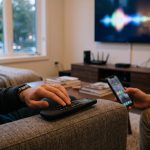
A comprehensive troubleshooting guide offers the latest insights and practical steps for resolving Pluto TV’s Android app issues, highlighting the importance of device checks, network tests, and detailed error reporting to ensure seamless viewing.
Pluto TV users on Android who encounter launch failures, buffering, login errors or casting glitches should first separate a local device problem from a broader service interruption. Pluto TV’s official status page reported all systems operational on 18 August 2026 and showed no incidents in the previous two weeks, which points away from a widespread outage at that time. Even so, a status page is only a snapshot: a regional fault, a newly emerging issue or a problem confined to Android may not appear there immediately. According to Pluto TV’s own website, the service is available through the web as well as on supported TV platforms, which makes cross-checking on another device a useful first test.
A quick way to narrow the fault is to compare behaviour across devices and networks. If Pluto plays in a browser on the same connection but fails in the Android app, the app or handset is the more likely cause. If the service fails on Android, web and other platforms at the same time, the issue is more likely to sit with the network or Pluto’s servers. Testing on mobile data, a different Wi-Fi network or, where possible, Ethernet on a TV device can help distinguish a connection problem from an app defect. Pluto TV’s support material also advises users to note which part of playback fails, such as launch, live channels, on-demand titles, adverts or casting, because each symptom can point to a different cause.
When the fault appears limited to one Android phone, tablet, Android TV or Google TV device, the simplest remedies usually come first. Force-stop the Pluto TV app, then reopen it. Restart the device itself rather than only switching the screen off. Check for a Pluto TV update in Google Play and make sure the operating system is current. Google’s Android app guidance also recommends clearing cache, clearing data and reinstalling the app if needed, although those steps should be taken one at a time so it is clear which change helped. Pluto TV’s Google Play listing identifies Pluto, Inc. as the publisher and directs users with crashes or playback trouble towards Pluto support.
If the app still misbehaves, clearing temporary files is the next logical step. On many Android devices, the cache can be removed without affecting account sign-in or most settings. If that does not resolve the issue, clearing app data is a more complete reset, but it may sign the user out and remove locally stored preferences. Google’s Android storage guidance distinguishes between those two actions, and Pluto TV’s troubleshooting advice follows the same general order: start with the least disruptive fix and move to a full reset only if necessary. On Android TV and Google TV, the same options may appear under slightly different menu paths, but the aim is the same: remove corrupted local files and test playback again.
For television devices, the network itself often deserves as much attention as the app. Pluto TV is available on Google TV, Fire TV and Apple TV, but device menus, app builds and regional availability can differ. If Pluto works on a phone while the TV app does not, that suggests the problem may involve the television device, its software version or its connection rather than the service itself. Google TV and Android TV users should check that the device is on the intended Wi-Fi network, try a restart and confirm there is enough free storage before attempting updates. Pluto’s platform pages show that support depends on device and region, so a missing or unavailable app does not automatically mean the service has changed for everyone.
Casting problems need a separate line of troubleshooting. If Pluto plays on a phone but will not cast to a Chromecast or Google TV device, the issue may lie with Wi-Fi discovery, network isolation or the cast connection itself. Pluto’s guidance and Google’s device support both point towards the same practical checks: ensure both devices are on the same network, restart them, reconnect them to Wi-Fi and temporarily disable VPNs or other network filters if they are in use. If other apps also fail to cast, the underlying problem is more likely to be with the local network or Chromecast setup than with Pluto TV alone.
If none of those steps helps, the next move is to gather precise details before contacting support or reinstalling the app again. Pluto TV asks for the device model, operating system version, app version, region, the exact error message and what was being watched when the issue started. That information is valuable because reinstalling can fix a damaged installation, but it will not repair a service outage or a network problem. Pluto’s own support material also warns against unofficial APKs or modified apps, while Google advises against treating Google Play services data as a routine fix for playback failures because it can have wider side effects. In practice, the safest approach is to test methodically, note what changes and only escalate to deeper resets when the simpler checks have been exhausted.
Disclaimer: This content is intended for informational purposes only. Readers are advised to exercise their own judgement, conduct due diligence, or consult a qualified expert before acting on any information provided.