

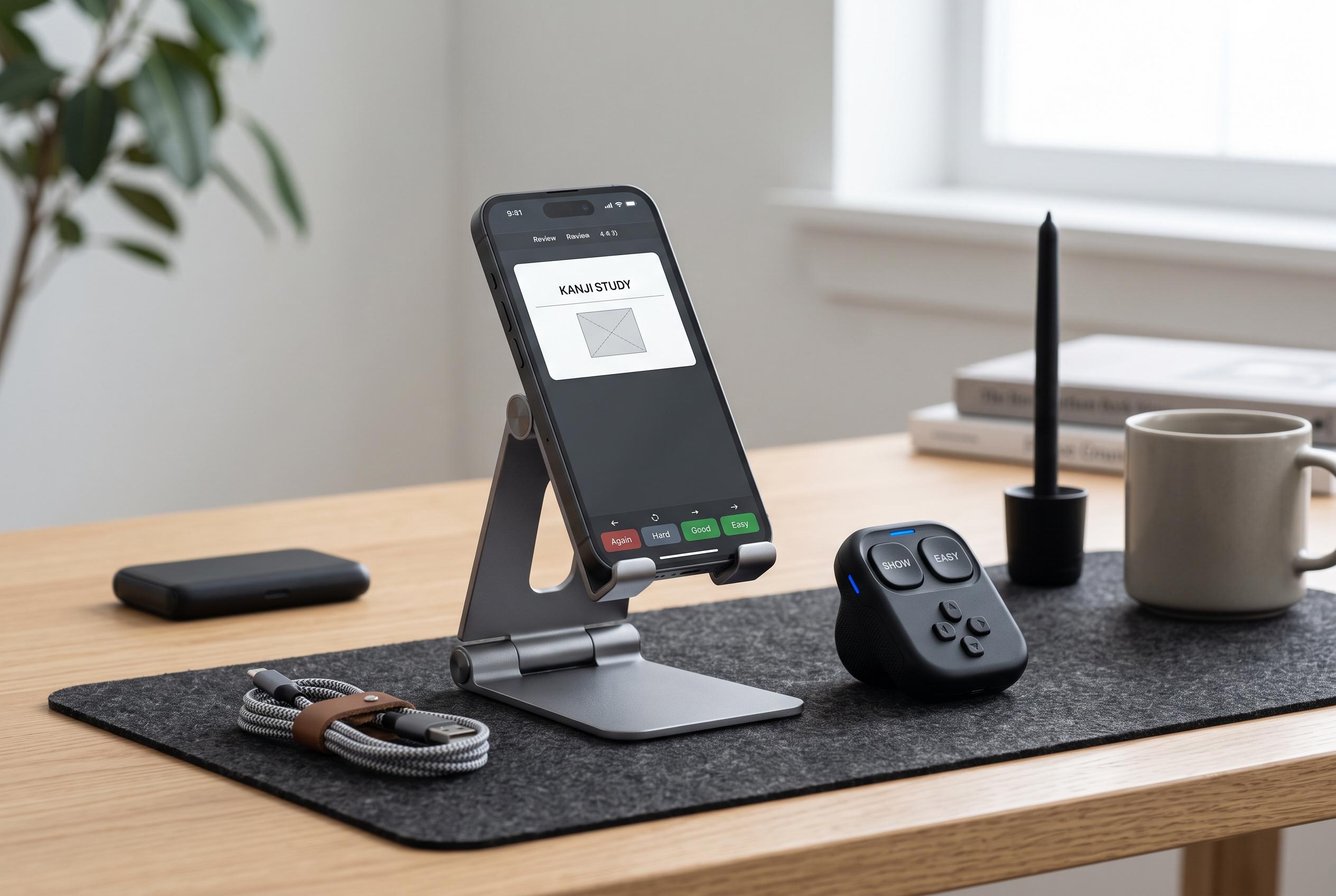

A guide to enhancing daily Anki review sessions by aligning hardware and app controls for one-handed use, reducing effort and improving efficiency.
A one-handed Anki routine works best when the hardware, the app and the user’s grip are aligned before any serious studying begins. The basic idea is simple: place the controller where the reviewing hand naturally rests, keep the most important response actions on the easiest buttons, and run a short trial before depending on the layout for a full session. In the case of MODI, the recommended starting point is a vertical position with the D-pad facing down, then assigning controls to match the app and device in use.
Placement matters because the main goal is to remove unnecessary movement between cards. A controller should sit on the same side as the reviewing hand, close enough that the thumb can reach the primary inputs without the whole hand shifting. On a desk, that may mean placing it beside a keyboard or tablet stand; on a phone, it means avoiding a setup that creates accidental presses or awkward balancing. The aim is not a universal ergonomic rule, but a repeatable arrangement that reduces effort.
Once the physical position feels stable, the button map should follow the same principle of restraint. The core review actions are reveal, answer, and, where available, the standard grading options such as Again, Hard, Good and Easy. Desktop Anki also supports familiar keyboard shortcuts, including Space or Enter for revealing or confirming, plus number keys when answer buttons are displayed. The most frequent action should be the easiest to reach, while Again should stay separate enough to avoid accidental taps.
On desktop computers, MODI Keyboard Mode is designed for macOS, Windows and Linux, and it can work without an Anki add-on. That makes it a practical first step for anyone who wants a simple one-handed controller. If custom remapping is needed, Switch Mode can be paired with the optional MODI Anki add-on, but the setup should be changed one layer at a time so that Bluetooth issues are not confused with add-on problems.
Mobile use is more dependent on the app’s own settings. For AnkiMobile on iPhone and iPad, Switch Mode is the standard route, with action assignment handled inside the app’s gamepad settings. For AnkiDroid on Android, the equivalent configuration sits under Settings, Controls and key binding options. Users should not be alarmed if controller labels appear scrambled in the menu, as the important test is whether the intended card actions actually work during review.
A short validation session is essential before adopting the layout for daily study. The user should confirm that they can reveal a card, choose the intended answer, undo a mistake if that has been assigned, and move through a few cards without misfires. If the device connects but fails to respond, the cause may be an old pairing, a battery problem, an app setting or a Bluetooth state issue. In that case, forgetting the saved controller entry, pairing again in the correct mode and, if necessary, restarting the host device are the most sensible next steps. For some users, the attraction of one-handed reviewing is the same as that behind voice-driven or gesture-based alternatives seen in the wider Anki community: less friction, fewer interruptions and a more sustainable daily habit.
Disclaimer: This content is intended for informational purposes only. Readers are advised to exercise their own judgement, conduct due diligence, or consult a qualified expert before acting on any information provided.



