

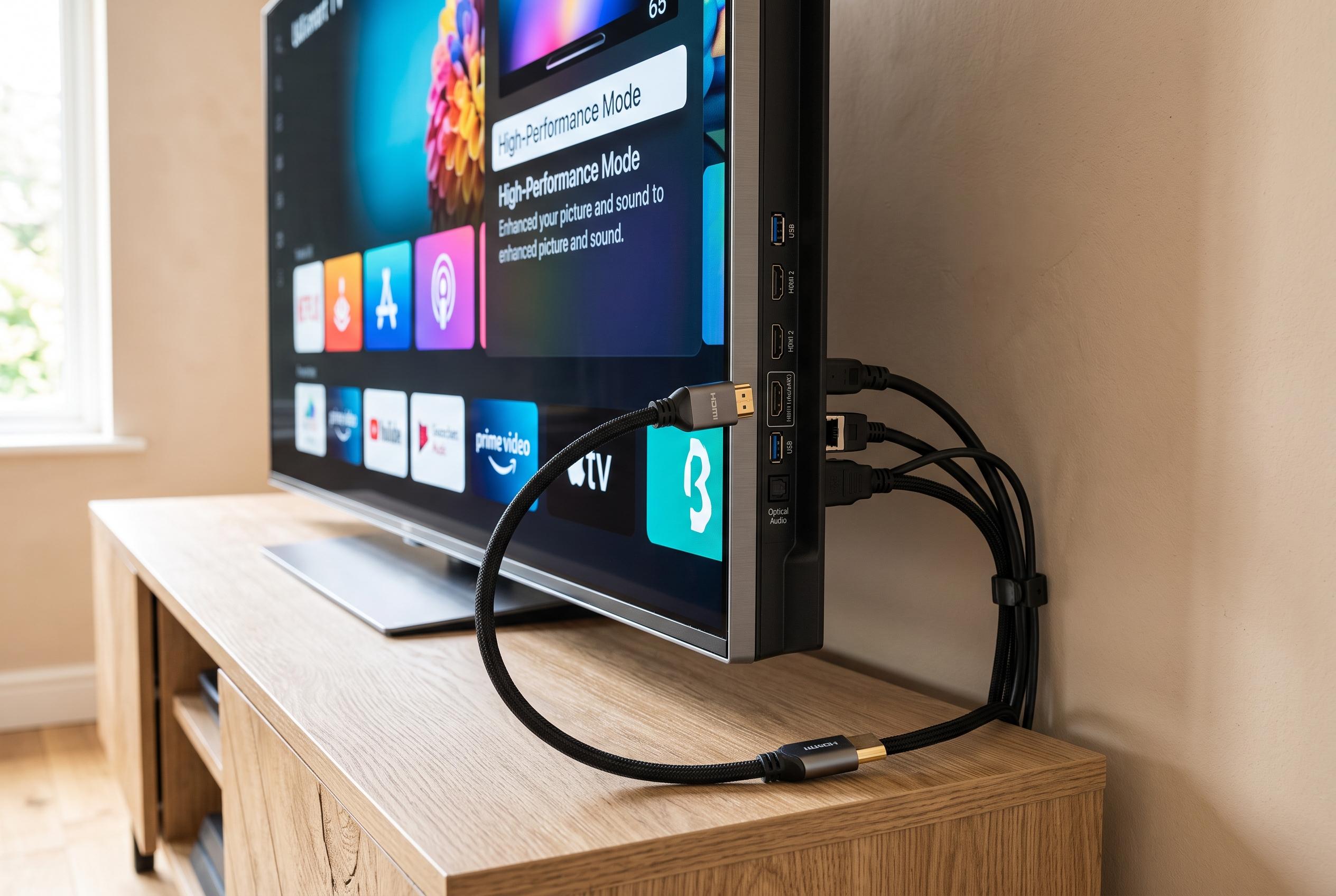

Many sharp picture and rich sound improvements on your smart TV can be achieved through simple HDMI configuration tweaks, avoiding costly hardware replacements.
A smart TV that looks flat or sounds thin is not always the wrong set. In many cases, the problem sits in the HDMI chain: the cable, the port, the input mode or the audio format. According to MakeUseOf, a few minutes in the settings menu can often restore sharper images, fuller colour and cleaner sound without replacing any hardware.
The first place to check is the cable itself. HDMI versions are not interchangeable in practice, because older leads can restrict resolution, refresh rate and audio bandwidth. RTINGS explains that HDMI 2.1 is the point at which features such as 4K at 120Hz, variable refresh rate and other gaming-focused functions become available, while MakeUseOf notes that the newest HDMI 2.2 standard pushes bandwidth further. For most modern televisions and consoles, a certified Premium High Speed or Ultra High Speed cable is the safer choice, especially if the display and source both support newer features. Very long runs can also weaken the signal, so active cables may be needed at greater distances.
The port matters just as much. Tom’s Guide says many televisions reserve only one or two HDMI 2.1 ports, and soundbars often need the ARC or eARC socket to pass audio back to the TV correctly. If a game console is plugged into the wrong input, it may miss out on 4K at 120Hz or other advanced modes. If a soundbar is connected to a non-ARC port, audio features can be limited or fail entirely. Sony’s support pages similarly advise checking the ARC or eARC label before connecting external audio equipment.
Picture quality can also depend on the HDMI input mode assigned to each port. Many sets let users optimise an input for a specific device. PC mode is designed to improve text clarity and graphics sharpness, while game mode lowers input lag so controller actions feel more immediate. Some televisions and consoles can switch this automatically through Auto Low Latency Mode, which keeps movie processing intact for film playback but shifts to faster response when gaming starts.
High Dynamic Range is another setting worth confirming. MakeUseOf notes that HDR can lift shadow detail, increase highlight brightness and produce more vivid colour, with HDR10 as the most common format, HDR10+ adding scene-by-scene adjustments and Dolby Vision offering premium dynamic metadata. On some televisions, HDR must be enabled separately for each HDMI port, and the connected device may also need its output mode changed from standard dynamic range to HDR. If the setting is left off at either end, the image can look duller than it should.
Sound usually benefits from the same careful setup. MakeUseOf recommends choosing bitstream or pass-through when a soundbar or receiver can decode formats such as Dolby Digital, DTS or Dolby Atmos, while PCM is better for simpler speakers that rely on the television to decode audio first. If dialogue drifts away from the picture, the lip-sync or audio delay control can usually correct it. Firmware updates are also worth installing, since manufacturers often use them to fix HDMI handshakes, improve compatibility and add support for features such as VRR and ALLM. When problems persist, the basics still matter: reseat the cable, try a different port, shorten the run if flicker appears and clean the connections if audio drops out. For many households, that is enough to make the television look and sound markedly better.
Disclaimer: This content is intended for informational purposes only. Readers are advised to exercise their own judgement, conduct due diligence, or consult a qualified expert before acting on any information provided.



