

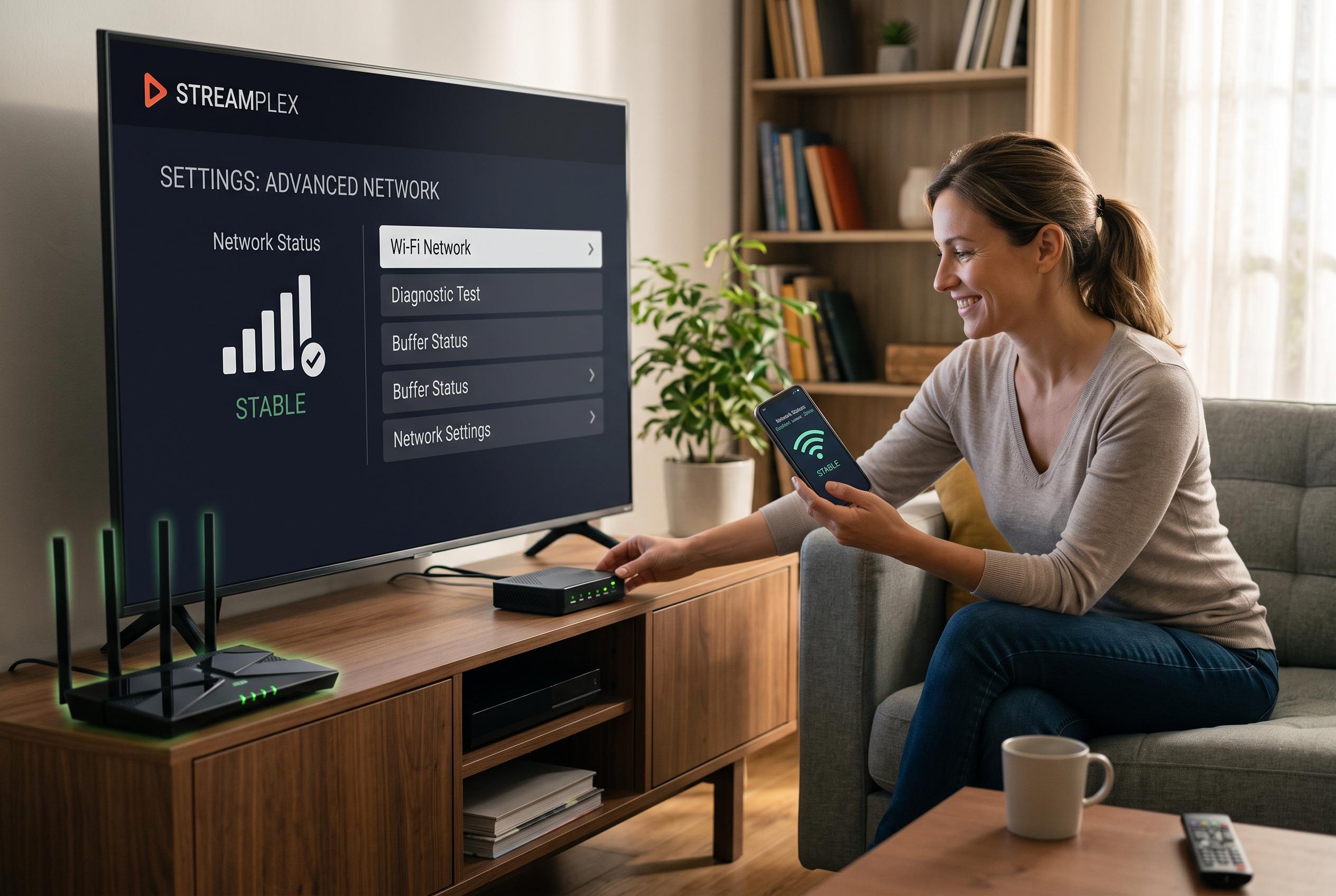

A quick internet speed test isn’t enough to ensure smooth TV streaming. Experts highlight the importance of inspecting in-home network stability, device software, and household traffic to resolve buffering issues effectively.
A fast speed test does not guarantee smooth streaming on a television. The test may capture a brief burst to a nearby server, while playback on the TV is affected by a weak wireless link, congested home traffic, an app fault, or the route to a streaming service. The most useful first step is to isolate the television itself before considering a broadband upgrade. According to practical guides from Asurion, Tom’s Guide and Alibaba, buffering can persist even when headline internet speeds look strong if the local connection or app layer is unstable.
The clearest way to narrow the fault is to compare one app and one device at a time. If only a single streaming service stalls on the TV, the problem is more likely to be the app, the account, or that service’s delivery route. If the same TV buffers across every app while a phone or laptop in the same room plays normally, the television’s connection, software, storage, or firmware is the more likely cause. Guides from Asurion and Tom’s Guide both recommend restarting the TV and router, while also checking whether the app needs to be reinstalled or updated.
Network location matters as much as raw speed. A television can remain connected to WiFi while suffering enough retransmissions or interference to interrupt video. Moving the set closer to the router, or connecting it by Ethernet where possible, creates a cleaner comparison. If wired playback is stable but WiFi still buffers, the issue is local signal quality rather than the broadband line itself. NanoIPTV and Alibaba both note that device limitations, weak WiFi and network congestion can all produce the same symptom.
Home traffic can also hide behind an apparently healthy download test. Cloud backups, large game downloads, security-camera uploads and video calls can fill the upstream link and delay streaming packets, even when a quick speed check looks fine. A more reliable test is to pause those activities briefly, then repeat the same stream on the same TV. If the buffering stops, the connection may be adequate but the household is simply oversubscribed at that moment. Tom’s Guide and Tom’s Guide’s Netflix advice both point to congestion and background use as common causes of playback failures.
Software should not be overlooked. Exiting the app properly, reopening it, signing in again only if needed, and updating the television’s firmware can remove faults that resemble network trouble. Clearing corrupted playback data by reinstalling the app may also help. Asurion and Tom’s Guide say these steps often restore normal playback without any change to the internet plan. If the TV is low on storage, removing unused apps can also improve stability.
The final check is timing. A stream that fails only in the evening may be affected by household load, WiFi contention or a busier path to the streaming service. Testing the same title at a quiet time and a busy time, with no other variables changed, helps separate a local problem from a wider network issue. Only after a wired device is also slow at the same time should the ISP be asked to investigate. Even then, a faster package is unlikely to fix one TV that buffers only over poor WiFi or one app with playback errors; the evidence needs to show that the household connection itself is the limit.
Disclaimer: This content is intended for informational purposes only. Readers are advised to exercise their own judgement, conduct due diligence, or consult a qualified expert before acting on any information provided.



