

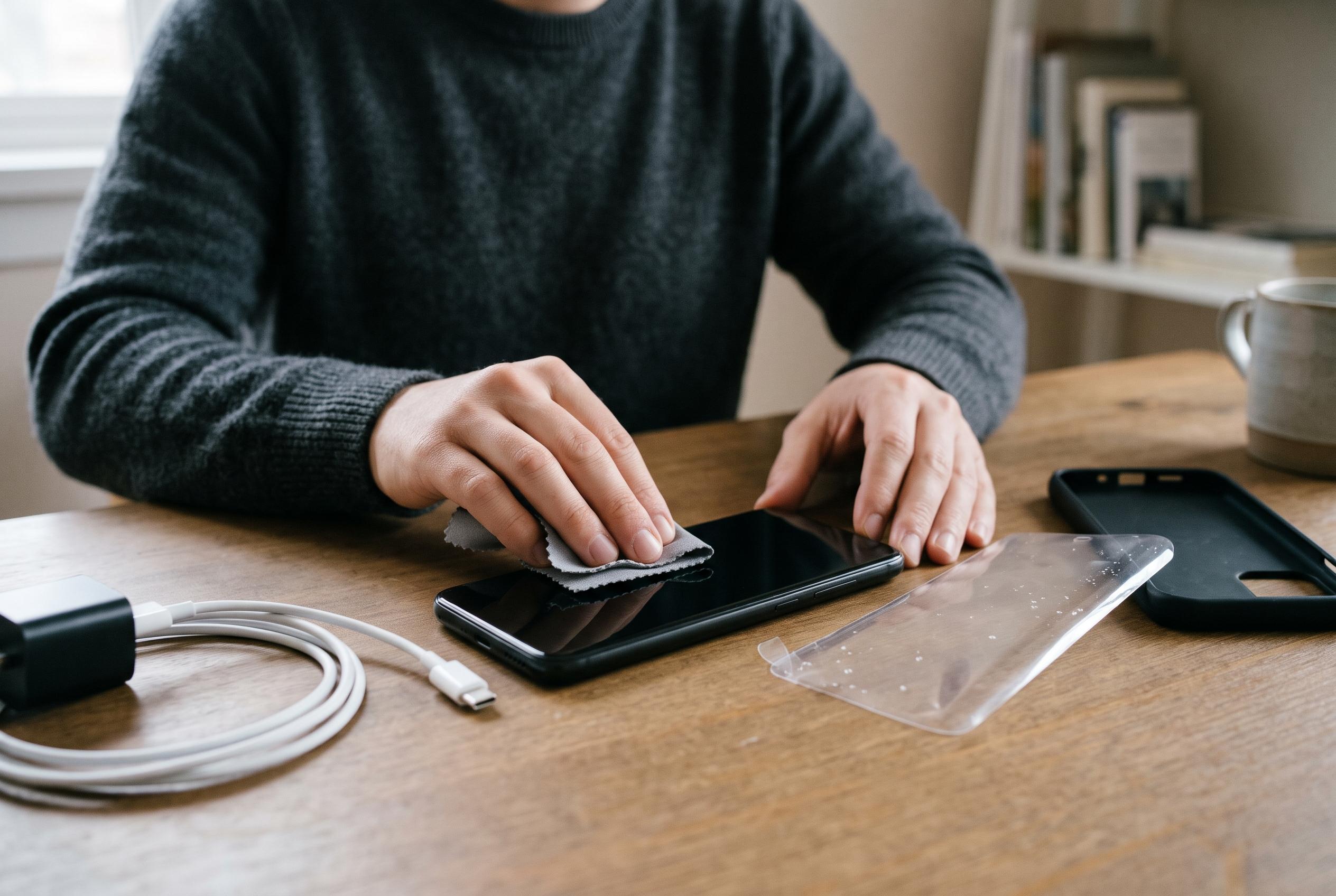

A touchscreen that stops responding may not signal a broken phone. Remove accessories and screen protectors, clean the display and try a force restart before arranging a repair.
A touchscreen that suddenly stops responding does not always mean the phone is broken, but the first signs are important. According to Engadget’s guide, the simplest checks are physical ones: look closely for cracks or visible damage, remove any screen protector, and make sure you are not wearing gloves. The same advice applies to accessories that may interfere with touch input, including cases, cables and anything else connected to the device.
Apple and Google both recommend clearing the display of anything that could block or confuse touch detection. That means taking off a case, disconnecting USB-C or Lightning accessories, removing stickers that cover the screen or nearby sensors, and wiping away dirt, moisture or residue with a lightly damp microfibre cloth. T-Mobile gives similar guidance, adding that both the screen and your hands should be clean and dry. If touch problems affect a Pixel device, Google also notes that recent models may offer touch diagnostics and sensitivity controls.
If those steps do not help, a force restart is the next practical move. Apple says that on Face ID iPhones, you should press and release volume up, then volume down, then hold the side button until the Apple logo appears. On an iPhone 7 or 7 Plus, the side and volume-down buttons must be held together, while on an iPhone 6s or earlier the Home button is used with the side or top button. Apple notes that the restart can take more than ten seconds.
Google says most Android phones can be force restarted by holding the power button for about 30 seconds, although the exact method varies by manufacturer and some models may prompt a further on-screen action once they reboot. If the screen still does not respond after cleaning, removing obstructions and restarting, both Apple and Google indicate that the device may need service or more advanced troubleshooting, such as checking safe mode or testing whether the problem is limited to a particular app.
Disclaimer: This content is intended for informational purposes only. Readers are advised to exercise their own judgement, conduct due diligence, or consult a qualified expert before acting on any information provided.