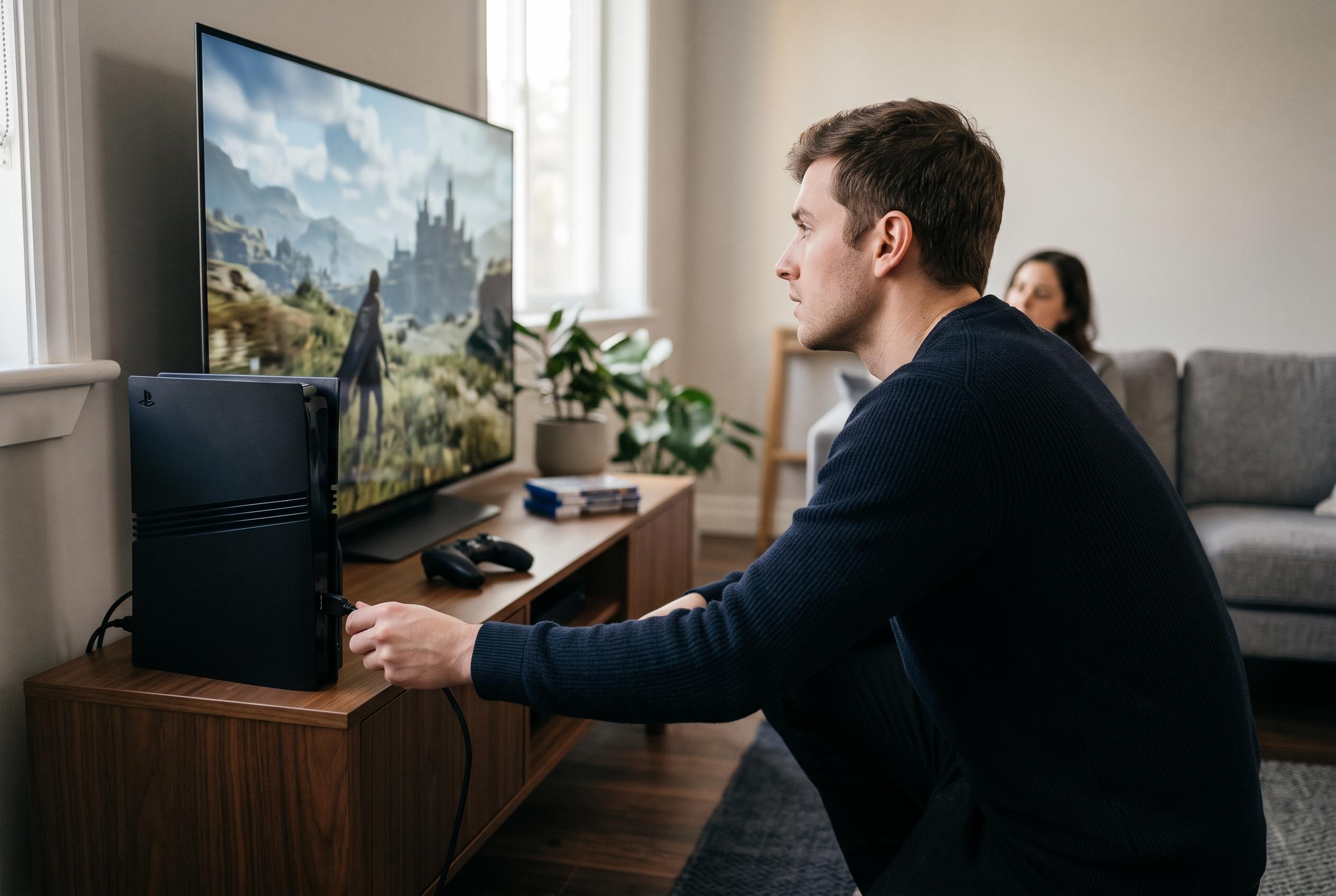

Stuttering, tearing and a soft image can have different causes. Check the console’s video output and test game modes, VRR and the HDMI chain before resorting to Safe Mode or a reset.
PS5 Pro visual problems usually fall into three separate categories, and the first step is to identify which one is actually occurring. According to iTechGuides, stuttering is uneven motion or brief pauses, screen tearing is a visible break in the frame, and blur is a consistently soft or lower-detail image. That distinction matters because a game’s own frame pacing, the HDMI signal path and the display’s processing can each produce similar-looking faults, but they require different remedies.
The most useful diagnosis begins in the console’s video menus. PlayStation’s support guidance says the PS5 Pro’s Current Video Output Signal and Information for the Connected HDMI Device pages show the resolution, refresh rate, HDR and VRR features the console is actually outputting and detecting. In practice, that gives a better baseline than assuming a television’s HDMI label tells the full story. If the console is reporting a lower resolution or missing a feature the screen should support, the problem is more likely to lie in the cable, port, firmware or an intermediate device than in the game itself.
For stuttering, PlayStation recommends comparing a title’s Performance Mode and Resolution Mode rather than changing several settings at once. The company says Performance Mode is intended to make motion smoother, while Resolution Mode prioritises image quality, and both apply only to games that offer them. PlayStation also allows a global Game Preset preference, but that setting does not override every title. If only one game hitches while other menus and games stay smooth, the evidence points towards that title’s own rendering or frame delivery rather than a fault in the console or cable.
Variable Refresh Rate can help with judder and tearing, but only when both the display and the game support it. PlayStation says VRR synchronises the screen’s refresh timing to the console’s output on compatible HDMI 2.1 televisions and monitors, and it warns that results vary by game and screen. Its support pages also say the option to apply VRR to unsupported games can be tested, though unexpected behaviour may require turning it off again. ALLM, by contrast, only reduces input lag; it is not a substitute for VRR and does not cure frame drops.
If the image looks soft on a 4K television, the next check is whether the console is really outputting the expected signal and whether the game is actually rendering at native 4K. PlayStation says to leave resolution on Automatic, or compare it with 2160p where appropriate, and then re-check the current output signal. The company also notes that PSSR, the PS5 Pro’s image reconstruction system, enhances supported titles by analysing and upscaling frames; it is not a replacement for a proper HDMI signal or a guarantee of identical image quality across every game. A game can therefore look softer even when the console reports a 2160p output.
Hardware checks still matter, but they should be approached methodically. PlayStation’s picture and sound troubleshooting advice is to confirm the correct input, reseat the HDMI cable, test another port, connect the console directly to the display, and remove soundbars, receivers or capture devices while diagnosing the fault. HDMI Licensing Administrator’s documentation on Ultra High Speed HDMI cables supports checking for the recognised certification label and QR code rather than relying on marketing claims alone. A certified cable can solve a broken link, but it cannot fix a game that is rendering unevenly or reconstructing detail softly.
When the symptom is flicker rather than tearing, PlayStation advises using Video Transfer Rate as a targeted test. The company says the -1 and -2 settings reduce bandwidth in ways that can help diagnose unstable output, but they also come with restrictions, including reduced support for 4K at 120 Hz and some colour-format combinations. That makes the setting useful for isolating a signal-compatibility issue, not for routine use as a general-quality tweak. If the picture stabilises at a lower transfer rate, the next step is to keep tracing the cause through the cable, port, firmware or intermediary equipment rather than assuming the console itself is defective.
Only after these checks should more disruptive recovery steps enter the picture. PlayStation’s Safe Mode guidance says clearing the system software cache and rebuilding the database are the appropriate non-destructive options for some persistent system behaviour, while reset and reinstall options delete user data and should be reserved for serious cases or support-directed recovery. In other words, the safest order is to compare game modes, confirm VRR and 120 Hz compatibility, check the HDMI chain, update the console and the game, and use Safe Mode sparingly. That sequence helps separate a software or signal issue from a true hardware fault.
Disclaimer: This content is intended for informational purposes only. Readers are advised to exercise their own judgement, conduct due diligence, or consult a qualified expert before acting on any information provided.