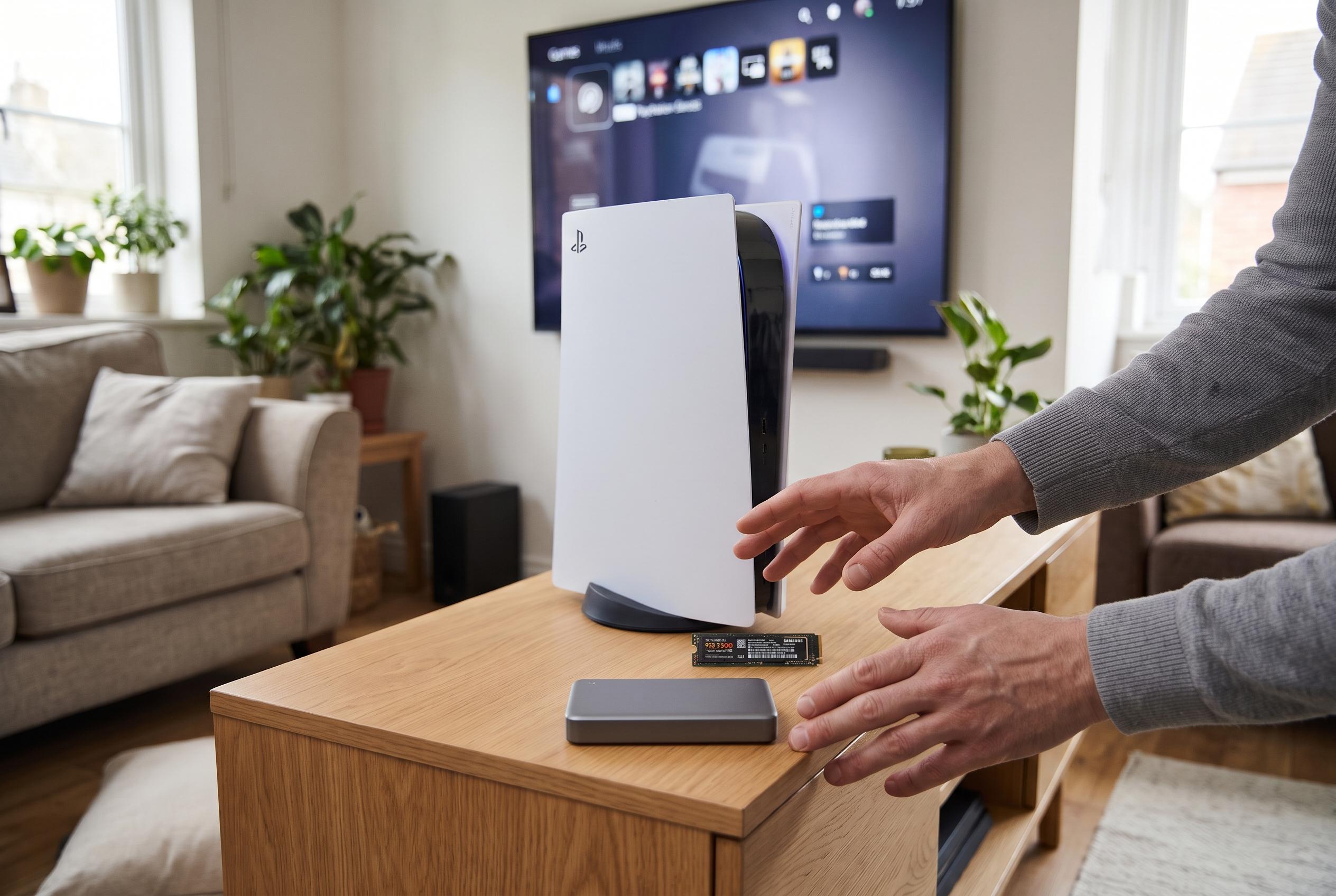

Pre-loading does not unlock games before release, and PS5 titles stored on USB drives must be copied back before they can be played. An M.2 SSD keeps them ready to launch.
A PS5 can be used to prepare new games before release, but the console’s download behaviour is more limited than many players expect. According to PlayStation’s support guidance, purchases and add-ons are started from Game Library on the console, while the PlayStation App can also trigger a download on a linked console that is in rest mode and connected to the internet. The crucial distinction is between a title being downloaded and a title being ready to play: pre-loading is still just a download, and a game remains locked until its release timing allows it.
That distinction matters most when storage is tight. PlayStation says PS5 games can be stored on USB extended storage, but they cannot be launched directly from it and must be copied back to console storage or an installed M.2 SSD first. By contrast, an installed M.2 drive behaves like internal expansion, allowing PS5 and PS4 games to be downloaded, stored, copied and launched without the extra transfer step. For players who want a larger library that stays immediately playable, M.2 is the more practical option; USB storage is better treated as an archive.
Managing active downloads on the console is equally direct. PlayStation’s troubleshooting guidance points users to Downloads/Uploads in the Control Centre, where an individual item can be paused, resumed, cancelled or deleted. If a download stalls, the recommended sequence is to pause and resume it first, then cancel and delete it before starting again from the library if necessary. There is no official indication of a user-defined queue scheduler or drag-and-drop priority system, so pausing one item is the simplest way to give another a better chance of progressing.
Rest mode can help with both pre-loads and remote downloads, but only if the right settings are enabled. PlayStation says the console must be configured to stay connected to the internet in rest mode, and automatic downloads must also be switched on where relevant. That means a preorder can begin downloading when content becomes available, but only if the PS5 is online and set up correctly. Rest mode is therefore not a substitute for connectivity; it is the condition that allows the console to keep working in the background.
The PlayStation App extends that same workflow, though it does not replace the console’s storage tools. According to Sony’s support pages, the app can show storage space, let users delete games from console or USB extended storage, and start downloads on a paired PS5. It cannot move or copy games, so anyone restoring an archived PS5 title to playable storage still needs to do that on the console itself. This is an important limit, because a game visible in the app is not necessarily one that can be transferred or launched without further steps.
For players deciding how to organise a full library, the practical rule is simple: keep current PS5 games on console storage or an installed M.2 SSD, and use USB extended storage for titles you are willing to copy back later. PlayStation lists supported USB capacities from 250GB to 8TB, while M.2 expansion also runs from 250GB to 8TB, but both require compatibility checks rather than capacity alone. Formatting a USB drive also erases its contents, so the safest approach is to decide in advance which games need to stay ready, which can be archived, and which can be deleted and redownloaded later.
Disclaimer: This content is intended for informational purposes only. Readers are advised to exercise their own judgement, conduct due diligence, or consult a qualified expert before acting on any information provided.