

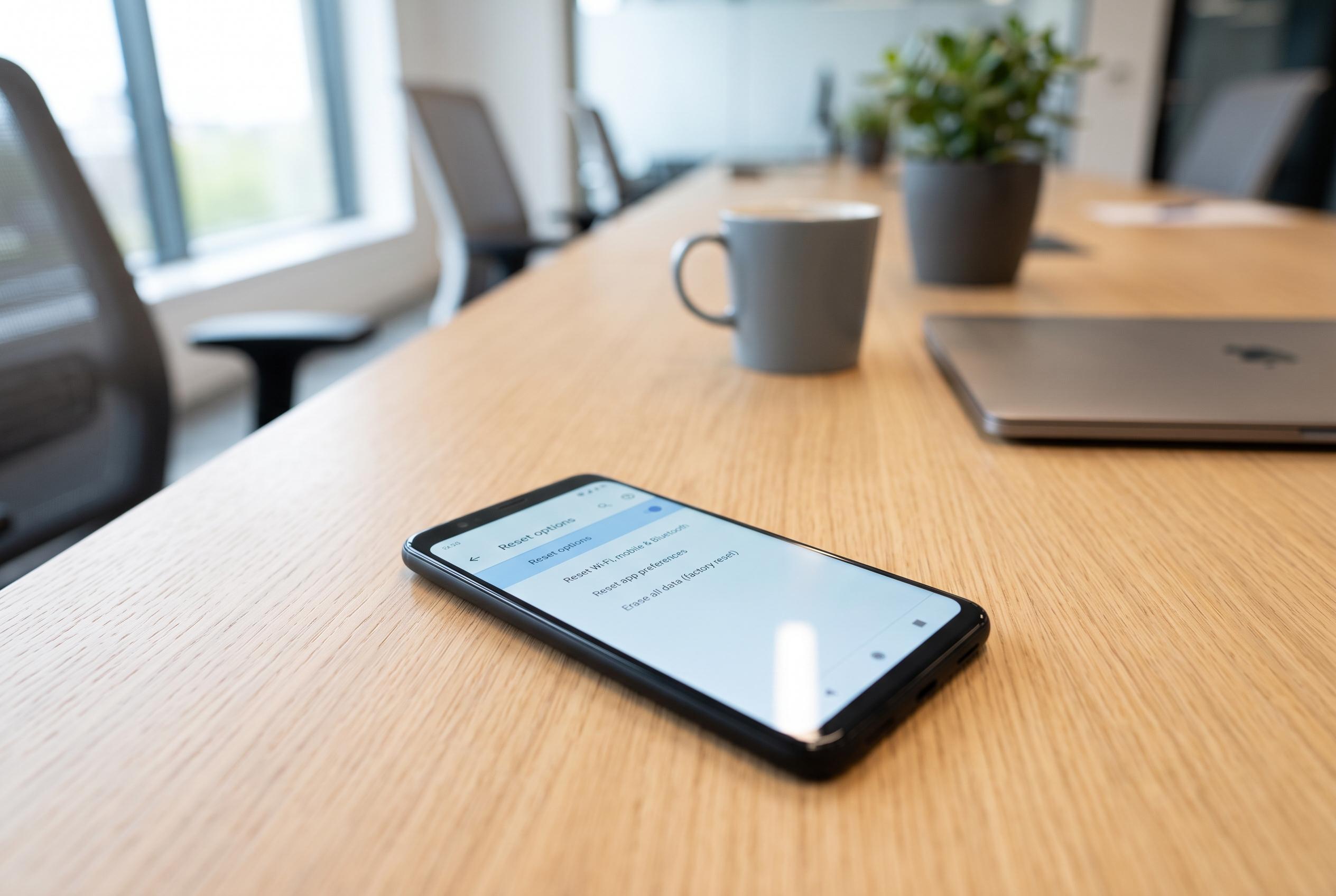

Resetting a phone’s network settings offers a quick, non-intrusive way to fix common connectivity problems caused by software glitches, preparing the device for successful reconnection without data loss.
Resetting a phone’s network settings can be a useful first step when connectivity begins to fail, because it clears the configuration that controls Wi‑Fi, mobile data, Bluetooth and VPN access without touching photos, apps, documents or other personal files. In practice, it is often worth trying before more disruptive measures, especially when a device can still see a network but cannot join it, or when Bluetooth accessories stop reconnecting properly.
The reset is not a cure-all. If the problem lies with a damaged antenna, a faulty SIM, a carrier outage or another hardware fault, the settings menu will not fix it. But when the issue follows a software update, a changed router password or a network profile that has become corrupted, restoring the default connection settings can quickly remove the fault and save time.
What disappears in the process are the saved details tied to connectivity. That usually means stored Wi‑Fi passwords, Bluetooth pairings, cellular access point settings and any VPN configuration. The phone remains intact, but it will need to relearn familiar networks and accessories. On some devices, especially with certain operators, the mobile data settings may need to be entered again manually after the reset.
On Android, the route varies by maker and software version. On Google Pixel and other near-stock devices, the function is typically under system reset options. Samsung Galaxy phones usually place it in the general management menu, while Xiaomi, Redmi and POCO devices often list it under connection and sharing settings. On iPhone, the option sits in the General menu under the reset section. The exact wording differs, but the effect is the same: the device forgets its network history and starts again.
If the fault remains after that, the next checks are straightforward. Reboot the router, test whether other devices can connect, try the SIM in another phone and contact the mobile operator if necessary. If none of that helps, the problem is more likely to be physical than software-based, and a repair service may be the only practical answer.
Disclaimer: This content is intended for informational purposes only. Readers are advised to exercise their own judgement, conduct due diligence, or consult a qualified expert before acting on any information provided.



