


Most printer failures stem from small faults like blocked paper paths or network issues, and can be fixed through a straightforward, step-by-step troubleshooting process before considering costly repairs.
The most common printer failures are not dramatic hardware breakdowns. They are small faults in the chain between document, queue, connection, device and paper path. That is why the fastest fix is usually the most boring one: work through the checks in order, starting at the printer itself and ending only later with drivers or software resets. Industry troubleshooting guides from Microsoft and several printer support sites all follow the same pattern: confirm the device has power, paper and consumables, clear anything stuck in the queue, verify the correct default printer, then move on to connection and driver issues. The logic is simple: most “dead” printers are not dead at all, but blocked by a setting, a stale job or a lost link.
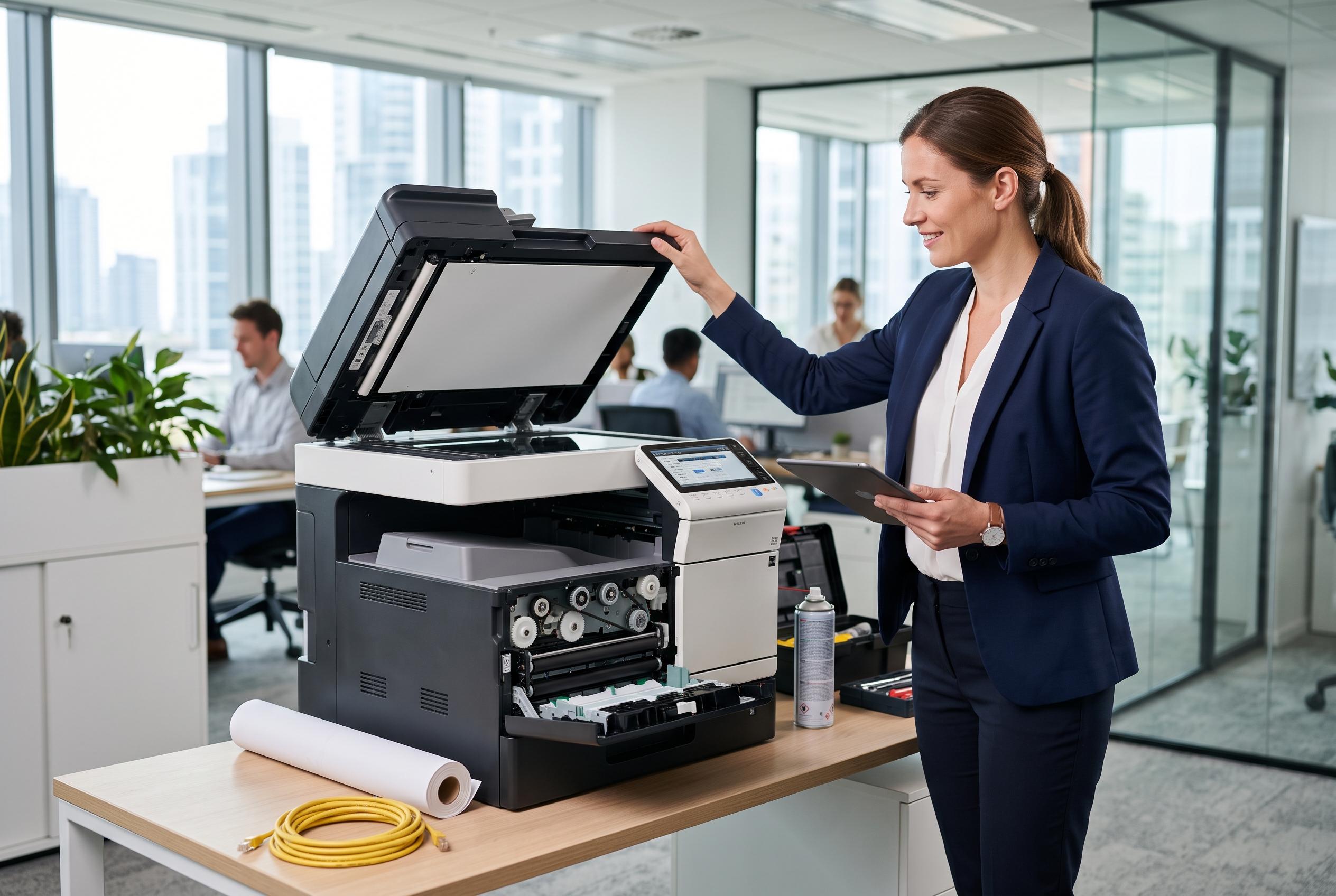
The first pass should always be physical. Check for obvious status lights or error messages, then look for paper that is misfed, curled or damp, and make sure the tray guides are snug but not tight. Open every panel and access door, because even a tiny torn scrap can block the feed path. Inkjet printers may refuse to print if a cartridge is flagged empty, while laser printers may continue to struggle until toner is reseated or replaced. Printer support guides also note that blank or streaky pages often point to low supplies or blocked nozzles rather than a computer fault.
If the machine looks fine, restart the whole chain. Turn the printer off, unplug it briefly, restart the computer and, if the printer is on Wi-Fi, reboot the router as well. That matters because many printing faults are caused by stale network states or a spooler that has stopped responding. Microsoft recommends checking cables, wireless links and the print spooler when jobs will not leave the queue, and its guidance makes clear that a full restart is one of the quickest ways to clear transient faults.
The print queue is the next place to look. A single corrupted or paused job can block every document behind it, making a healthy printer appear broken. Clear the queue completely, then send a fresh test page rather than the original file. That helps separate a printer problem from a file problem. If the printer works after the queue is emptied, the fault was not the device at all; it was the job sitting in front of it. Several troubleshooting guides also warn that a printer may be set to offline or paused mode, which can trap new jobs without any obvious warning.
Default-printer settings cause another common failure. A computer can quietly send a job to the wrong destination, including a PDF creator rather than the physical printer. That is especially easy to miss when the operating system automatically changes the default printer. Once that is corrected, make sure offline mode is disabled and the queue is resumed. On systems where the printer is shared over a network, confirm that the host machine is awake and still sharing correctly, because one sleeping or updated computer can stop everyone else from printing.
Connection faults depend on the link in use. For USB printers, swap the port and cable before assuming the printer has failed. For Wi-Fi printers, confirm that the printer and the computer are on the same network and that the printer still has a valid address from the router. A changed IP address is a frequent cause of recurring disconnects, and a fixed reservation in the router can stop the problem returning. If the printer works from one device but not another, the issue is often local to that machine’s queue, driver or network path.
Only after those checks should you reinstall the driver or remove and re-add the printer. That step rebuilds the software link between the operating system and the device, which can fix instant failures, garbled output and strange behaviour after an update. Microsoft’s Windows guidance includes driver and spooler repair among the key remedies, while printer support sites note that blank pages, offline status and model-specific faults often clear once the device is reconfigured from scratch. If the printer still will not print its own internal test page, the fault is likely inside the machine itself. In that case, clogged nozzles, worn rollers or a failing drum become the next suspects.
Disclaimer: This content is intended for informational purposes only. Readers are advised to exercise their own judgement, conduct due diligence, or consult a qualified expert before acting on any information provided.



