

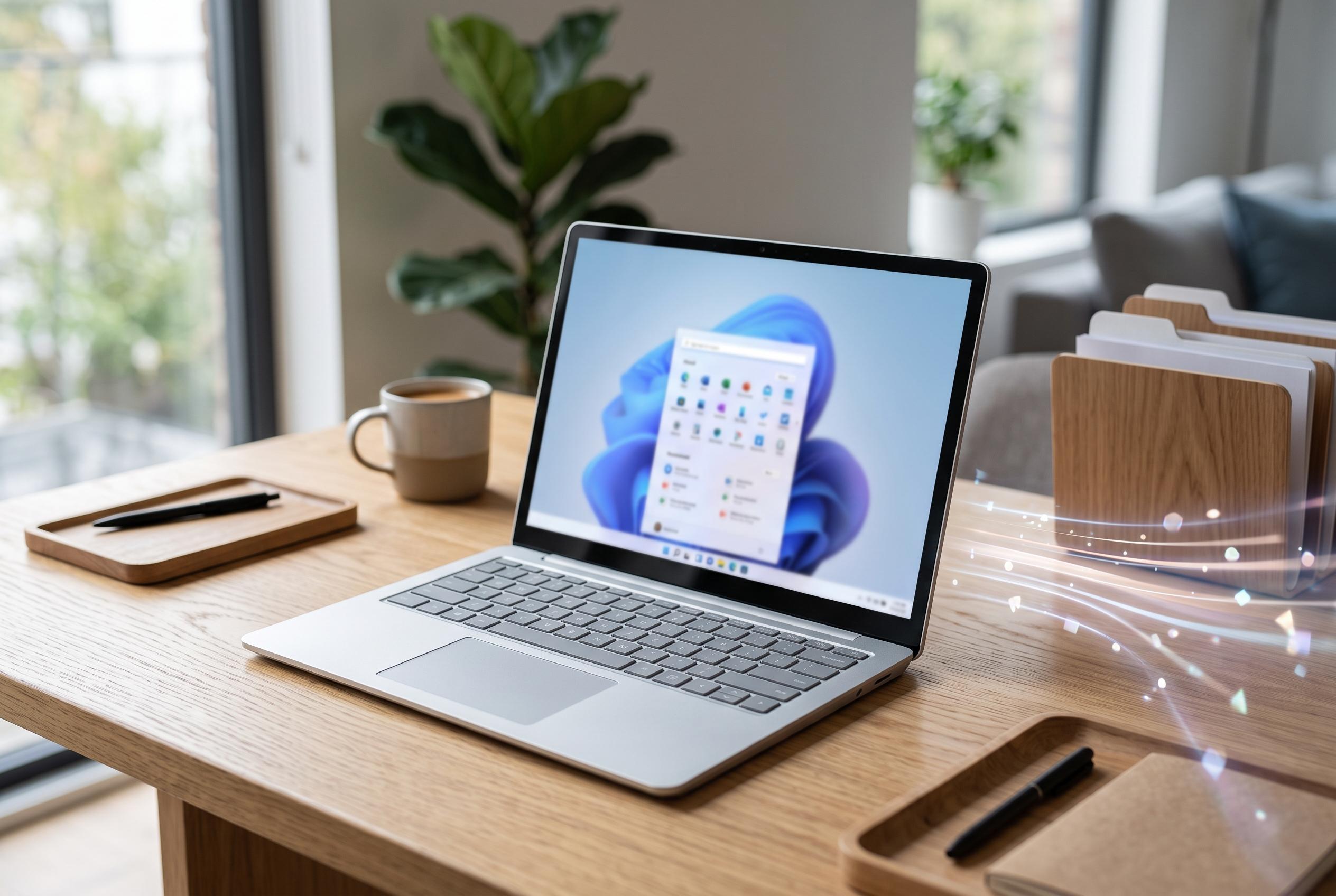

Basic adjustments like reducing visual effects, managing startup apps, and clearing clutter can significantly improve Windows 11 responsiveness without advanced tuning.
Windows 11 can often feel slower than it should, but the most effective fixes are usually basic. The guide from iTechHacks and corroborating how-to pieces from Windows Central and Tom’s Guide point to the same core measures: reduce visual overhead, stop unnecessary software loading at boot, and clear out clutter that consumes storage and system resources.
One of the first adjustments is to cut back on visual effects. Windows Central explains that animations and other interface flourishes can be reduced through the system performance settings, which can make the desktop feel more responsive on modest hardware. Users who prefer a balance between speed and appearance can keep only a few elements, such as font smoothing and thumbnails, while disabling the rest.
Startup control is the next major lever. According to Windows Central and Tom’s Guide, many applications launch automatically when Windows starts, even when they are not needed immediately. Disabling non-essential startup items through Settings or Task Manager can shorten boot times and free memory and processor time for the tasks that matter.
Storage management also plays a significant role. Windows Central notes that Storage Sense can be enabled to remove temporary files automatically on a schedule, while manual deletion through the Storage section lets users clear downloads, thumbnails, recycle bin items and other disposable data. The iTechHacks guide adds that users should also remove unwanted files by hand, especially older content that no longer has any practical use.
Finally, uninstalling unused programmes can make a measurable difference. Windows Central says background processes from installed software consume RAM and CPU even when the programmes are not actively in use. Removing tools that are no longer needed helps keep the system lean, which is especially useful on machines with limited storage or memory.
Taken together, these steps do not change Windows 11 into a different operating system, but they do address the most common causes of day-to-day sluggishness. For users trying to improve responsiveness without advanced tuning, they remain the most practical place to start.
Disclaimer: This content is intended for informational purposes only. Readers are advised to exercise their own judgement, conduct due diligence, or consult a qualified expert before acting on any information provided.



