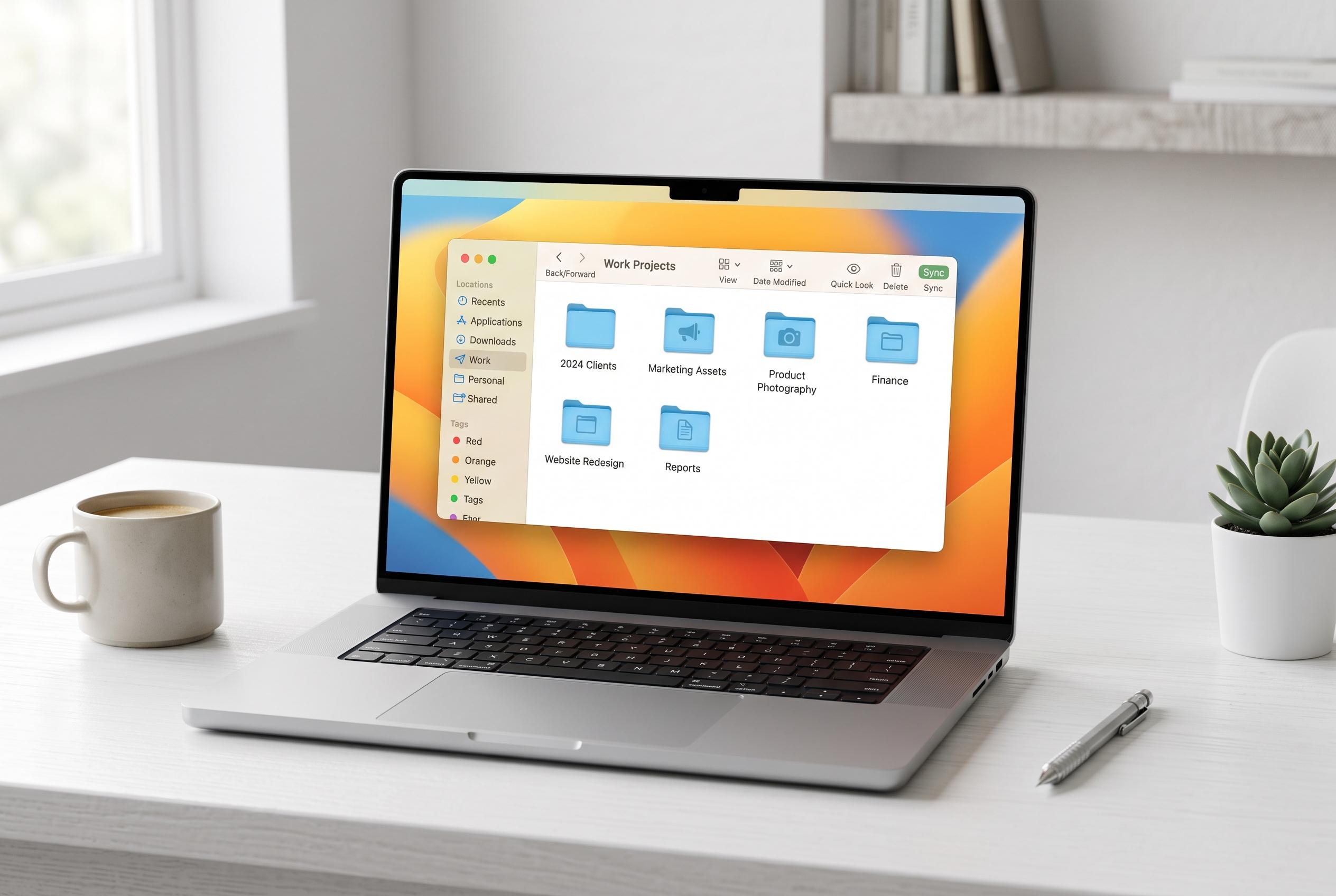

Minor customisations in macOS, such as rearranging the Finder toolbar and setting default apps, can streamline everyday file work, making routine tasks faster and more intuitive.
Small changes in macOS can make everyday file work feel much less clunky. One of the easiest wins is to customise the Finder toolbar so the apps and shortcuts you use most are always within reach. As iDownloadBlog, Macworld and iMore have noted in their guides to Finder customisation, the toolbar can be rearranged to suit the way you work, whether that means adding a folder, an app or another quick action. In practical terms, that can mean dragging an app such as Preview or Photos into the toolbar and then dropping files straight onto it to open them faster.
Setting default apps is another useful shortcut. Apple Support explains that, on a Mac, you can choose which app opens a file type once, or change the default app for all files of the same kind through the file’s “Get Info” panel. That is a simple way to avoid repeating the same choice every time you open a document, image or video, especially if you regularly move between different file types.
The Mac also includes enough built-in tools to cover many common editing tasks without extra software. Preview can handle quick image jobs such as cropping, rotating and adding notes, while Photos offers more advanced adjustments and syncs changes through iCloud, according to the Geeky Gadgets guide based on Crazy Errors’ tips. For video, QuickTime Player is handy for basic trimming and rotation, while iMovie is better suited to more polished edits with titles, transitions and music. Pages can also open and export Word documents, which may be enough for users who only need straightforward editing and sharing.
Speed also comes from better navigation. Apple’s own support material and guides from iDownloadBlog and iMore recommend putting frequently used folders into the Finder sidebar so they are only one click away. That reduces the need to dig through nested folders and makes it easier to keep projects, downloads and working files organised in a way that matches your routine.
The same idea applies to previews and drag-and-drop workflows. Pressing the spacebar to use Quick Look lets you inspect a file instantly, while the arrow keys let you move through nearby files without opening them one by one. You can also drag files on to app icons in the Dock, or on to Mail to attach them, which makes multitasking smoother. Taken together, these built-in features turn the Finder into a more efficient control centre for everyday Mac use.
Disclaimer: This content is intended for informational purposes only. Readers are advised to exercise their own judgement, conduct due diligence, or consult a qualified expert before acting on any information provided.