

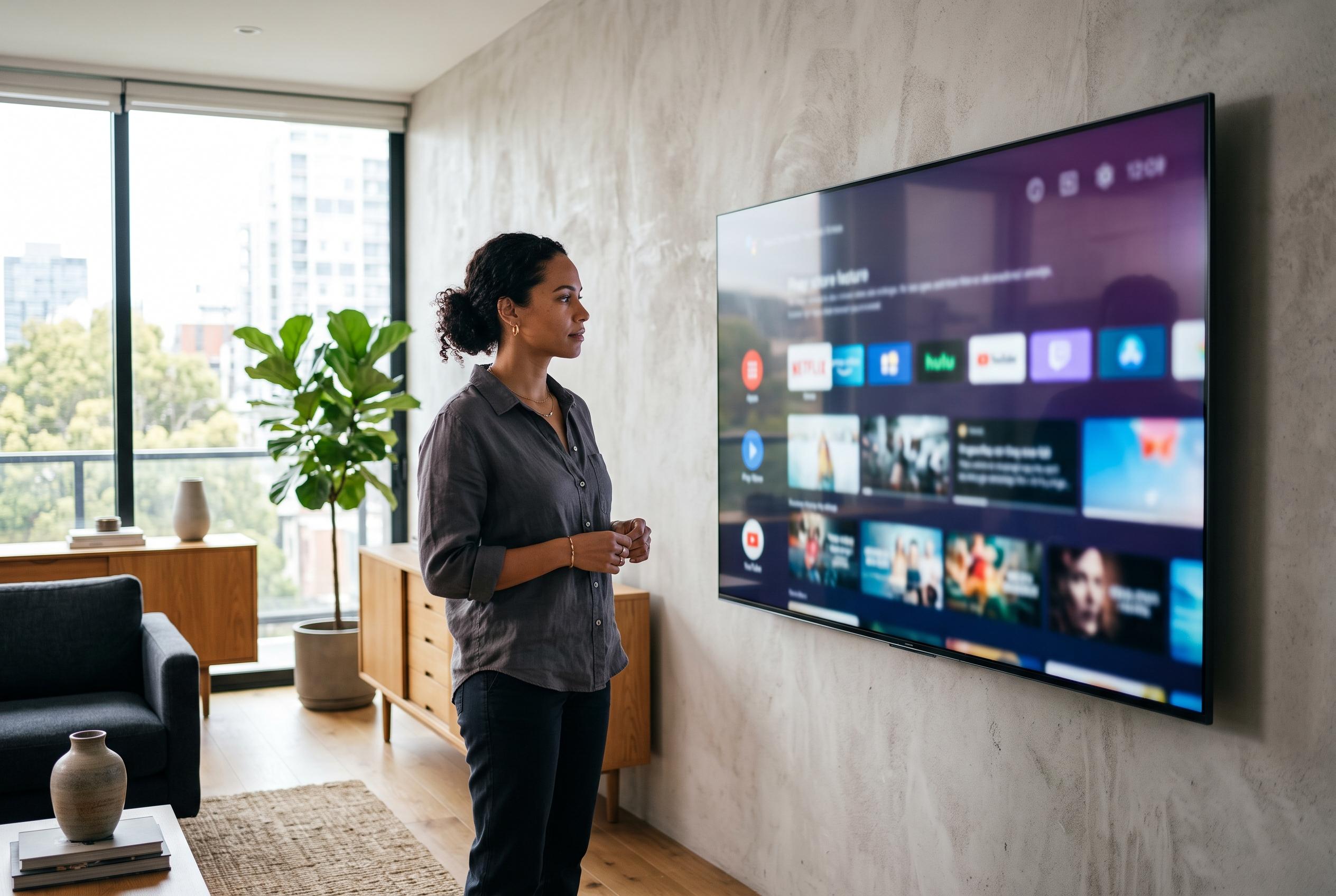

While installing new apps on smart televisions seems straightforward, different manufacturers’ platforms reveal complex regional, software, and user profile restrictions that can confuse consumers and impact service accessibility.
Installing a new service on a smart television is usually a short task, but the crucial variable is not the badge on the set: it is the software platform underneath. The latest support material from LG, Samsung, Google and TCL all describes the same general sequence , open the main screen, enter the apps area, search for the service and install it , yet the route, labels and restrictions differ enough to confuse users moving between brands. Official guidance also makes clear that app availability can depend on region, software version, device type and, in some cases, the user profile currently active on the television. (lg.com)
The first check is functional rather than brand-specific: the television must be properly online before any store can be used reliably. TechRadar’s Samsung guide says owners should go into the network settings, choose the home router, enter the password and wait for the connection to complete before trying to install anything. TCL adds that a missing app is not always a store problem; it may reflect no internet connection, no signed-in Google account, or a television that has not yet been updated to the latest system software. (techradar.com)
LG’s own instructions show how much the path can change even within one brand. On webOS22 sets, LG says users should press Home, choose Apps, use the search icon in the top right, enter the app name and select Install. On older webOS 5.0 models, the first destination is LG Content Store rather than the newer Apps view, after which the search-and-install steps are broadly similar. The company also distinguishes between generations when it comes to managing what has already been installed: newer sets offer Edit App List, while older ones use a long press on an app icon to reveal an X for deletion. Once installation finishes, LG says the app can be launched immediately. (lg.com)
Samsung’s support pages add several practical points that generic guides often leave out. The company says apps are installed from Home > Apps, with search in the upper-right corner, and that users can then add the new service to the main screen through the settings option inside the apps area. TechRadar notes that some remotes label the entry point differently, using a Smart Hub or Guide button that opens the same dashboard. Samsung also says automatic updates can be enabled in App Settings, that “The default PIN is 0000.” for locked apps until the user changes it, and that “Recommended apps cannot be deleted but they can be removed from the Home screen.” (samsung.com)
For televisions running Google TV , a category that covers many recent Sony, Philips and TCL models , Google’s official method offers two routes. Users can press the Assistant button or open Search on the home screen and say or type the app name, or they can browse through the Apps tab by category. Google also points out that purchases may require on-screen payment steps, and that installed apps are shared across profiles except for children’s accounts: “the apps work for all profiles except for kids’ profiles.” After installation, the layout can be tidied by holding Select on an app in the “Your apps” row, choosing Move, then confirming with Done or by using the Reorder tile at the end of the row. (support.google.com)
TCL’s own documentation is especially direct about the limits of a one-size-fits-all guide. On its Google and Android TV models, the company says users should go from the Android TV home screen to Apps and then Get more apps, which opens Google Play Store. From there, they can browse by category or search directly, install free apps, or follow purchase prompts for paid ones. TCL also stresses that menu names, store options and the catalogue itself “may vary by TV model, software version, region, and app availability”. Newly installed services often appear at the bottom of the apps row, and if one does not show up at all, TCL says the cause may simply be that the app is unsupported on that model, Android TV version, region or device type. (support.tcl.com)
VIDAA is the awkward outlier in the source material because the supplied official note is not a television app-store guide but an explanation of the platform’s companion mobile application. VIDAA tells users to go into the television’s settings and select Support > Mobile App, then scan an on-screen QR code to download the app for iOS or Android. That distinction matters in practice: owners of VIDAA-based televisions may encounter both TV-side app management and phone-side integration within the same ecosystem, and the companion app should not be mistaken for the store used to add software directly to the television. (vidaa.com)
The most useful conclusion from the manufacturers’ own material is that an app not appearing in search results does not, by itself, mean the television is faulty. Samsung says only software available in its store can be installed, while Google and TCL both show that profile settings, account status, purchases, platform compatibility and regional support all shape what a user can actually download. In practical terms, the sensible checks are connection status, sign-in, software updates and whether the service supports that specific operating system, rather than assuming every smart TV should offer the same app catalogue. (samsung.com)
Disclaimer: This content is intended for informational purposes only. Readers are advised to exercise their own judgement, conduct due diligence, or consult a qualified expert before acting on any information provided.



