
Verifying the reliability of automatic photo backup hinges on hands-on workflow tests rather than mere settings activation. Experts recommend practical checks to prevent false confidence and ensure seamless, real-world transfer of original-quality images across devices on local networks.
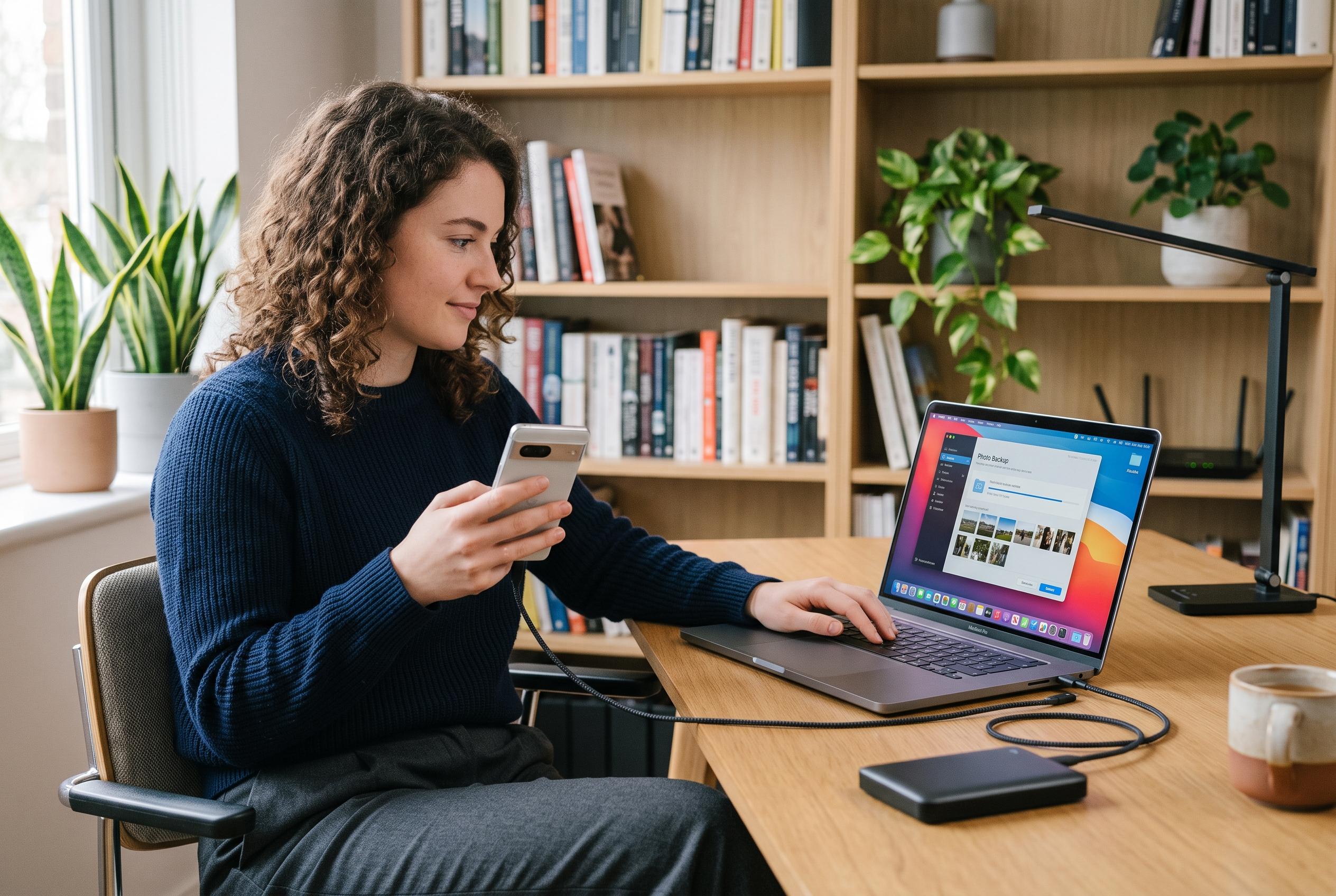
Automatic photo backup is only useful if it can be proved to work, and the safest way to do that is to treat it like a workflow test rather than a setting you simply switch on and trust. The practical check is straightforward: install the desktop app, make sure you know the destination folder, pair the phone, turn on Automatic Backup manually and confirm both devices are on the same network. Then create a single new photo with an obvious timestamp and look for one clear result: the file should appear on the computer and open normally.
That small test is easier to troubleshoot than trying to move an entire photo library in one go. It also helps define what the feature does and does not promise. The setup stage still needs an internet connection, but once everything is configured, same-network transfers can run without public internet access. The files are meant to transfer in their original form rather than being deliberately compressed, although real-world behaviour will still vary with the device, network, storage and the type of file being sent.
It is also worth avoiding false confidence from simply opening the app and seeing it connected. According to the article, background transfers over local networks, including screen-off operation, are paid capabilities in the official build. That matters because a feature that seems to work while the app is open may not behave the same way once the phone is locked or the app is no longer in the foreground. The result is a narrower but more dependable expectation: this is backup, not full two-way synchronisation, and deletions on the phone and computer are handled independently.
Other photo backup services follow similar broad patterns, but with different trade-offs. Ente says its mobile app can sync in the background and keep photos and videos in original quality, while Google Photos lets users back up folders from a computer after granting permission. AirDroid Personal also offers local phone-to-computer backups when both devices share the same network, though its photo and video handling differs by plan. Synology’s BeeDrive even allows cellular backup when Wi-Fi is unavailable, while Sync.com’s camera upload feature copies media into a dedicated folder that then syncs across devices. The common thread is the same: whatever the service, the first successful backup should be visible, testable and repeatable before you rely on it for everything.
Disclaimer: This content is intended for informational purposes only. Readers are advised to exercise their own judgement, conduct due diligence, or consult a qualified expert before acting on any information provided.