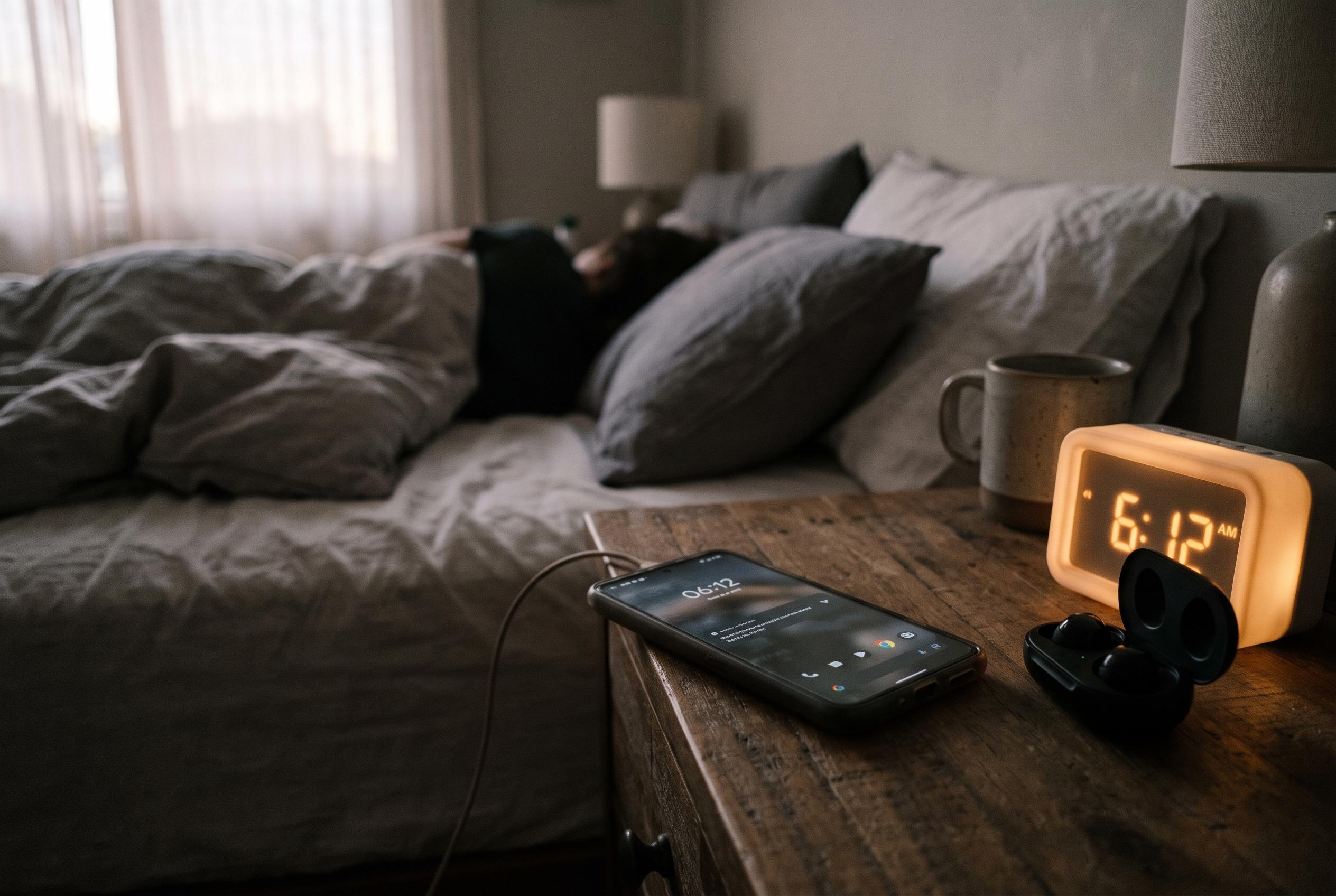

Automatic account synchronisation can add to overnight battery drain, particularly on phones with multiple accounts, but weak signals, rogue apps and recent software updates may also be responsible.
Leaving an Android phone on a bedside table with plenty of charge can still result in a noticeable drop by morning, but that does not automatically mean the battery is worn out. One setting worth checking is account synchronisation, particularly on phones carrying several Google services or multiple accounts. According to the material supplied by Telefonino.net, this background updating can contribute to overnight drain, although it is rarely the sole explanation.
That is partly because Android already tries to limit idle power use. Doze mode, introduced in Android 6.0 and refined since then, restricts network access, background jobs and regular alarms when a handset is left untouched with the screen off. In practice, the system batches background work into maintenance windows, which is meant to cut standby consumption rather than allow apps to wake the device repeatedly through the night.
Even so, synchronisation can still matter. Google’s own account settings allow apps such as Contacts, Calendar and Gmail to update automatically in the background, and the company permits individual sync categories to be turned off where they are not needed. Samsung also lists automatic synchronisation among the features that can increase battery use if left permanently enabled. The effect is usually modest, but it can become more visible on phones with many accounts, unstable connections or large volumes of data to refresh.
Network conditions can make the problem worse. Samsung notes that a weak mobile signal can force a device to keep searching for connectivity, which raises energy use. That helps explain why some users see larger losses overnight even when the phone appears to be idle. On the other hand, Android Central reported that some Galaxy S24 and S25 owners have recently complained of severe drain after Samsung’s One UI 9 update, while others have seen little or no change, suggesting that battery problems can vary sharply by device and software build. Samsung has not publicly acknowledged those reports, and the publication said some users were advised to wait for the system to settle before trying more intrusive fixes.
For that reason, the sensible first step is to inspect battery statistics rather than switch off synchronisation blindly. On most Android phones, the path runs through Settings and Battery, then battery usage; on Samsung devices, it is usually under Accounts and backup, then Manage accounts, and finally the relevant account’s sync options. It is better to disable only the categories that do not need constant updating than to turn off all automatic sync, because a global switch can delay email, contacts and calendar updates. If the overnight loss remains high after trimming unnecessary services, the cause may lie elsewhere, such as a weak signal, an abnormal app, Always On Display, location services or simply an ageing battery.
Disclaimer: This content is intended for informational purposes only. Readers are advised to exercise their own judgement, conduct due diligence, or consult a qualified expert before acting on any information provided.