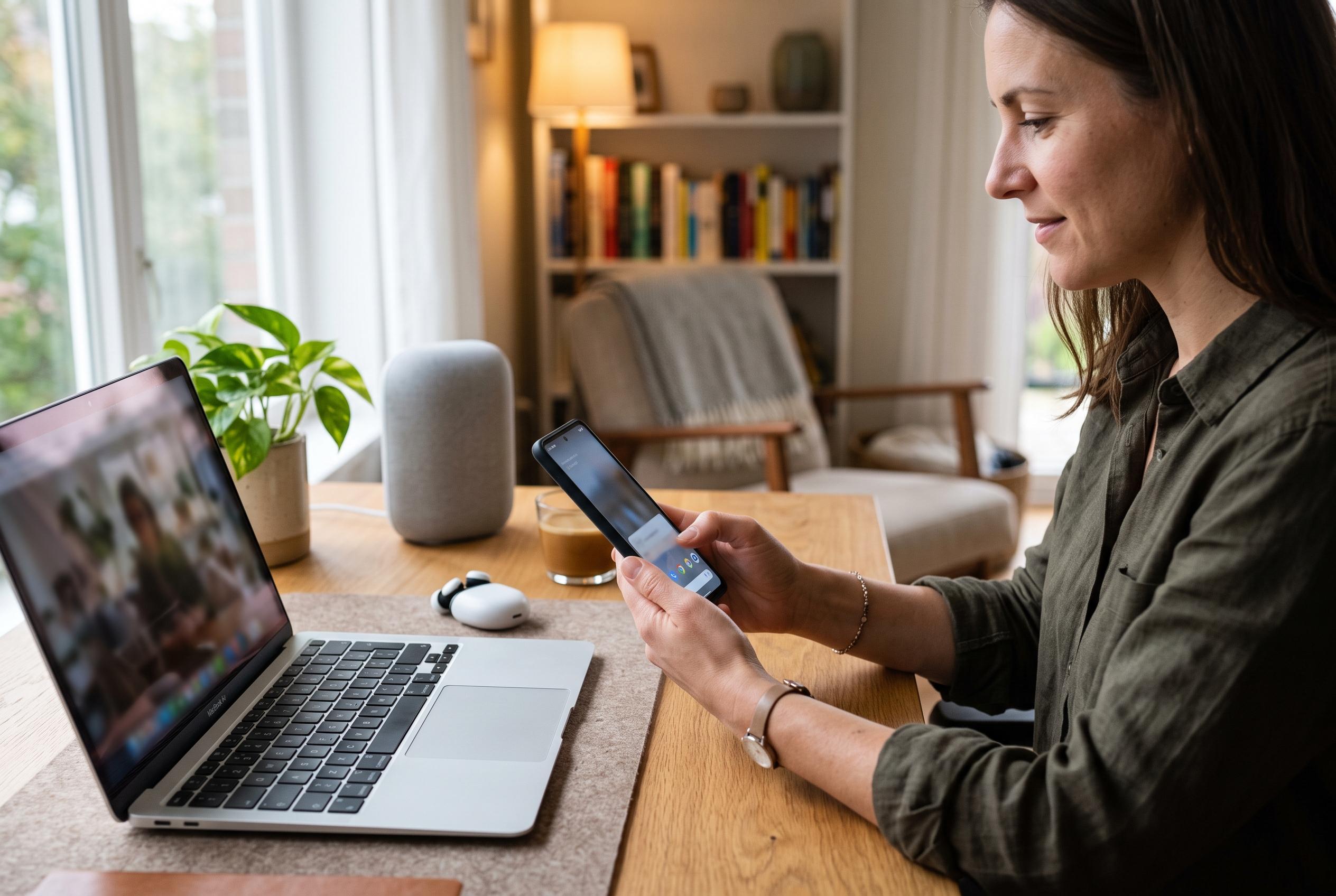

From switching on a hotspot to launching the camera, taking a screenshot or summoning Gemini, a few Android settings can cut routine tasks down to a single gesture.
Android offers several small controls that can remove a surprising amount of friction from everyday use. MakeUseOf highlights a set of shortcuts that let people reach common tools without opening full apps or digging through settings, and the appeal is obvious: a hotspot, torch, camera, screenshot tool or assistant prompt can often be reached in a single motion rather than several taps. For anyone who uses a phone as a work device, a travel companion or a quick utility, those seconds add up.
One of the simplest gains is to place the hotspot toggle in the quick settings area. Android Central notes that quick tiles such as Hotspot are among the most useful custom additions because they put frequently used functions within immediate reach. Instead of searching through the settings menu each time a laptop or tablet needs connectivity, users can pull down the shade and switch tethering on from the tile tray.
The torch can be made just as immediate. A guide from iTechGuides points out that Android phones often support lock-screen access, gesture-based activation and assistant-based control for the flashlight, depending on the device. MakeUseOf recommends assigning the torch to a lock-screen shortcut, which is particularly useful because it can be launched after waking the screen, without unlocking the handset or opening a menu.
The camera can also be tied to the power button. On many Android phones, a double press of the side key launches the camera directly, while some models can be configured to open Google Wallet instead. That distinction matters: for people who use contactless payment or store passes in Wallet, the shortcut can be more valuable than a camera launch, while frequent photographers will usually prefer instant access to the lens.
Navigation inside Android itself can be sped up with gestures that are easy to overlook. Pulling down with two fingers opens quick settings straight away on many devices, bypassing the two-step process of opening notifications and then expanding the tiles. Samsung Galaxy phones use a slightly different approach, with a one-finger swipe from the top right. Android Central’s coverage of custom quick tiles underlines how much these small interface choices can improve day-to-day use when they are tailored to the owner’s habits.
Screenshot capture can be simplified too. MakeUseOf points to the back-tap feature on compatible devices, where a double tap on the rear casing can trigger a screenshot, open the notification shade or launch another action. On Samsung phones, this kind of gesture is handled through Good Lock and its RegiStar module, part of Samsung’s broader customisation suite. Android Central describes Good Lock as a modular toolbox for changing how Galaxy phones behave, including the lock screen and navigation controls.
The power button can also serve as a fast route to Gemini. Instead of opening the app, users can assign a long press on the power key to bring up Google’s assistant from almost anywhere, including when the display is off. Android Central has also reported on newer Gemini shortcuts in Chrome on Android, including a page-summary command, showing how Google is continuing to fold AI actions into the places where people already spend time.
The wider pattern is clear. Android works best when the owner spends a little time setting it up, then lets those settings save effort every day. For many users, the practical value is not in dramatic features but in small, reliable shortcuts that reduce the number of steps between intent and action.
Disclaimer: This content is intended for informational purposes only. Readers are advised to exercise their own judgement, conduct due diligence, or consult a qualified expert before acting on any information provided.