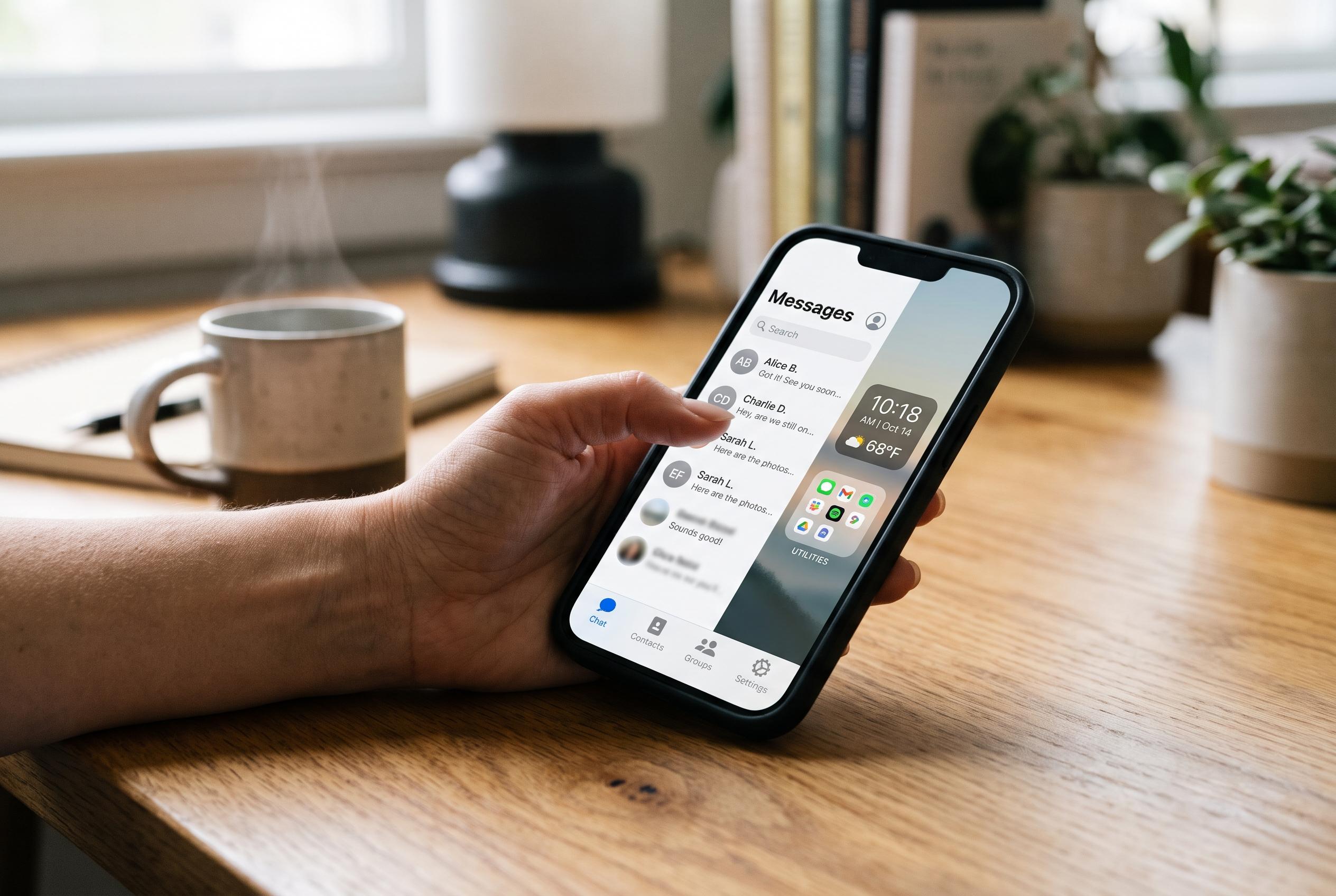

A focused chat layout can cut through app clutter: keep the main service visible, use shortcuts or widgets selectively, and group less-used platforms in a folder or secondary page.
A chat-centred Home screen works best when it reflects the way you actually message, not the full list of apps installed on the phone. The practical aim is simple: keep the main messaging service within immediate reach, add a shortcut or widget where the system and the app support one, and move the rest into a folder or secondary page. On Android, iPhone and Samsung Galaxy phones, the tools are similar in purpose but different in presentation, so the cleanest layout depends on the launcher and software version in use.
On Android, the usual starting point is the app drawer, where you can press and hold a messaging app and drag it on to the Home screen. If the app offers a conversation shortcut or a widget, that can reduce the number of taps needed to reach a specific thread or see recent activity. The precise menus vary across Android releases and manufacturer launchers, which means the safest approach is to look for the equivalent of an app shortcut, widget picker or Home-screen edit menu rather than assuming a feature is missing.
Apple’s approach is more page-based. An iPhone lets you reposition chat apps and widgets across Home Screen pages, then attach a page to a Focus so that a work conversation layout, for example, appears only when that Focus is active. Apple also provides appearance controls for icon size and colour treatment through the Home Screen’s customisation options. That makes it possible to build a messaging page that is both functional and visually restrained, while still keeping the built-in Messages app and third-party chat services easy to find.
Samsung Galaxy devices add another layer of control on top of Android. Users can place apps in a favourites row, create folders, choose folder colours, work with extra screens and, if needed, lock the Home screen layout after arranging it. In practice, that means the most frequently used chat service can sit in a fixed position at the bottom of the screen, while less important channels are grouped together elsewhere. Samsung’s extra options are useful, but they also make it more important to finish by locking the layout if accidental rearrangement is a concern.
For many people, the fastest route to a conversation is not the app icon at all, but a direct shortcut supplied by the app itself. Where that is unavailable, a visible icon is more reliable than searching through the app list each time. Widgets are most useful when they show information that is worth seeing before the app opens, such as recent activity or unread items. Folders work well when several messaging services are installed but only one or two deserve a permanent place on the front page.
This distinction matters because the right element depends on the task. An app icon is best when the only requirement is to open the main screen. A shortcut is better when a specific conversation or action can be reached directly. A widget is appropriate when glanceable information is needed first. A folder is the best compromise when multiple chat apps must remain available without crowding the page. That logic also applies to software beyond the phone itself: Intercom, for example, allows organisations to customise its Messenger Home with apps and audience rules so different users see different tools and content, while its separate Messenger setup guide covers launcher settings, welcome text and appearance controls.
A tidy messaging layout should still remain easy to recover if it becomes messy. Removing an icon or widget from the Home screen does not uninstall the app, and on iPhone there is a specific reset path that restores the default Home screen arrangement without deleting messages. On Android and Samsung devices, the equivalent fix is usually to edit the page manually, rebuild the arrangement or use the launcher’s own settings. The most practical design is therefore the one that stays simple: one obvious primary chat app, one folder for the rest, and only the widgets that genuinely save time.
Disclaimer: This content is intended for informational purposes only. Readers are advised to exercise their own judgement, conduct due diligence, or consult a qualified expert before acting on any information provided.