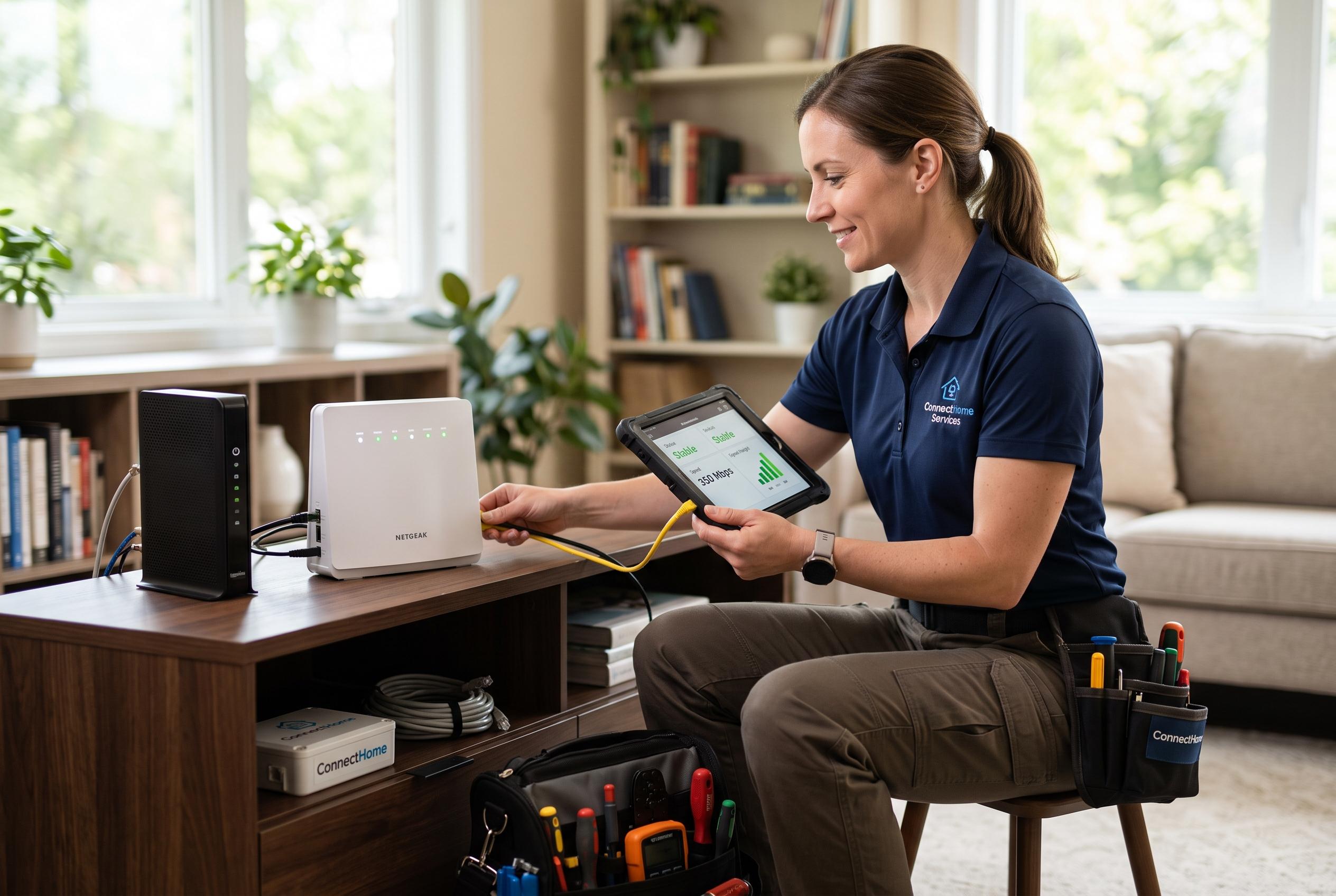

As more devices rely on stable internet, recent advances in troubleshooting tools and methods are helping users swiftly resolve common connectivity problems, from Wi-Fi interference to DNS faults.
When a home connection suddenly drops and Windows reports limited or no internet access, the fastest way back online is usually a methodical check rather than a full system reset. The first question is whether the fault affects every device or only one PC. If nothing in the house can browse, the modem or router is the most likely cause. Microsoft advises starting with the basics: power-cycle the equipment, check cables and, if needed, test the connection on another device before changing anything on the computer itself.
If the problem appears only over Wi-Fi, the wireless signal is often to blame rather than the internet line itself. Microsoft’s support guidance recommends checking whether the same PC works on a different network, changing Wi-Fi bands or channels and, if necessary, resetting the TCP/IP stack and renewing the IP address. A wired test can be decisive: if Ethernet works but wireless does not, the issue is usually interference, weak signal or router placement rather than a broken internet service.
A PC that shows a network connection but still cannot load pages may also be facing a Domain Name System fault. DNS is the service that translates web addresses into the numeric locations computers use. If those servers are slow, misconfigured or cached incorrectly, browsing can fail even when the link itself is live. Guides from Kudu and Microsoft both point to flushing the DNS cache, checking DNS server settings and, where appropriate, switching to a more reliable provider. Secure DNS over HTTPS can also improve privacy and reduce some forms of interference.
For wired connections, the fault is not always the cable itself. RouterVia and SamNet note that an Ethernet link can show as active while internet access is still blocked by IP assignment failures, driver faults, Winsock corruption or a bad cable or port. Their troubleshooting steps include replugging the cable, trying a different port, rebooting the router and computer, and updating the network adapter driver. If the wired link fails across several ports and cables, the issue may be further upstream, including the router configuration or the service provider’s wide-area connection.
When the trouble seems confined to Windows, repair tools can restore damaged network settings without reinstalling the operating system. Complete Internet Repair is one of the better-known utilities for resetting network components, while TCP Optimizer is used to tune some Windows networking parameters after updates or configuration changes. Puget Systems recommends checking hardware first, then running diagnostic commands, updating drivers and using repair tools only when simpler steps fail. If none of that works, malware or a recent software change may have altered network settings, in which case a system restore to a point when the connection was working can be the cleanest recovery.
Disclaimer: This content is intended for informational purposes only. Readers are advised to exercise their own judgement, conduct due diligence, or consult a qualified expert before acting on any information provided.