

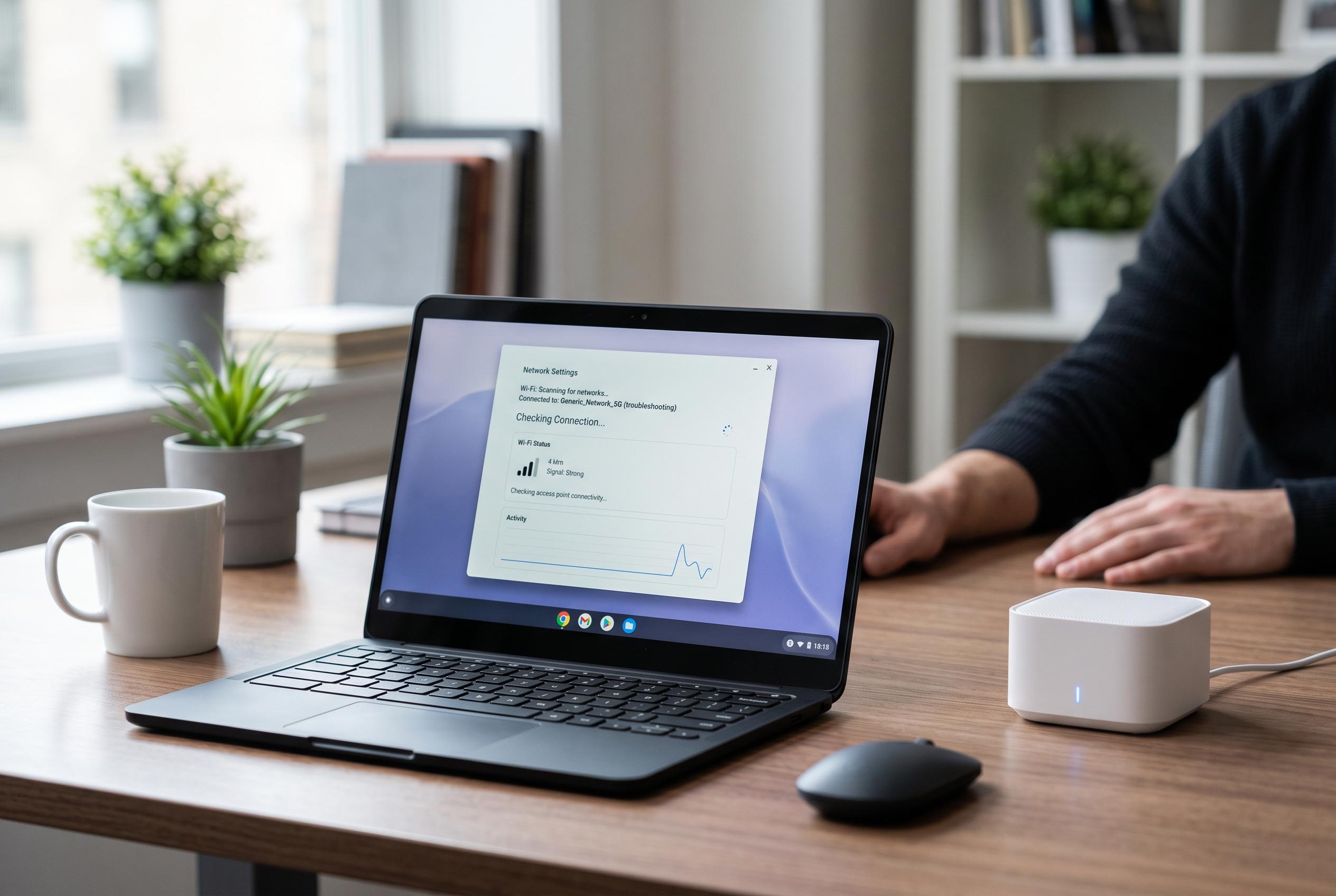

Many Chromebooks display as connected to Wi-Fi yet fail to load websites or apps. Experts recommend straightforward diagnostics, including network reconfiguration, to identify and resolve the root cause before resorting to resets or policy changes.
A Chromebook can appear to be connected to Wi-Fi while websites and apps still fail to load, and the quickest way to isolate the fault is to separate the device from the network. Google’s support guidance, echoed by Acer and ASUS, begins with a simple test: check whether another device can reach the internet on the same Wi-Fi, then try the Chromebook on a different network, such as a mobile hotspot. That distinction usually shows whether the problem lies with the router, the internet service, or the Chromebook itself.
If other devices on the same network also fail, the issue is more likely to be with the modem, router, cabling, or the internet provider. Restarting the network equipment remains one of the first practical steps, and ASUS advises checking signal range and router settings at the same time. If the Chromebook is the only device affected at home, Google recommends reconnecting the saved network profile and using its built-in network diagnostics before making deeper changes.
For a Chromebook that still shows no internet on a single network, the saved Wi-Fi profile may be part of the problem. Removing the network, restarting the device, and joining it again can clear stale settings and force a fresh local connection. Google’s help material also notes that captive portals, such as those used by hotels, schools and cafés, may require a sign-in page before normal browsing works. In those environments, opening a plain web page can trigger the login screen, but users should be cautious about entering credentials on unfamiliar pages.
DNS and VPN settings can also cause a browser to lose internet access even when the Chromebook remains linked to the router. Google’s support advice is to return any custom name server setting to automatic for a controlled test, and temporarily disable VPNs or filtering extensions to see whether name resolution is being blocked. That matters because a device may be online at the network level but still fail to translate website addresses, creating the impression of a complete outage when only one service is affected.
If the basic checks do not help, Google and Acer both recommend restarting ChromeOS and applying any available updates once a working connection is available. Updates can include wireless driver fixes and security patches. Acer also notes that school and workplace Chromebooks may be restricted by administrator policies, so managed devices should be referred to IT support rather than reset at random. A full powerwash or factory reset should be left until after simpler steps have failed, because it removes local data and may not resolve a policy or network issue.
Disclaimer: This content is intended for informational purposes only. Readers are advised to exercise their own judgement, conduct due diligence, or consult a qualified expert before acting on any information provided.



