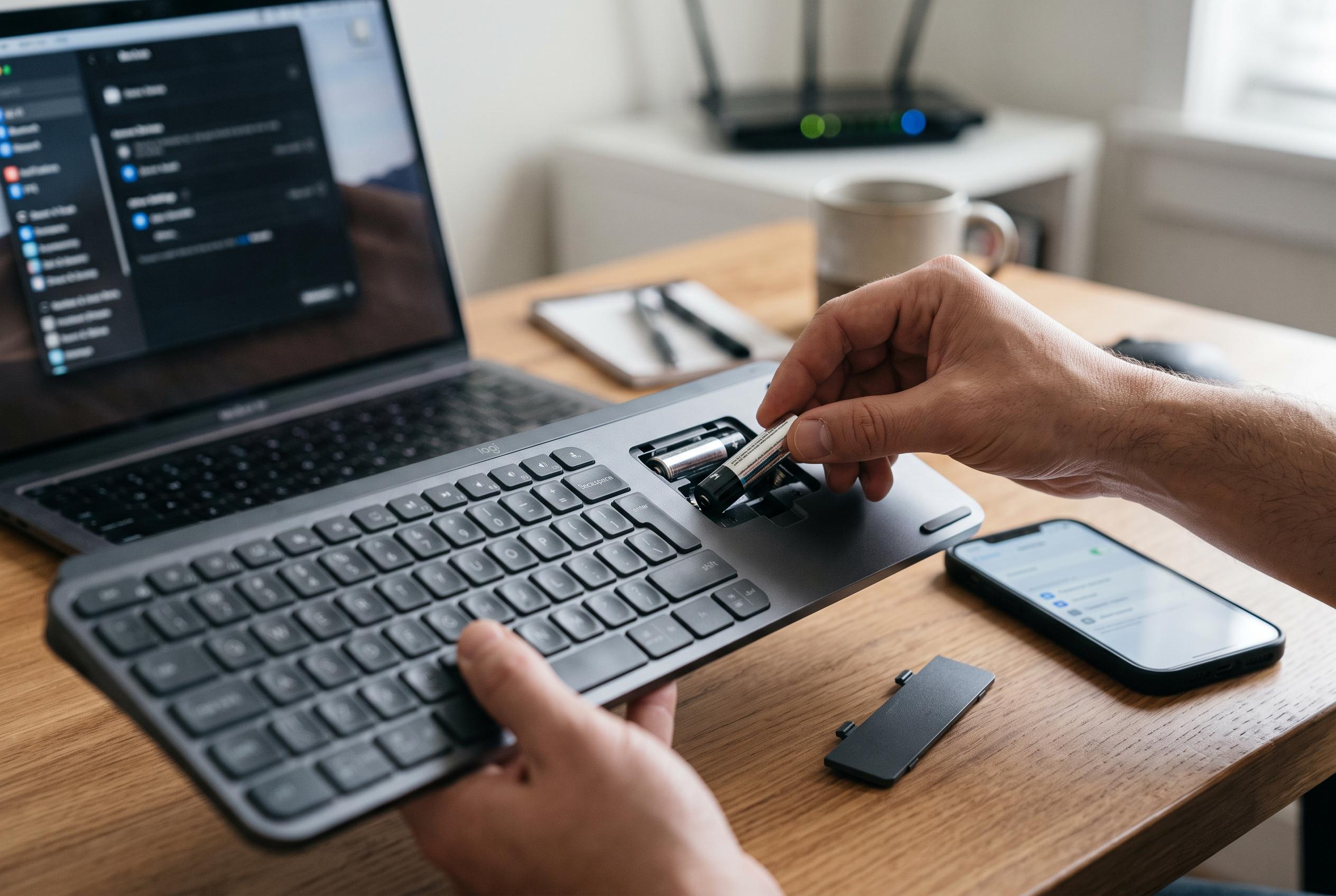

Most Logitech wireless keyboard problems are caused by straightforward factors like batteries, interference, and driver issues. This guide outlines quick, effective steps to resolve connectivity woes before considering device replacement.
When a Logitech wireless keyboard stops responding, the fault is often simple rather than permanent. Logitech’s own support material says the most common causes include weak batteries, a receiver that has been moved to a different USB port, interference from other wireless devices, or the keyboard being connected through an unsuitable USB hub. In practice, the first step is to confirm that the power switch is on, replace the batteries if needed, and connect the receiver directly to the computer rather than through an adaptor or hub.
Interference is another frequent cause of erratic behaviour. Logitech says metal surfaces, wireless speakers, power supplies, monitors, mobile phones and even garage-door openers can disrupt the signal. The company also advises keeping the receiver close to the keyboard and testing another USB port if the connection is unstable. These are basic checks, but they often resolve problems before any software fix is needed.
If the hardware appears sound, the next area to inspect is the driver. Windows can sometimes load a faulty or corrupted keyboard driver, leaving the device unresponsive or slow to react. A common fix is to remove the keyboard entry in Device Manager and then restart or scan for hardware changes so Windows can reinstall the correct driver automatically. If that does not work, updating the driver manually through Logitech’s download centre is the next logical step, especially for older models such as the K750 or K330.
For users who prefer a quicker route, third-party driver tools can automate the update process. Some guides recommend driver-updater software to detect missing or outdated input-device drivers and install current versions in one pass. That approach may be useful where several system components are out of date, although the most reliable method remains obtaining the correct driver from Logitech or Windows itself.
Windows services can also affect keyboard performance. One area worth checking is the Human Interface Device Access service, which supports many keyboards and mice. If that service is disabled or misconfigured, the keyboard may lag, fail to wake properly, or stop responding altogether. Setting the service to start automatically and then restarting the PC can restore normal operation in some cases.
If the keyboard still fails, the receiver itself may be the issue. Logitech support recommends testing the receiver in another port and, where relevant, trying a direct connection instead of a USB hub. For some models, re-pairing the keyboard or using Logitech’s connection utility may help. The broader point is that wireless Logitech keyboards usually fail for a limited set of reasons, and a structured check of power, connection, interference and drivers will resolve most cases without replacing the device.
Disclaimer: This content is intended for informational purposes only. Readers are advised to exercise their own judgement, conduct due diligence, or consult a qualified expert before acting on any information provided.