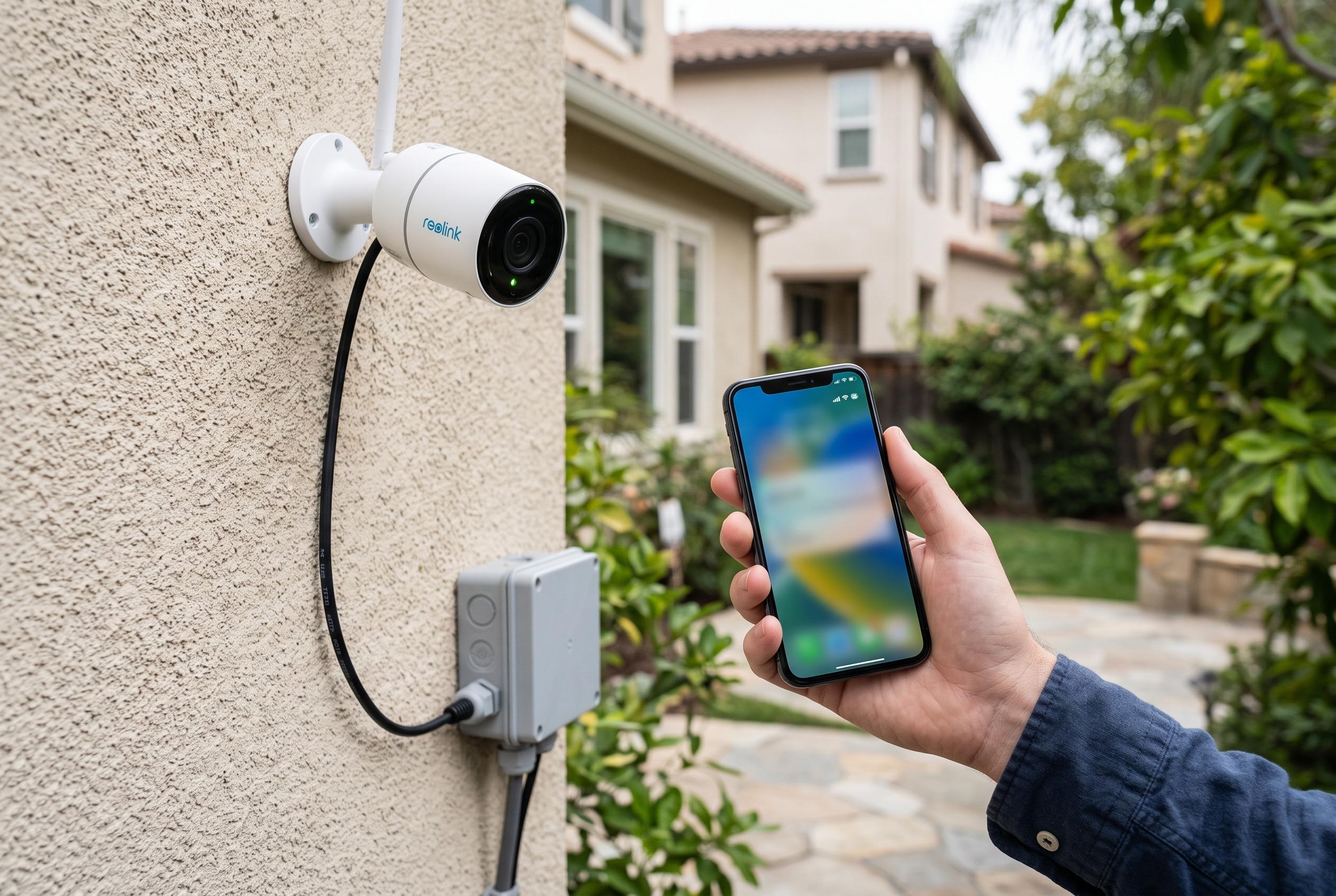

Understanding that an offline security camera rarely indicates a hardware failure, this guide outlines effective steps to diagnose and resolve issues stemming from power supply, network, app, or local storage problems, ensuring continuous surveillance.
An offline warning on a security camera does not always mean the camera itself has failed. In practice, the fault may sit in the power supply, the home network, the internet link, the app on the phone or an intermediate recorder or base station. The safest approach is to isolate the broken layer first and only then make changes. Google’s Nest guidance takes the same view, noting that an offline camera cannot stream live video or upload new footage, but that the first check should be whether the wider home network is functioning.
The first test is simple: confirm whether the camera actually has power. A dead battery, loose cable, failed adapter or PoE issue can present as a network problem in the app. If other devices at home also cannot reach the internet, the router, modem or service provider is more likely to blame than the camera. Several troubleshooting guides stress the same order: power first, then network, then device-specific settings.
It also matters whether the failure affects one camera or everything behind the same recorder or hub. If a single camera is offline, the fault is usually local to that device or its signal path. If every camera connected through the same NVR, base station or hub disappears at once, that shared component deserves attention before any individual unit is reset. SecureView and other guides also point to failed cables, weak PoE links and router-side faults as common causes of a complete drop-out.
The phone itself should be checked as part of the diagnosis. A feed that works on one handset but not another often points to the app, account session, permissions or phone connectivity rather than the camera. It is worth testing the app over both Wi-Fi and mobile data, and confirming that the phone is signed in to the correct account. Some vendors also advise disabling VPNs during troubleshooting, because they can interfere with cloud access or sign-in.
If the camera works on home Wi-Fi but not on mobile data, the problem is usually remote access rather than the camera hardware. That may involve the vendor’s cloud service, peer-to-peer routing, the phone’s mobile connection or account access. In that situation, there is usually no need to open router ports manually unless the manufacturer explicitly requires it. The better first step is to confirm that ordinary websites load over mobile data and to check whether the vendor has reported a service outage.
Intermittent offline alerts need a slightly different reading. Repeated drop-outs often suggest weak signal, interference, unstable power or congestion rather than a permanently failed device. Distance from the router, walls, floors and competing wireless traffic can all reduce stability. Google and TP-Link both note that camera problems may worsen when the network is busy or when the camera sits at the edge of Wi-Fi coverage.
Firmware and app updates should be handled carefully. A supported update can fix a known fault, but the wrong firmware or an unofficial downgrade can create a second problem. If the camera or recorder remains reachable enough to update safely, use only the manufacturer’s approved process. If the issue began after a router swap, password change or mesh-network adjustment, review those changes before assuming the camera has failed.
Factory reset should be the last resort, not the first. It can erase settings, force the device to be paired again and, in some systems, remove stored footage or history. Google places reset after less disruptive checks in its Nest guidance, and other vendors follow a similar order. The same caution applies to cameras using local storage or an NVR: an offline message does not automatically mean recordings are lost, but it also does not guarantee that local recording continued.
Disclaimer: This content is intended for informational purposes only. Readers are advised to exercise their own judgement, conduct due diligence, or consult a qualified expert before acting on any information provided.