

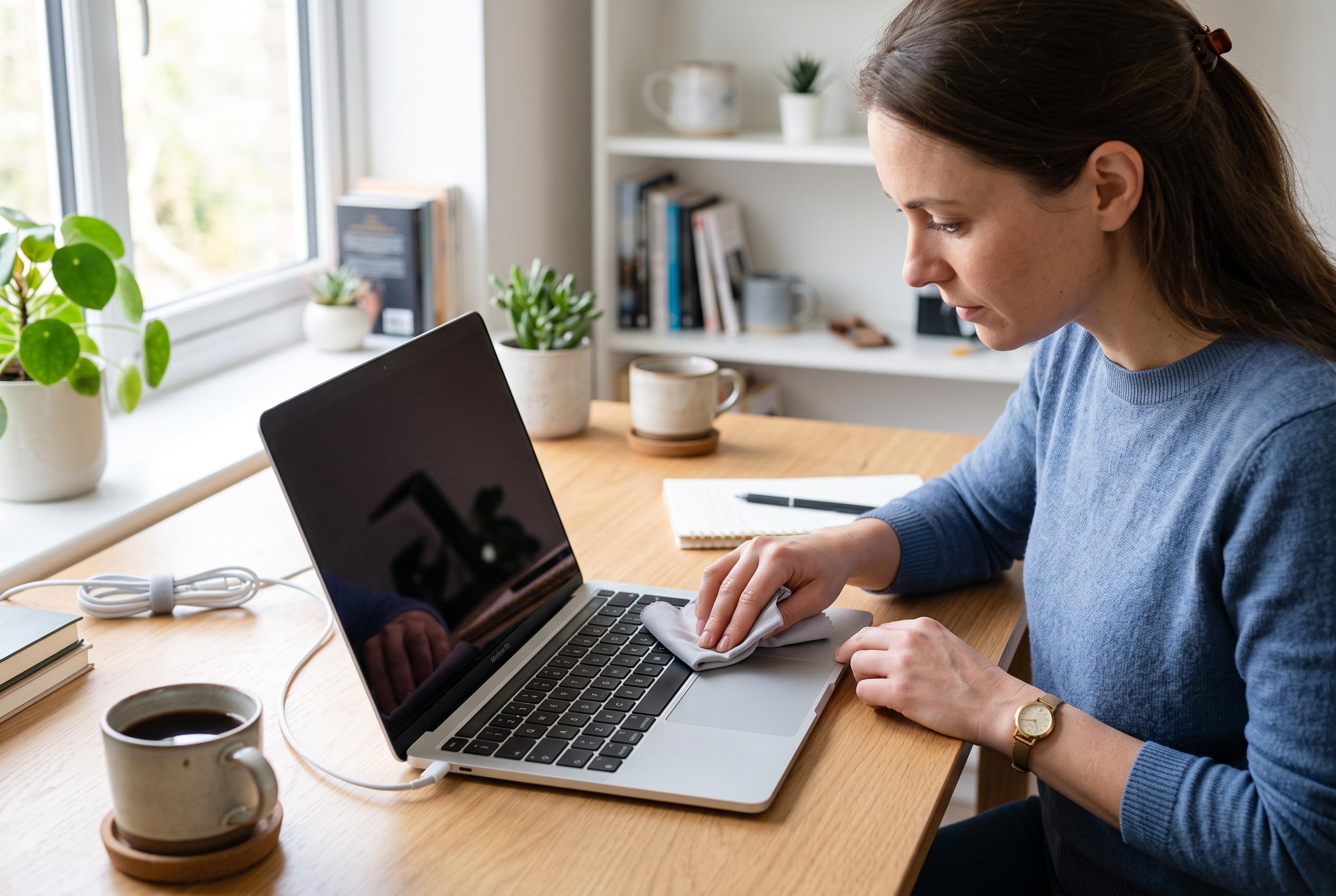

Many Touch ID problems on Mac are caused by basic issues such as sensor cleanliness, skin condition, or software glitches. Re-enrolling fingerprints, restarting, or updating macOS often resolves the problem, with more persistent cases requiring support intervention.
Touch ID on a Mac can fail for reasons that are often ordinary rather than severe. Apple’s own support guidance says the first checks should be basic: make sure both the sensor and the finger are clean and dry, then restart the Mac and try again. Moisture, oil, lotions, cuts and very dry skin can all interfere with fingerprint recognition.
That advice is consistent with wider troubleshooting guides, which note that many failures come from either poor skin contact or a temporary software glitch. Reports from Mac users and repair guides also point to a simple pattern: Touch ID can stop working after an update, after sleep, or after repeated failed scans, and sometimes the fix is as straightforward as removing the saved print and enrolling it again.
If the basics do not help, the next step is to check Touch ID settings and re-add fingerprints from scratch. Apple recommends deleting the existing fingerprint and setting it up again in Touch ID settings, while third-party guides add that enrolling the same finger at slightly different angles can improve reliability. This is especially useful if a finger is worn, calloused or harder to read than before.
A restart can also clear short-lived faults that affect the sensor. Several guides, including Apple’s, treat a reboot as one of the most effective early fixes, particularly after a macOS update. Some reports around macOS Tahoe have linked Touch ID problems to post-upgrade bugs, including cases where fingerprint unlock does not appear reliably on the lock screen after sleep.
Where the Mac uses a Magic Keyboard with Touch ID, hardware compatibility matters as well. ErrorRadar notes that Apple silicon is required for Touch ID keyboards, so Intel Mac owners should not expect the fingerprint sensor to function on those models. If the keyboard is supported, battery charge, a direct USB connection and a clean sensor are all sensible checks before assuming a deeper fault.
For more persistent failures, guides commonly escalate to a reset of the System Management Controller on Intel Macs, or a broader software check such as updating macOS. That is the point at which Apple Support becomes the sensible next step, especially if the Mac still refuses to recognise a fingerprint after re-enrolment and a reboot. In practice, Touch ID problems are usually caused by either unreadable skin data, a dirty sensor, or a temporary system issue rather than a permanent breakdown.
Disclaimer: This content is intended for informational purposes only. Readers are advised to exercise their own judgement, conduct due diligence, or consult a qualified expert before acting on any information provided.



