

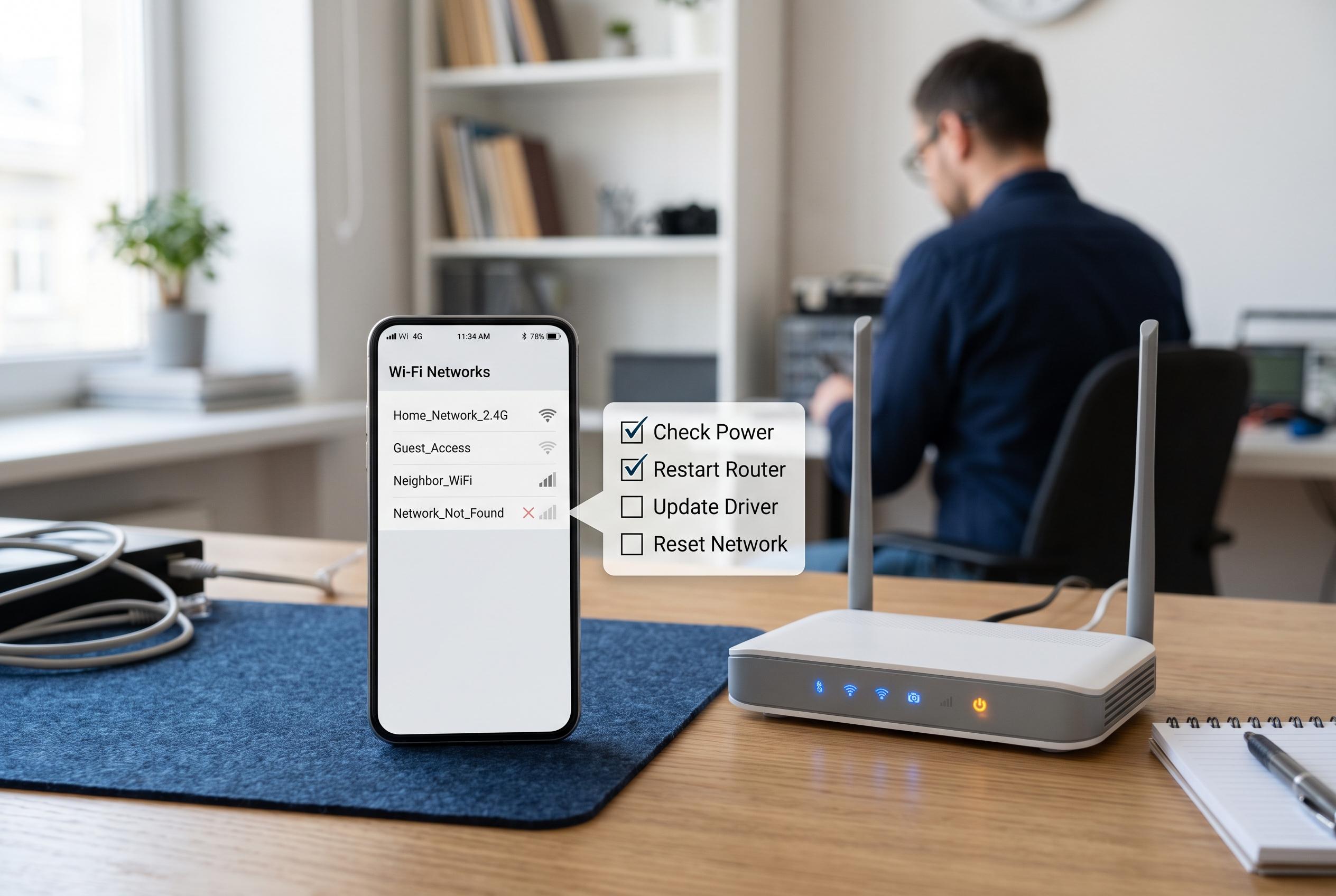

A step-by-step guide to diagnosing and fixing Wi-Fi network name failures on phones, distinguishing between device and router faults to streamline resolution.
When a Wi‑Fi network name fails to appear on a phone, the first task is to decide whether the fault lies with the handset or with the router. That distinction matters because a problem affecting only one device is usually quicker to fix than a household-wide outage. The fastest check is to look for the same network on another device in the same room. If no device can see it, the router or its broadcast settings are the likely cause. If other devices can see it but the phone cannot, the handset, its saved settings, or its compatibility with the network is more likely to blame.
Before changing router settings, rule out a simple phone-side fault. Turning Wi‑Fi off and on again, switching Airplane Mode off, restarting the handset and scanning again near the router can clear temporary connection glitches. Apple’s support advice for iPhone and iPad users also points to checking Wi‑Fi settings, confirming that Airplane Mode is disabled, and removing VPN or security software that may interfere with connectivity. Similar guidance from Android-focused troubleshooting notes that a phone-specific problem should be separated from a broader network failure.
If the network is visible on some devices but not on the phone, the next issue to examine is band compatibility. Some older handsets do not recognise every 5 GHz channel, and a device may also fail to detect a newly enabled 6 GHz network. In that case, the 2.4 GHz band is often the best test because it has wider range and broader compatibility. TP-Link’s support guidance also notes that Wi‑Fi 6, Wi‑Fi 6E and Wi‑Fi 7 equipment can be missed if the router is using an unsuitable regional channel or if the network name has been hidden.
Saved network data can also cause confusion after a password change or router reset. If the phone used to connect but no longer finds the network, forgetting the old profile, restarting the handset and scanning again may restore access. That step is preferable to a full network reset, which clears stored Wi‑Fi details, Bluetooth pairings and some VPN or mobile settings. Several troubleshooting guides recommend this approach because it fixes stale credentials without disrupting the rest of the device.
Router settings deserve attention only when the evidence points that way. If no device can see the network name, check whether Wi‑Fi has been switched off, paused in the router app, scheduled to stop, or hidden through an SSID concealment setting. TP-Link advises confirming that wireless broadcast is enabled and that the router is using a channel appropriate for the region. A recent reboot, firmware change or factory reset can also alter the network name or broadcast behaviour.
A useful rule is to move from the smallest likely cause to the broadest. Start with the phone, test close to the router, check the band, forget the saved network and only then inspect router settings. If the name disappears from every device after a restart, the router is the main suspect. If the name is visible elsewhere but not on one phone, continue with the handset maker’s steps rather than resetting the whole network. That approach avoids unnecessary changes and keeps a minor device fault from becoming a full household outage.
Disclaimer: This content is intended for informational purposes only. Readers are advised to exercise their own judgement, conduct due diligence, or consult a qualified expert before acting on any information provided.



